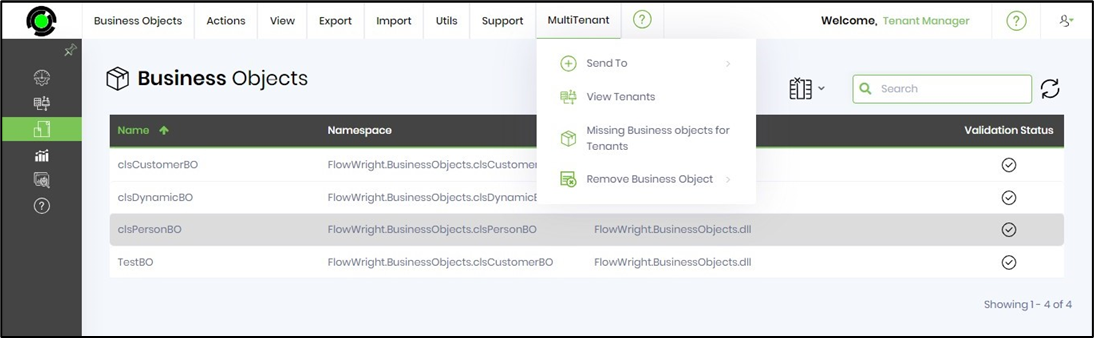
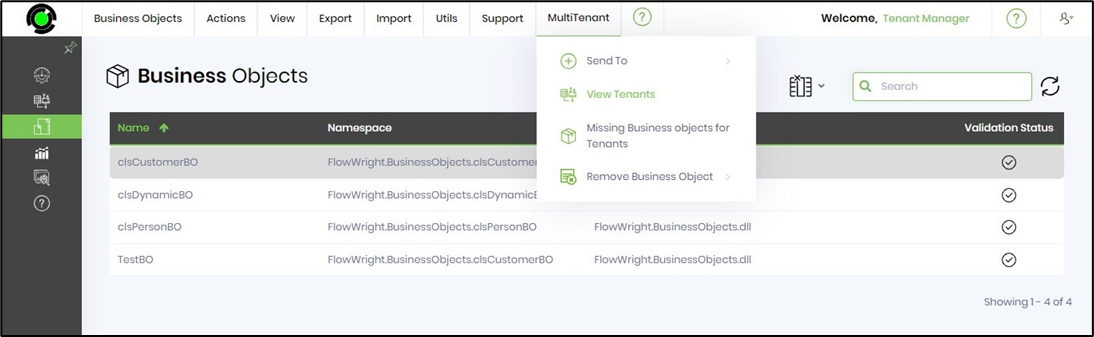
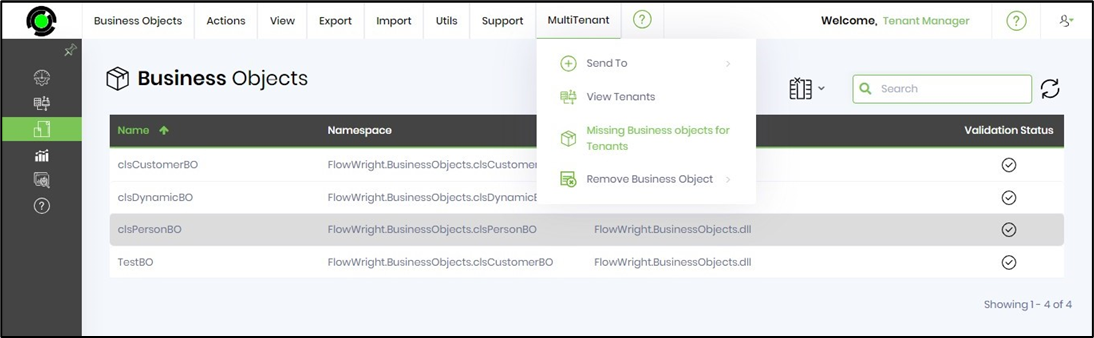
The multi-tenant UI, as shown below, is designed to be familiar. It has features similar to those of a single-tenant setup, along with a dedicated menu for multi-tenant administration functions. Select a BO from the table, then click the MultiTenant menu, as shown below. Based on the selection, you can perform multiple operations.
Send To feature.
The feature sends a BO to either a specific tenant or all tenants.
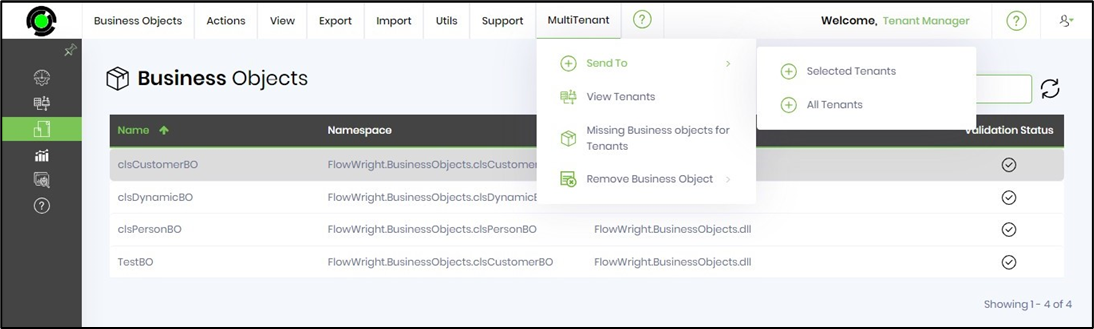
Select a BO from the table, then choose the MultiTenant > Send To > Selected Tenant menu option.
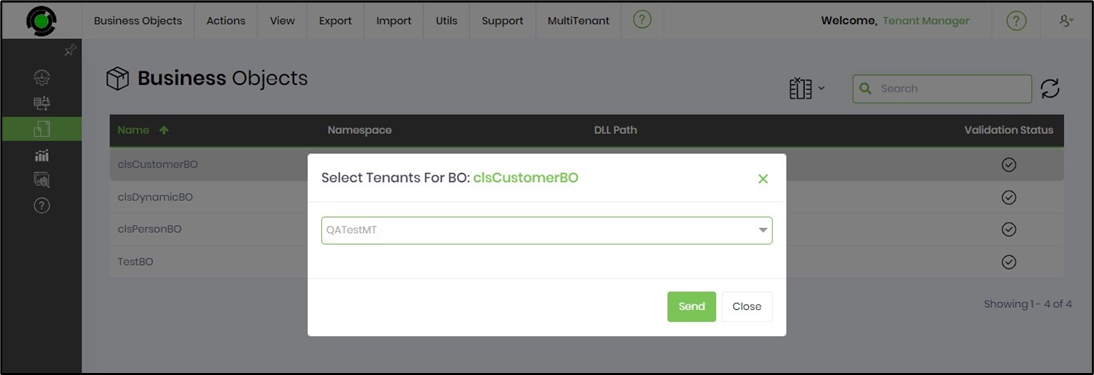
A pop-up window appears for configuration. Choose the tenant(s) from the drop-down list. The selected tenants are shown as comma-separated values in the display box. Click the Send button to confirm.
Click OK to confirm.
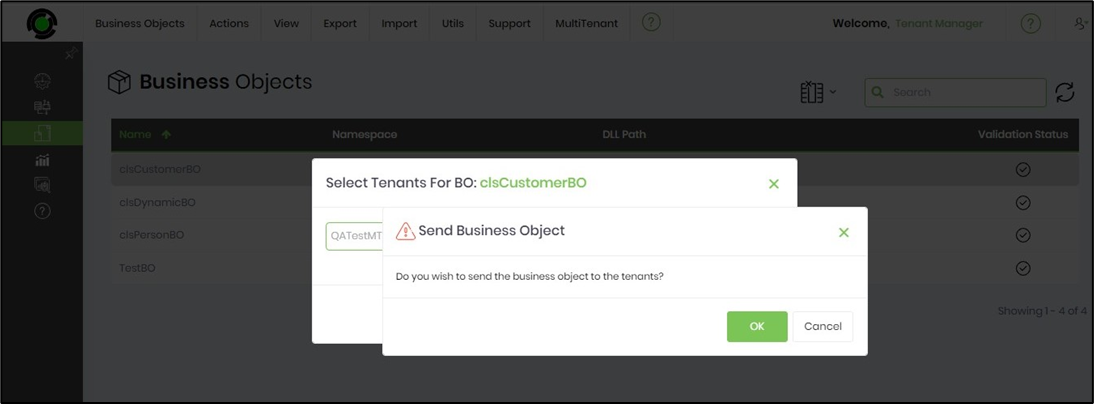
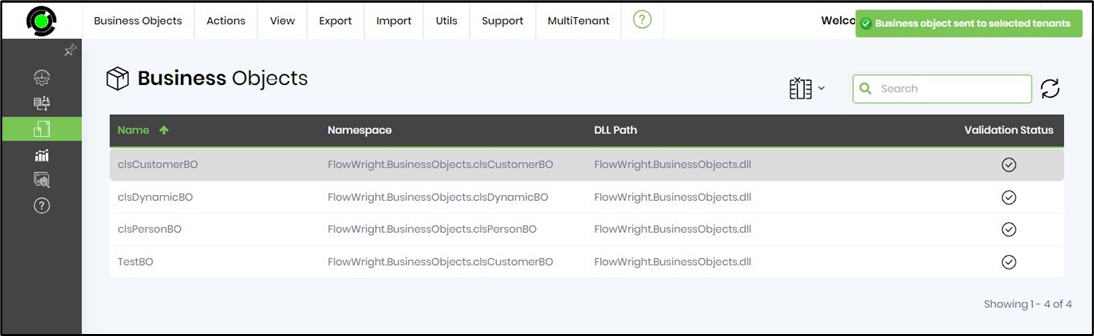
The chosen BO is sent to the tenant and configured. A confirmation message appears in the top-right corner. To send the selected BO to all tenants, navigate to the Send To > All Tenants menu option.
View Tenants feature.
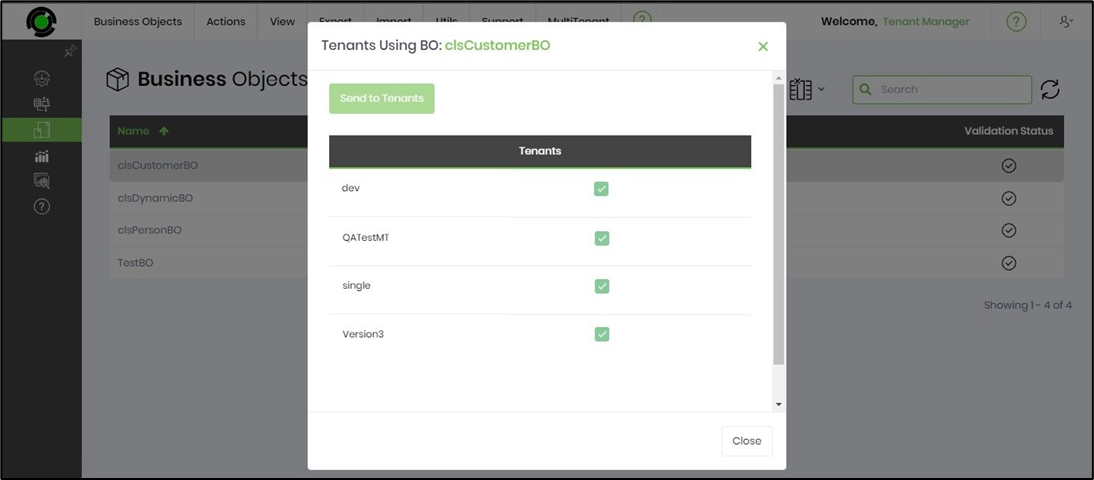
The feature displays a list of tenants configured with the BO.
Select a BO from the table, then click on MultiTenant > View Tenants.
The pop-up window below shows the list of tenants using the BO. After verifying, click the Close button.
Missing BO for Tenants feature.
The feature displays a list of missing BOs for the selected tenant.
On the BO page, navigate to MultiTenant > Missing BO for Tenants option.
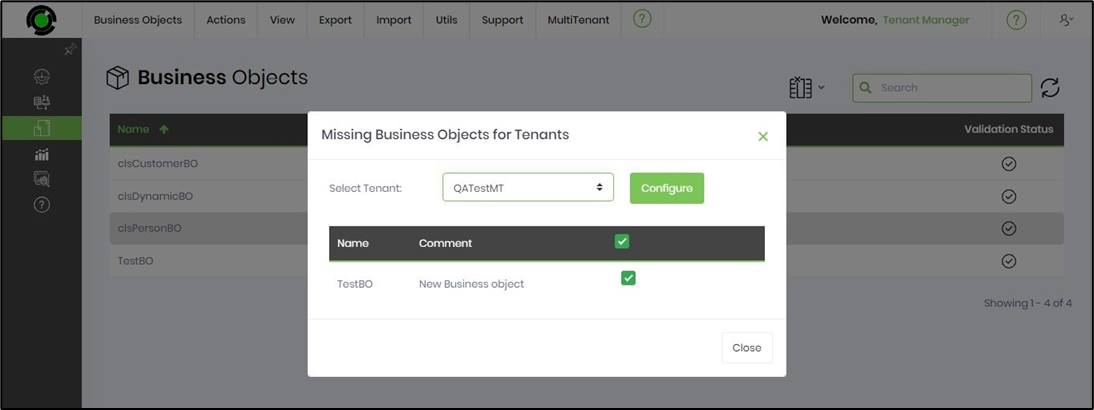
A pop-up window appears for configuration. Choose the tenant from the drop-down list. A table displays the business objects that need configuration. You can select all or only the necessary ones using the checkboxes. Click the Configure button when you are ready.
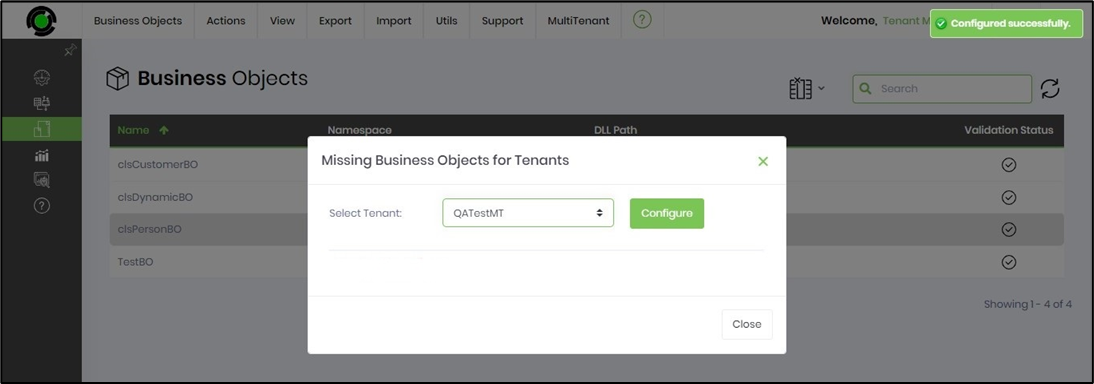
The missing business objects will be set up for the tenant, and a confirmation message will appear in the top-right corner.
Remove the BO feature.
The feature helps remove a BO from the selected tenant.
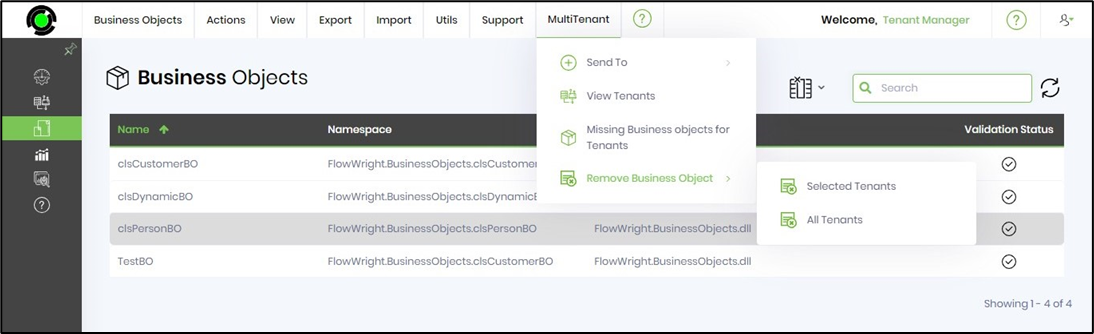
Select a BO from the table, then click MultiTenant > Remove BO > Selected Tenants. Note: You can also remove the selected BO from all tenants by choosing the “All Tenants” option.
A pop-up window appears for configuration. Select the tenant(s) from the drop-down list. The chosen tenants are shown as comma-separated values in the display box. Click the Send button to confirm.
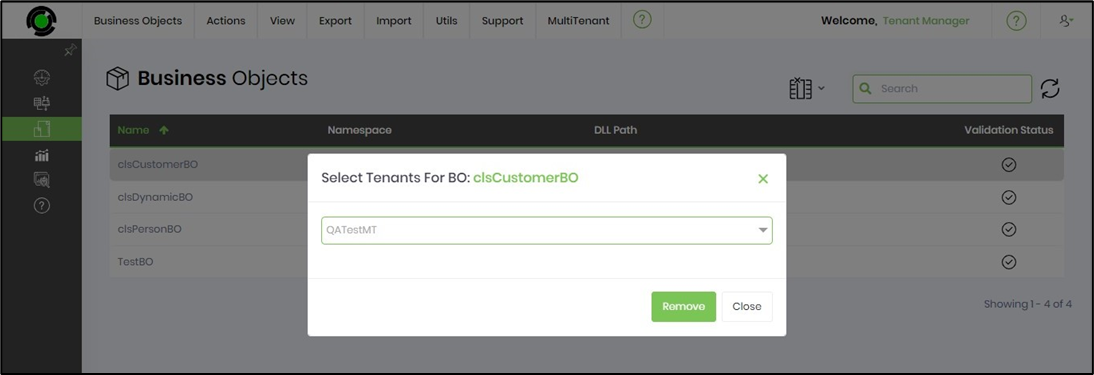
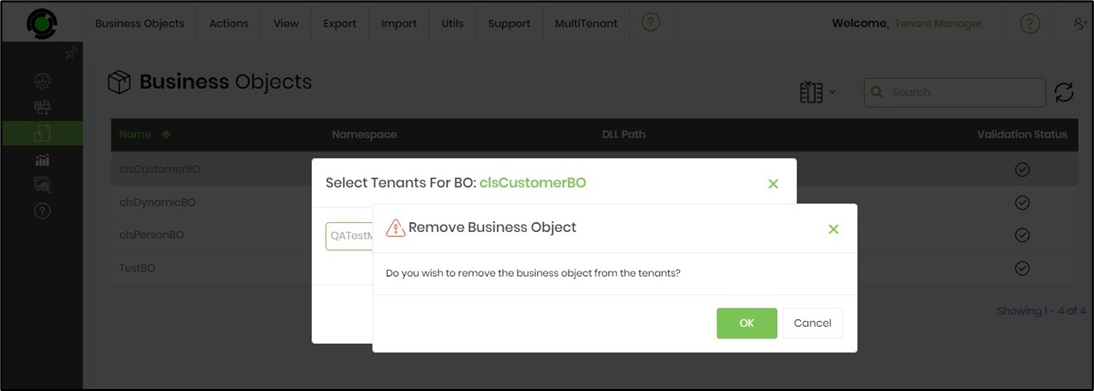
Click OK to confirm.
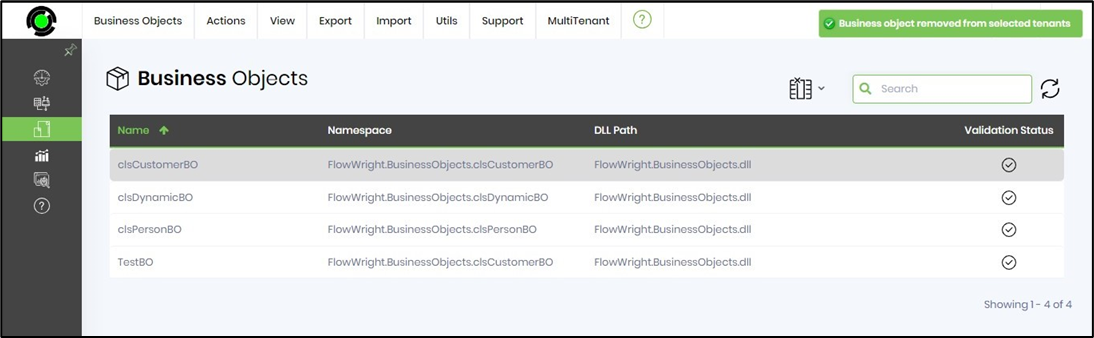
The selected BO is removed from the tenant. A confirmation message appears in the top-right corner.
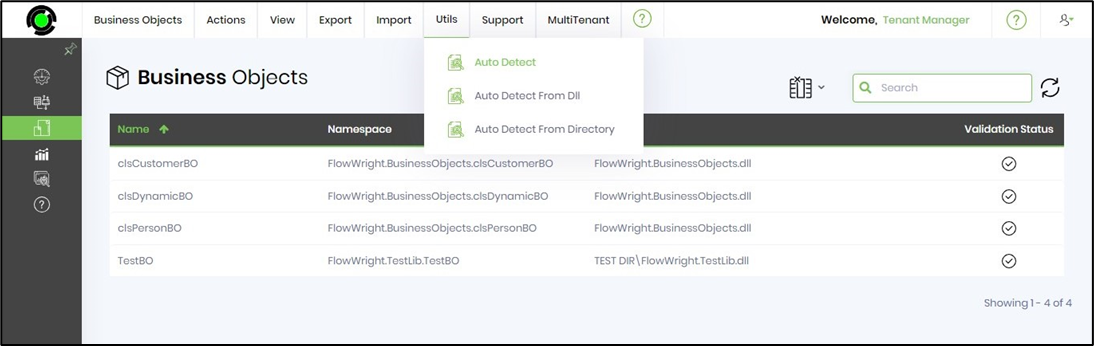
Auto-Detect Business Objects.
This function helps automatically configure the properties and inputs of business objects.
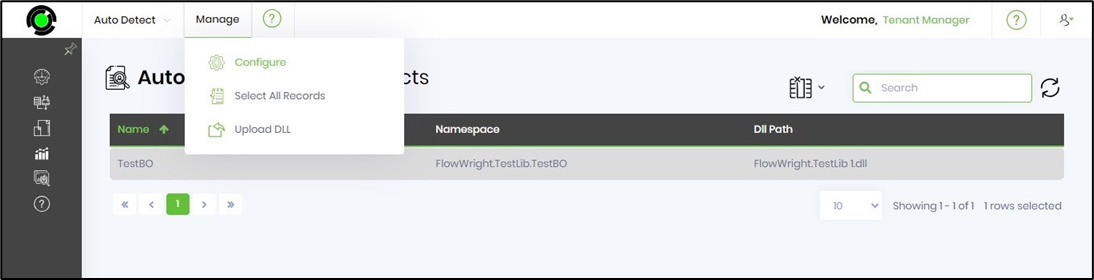
Select the Utils > Auto Detect menu option on the Business Objects page. Likewise, you may auto-detect the new or customer business object from the DLL or Directory file path menu options.
The new page displays the business objects that require configuration. Select an item and click the Manage > Configure menu option. The chosen BO is configured, and a confirmation message appears in the top-right corner.
Request a Business Object.
You can use this function to email the FlowWright Support team for feature enhancements if you wish.
Select the Support > Request Items menu option on the Business Objects page.
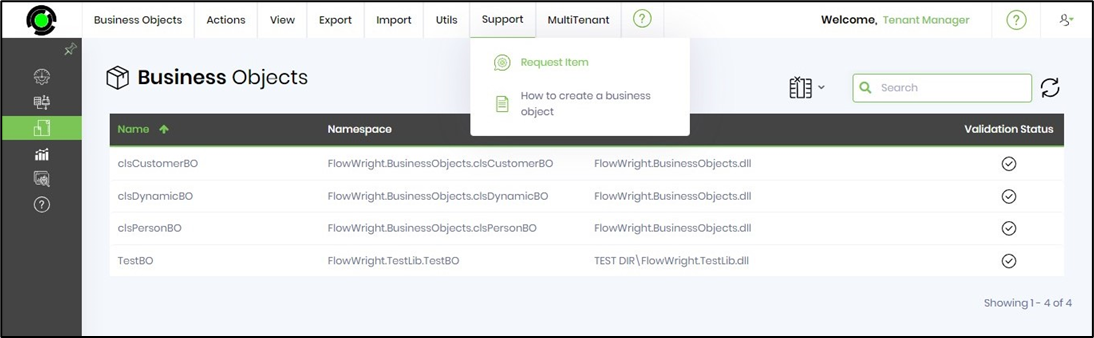
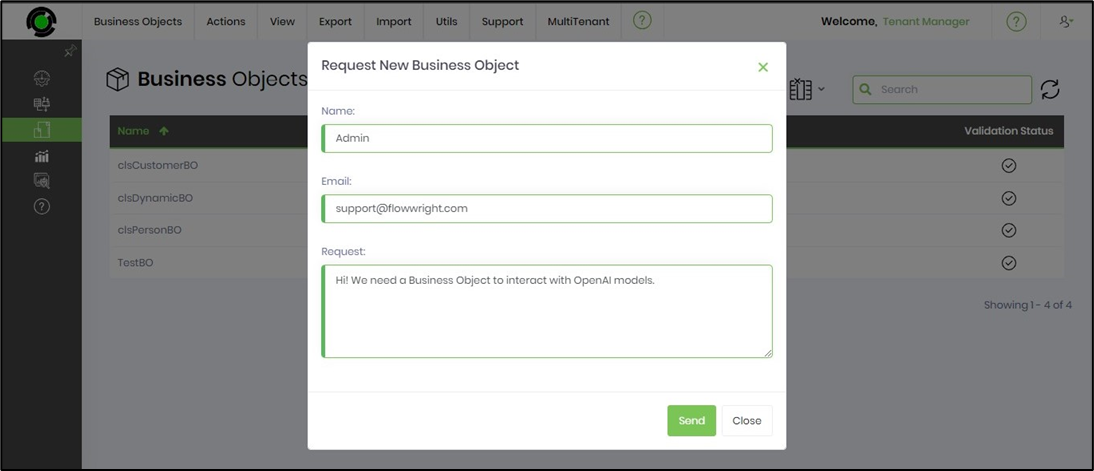
A pop-up window appears for configuration. Enter the required information, then click the Send email button.