FlowWright AI Copilot, designed with user-friendliness in mind, functions much like the Windows Copilot. It allows users to effortlessly pose questions about FlowWright data, empowering them to delve deeper into their data analysis.
Copilot offers the following features:
- Answer generic questions based on a master data set and summary data
- Answer questions based on context, based on what page and what data is selected
- Designer predictions
Examples of generic questions:
- # of total open tasks
- # of total completed tasks
- # of process definitions
- # of process instances
Examples of context-based questions:
- Definitions page
- Who has the most # of definitions
- Who is most active
- What definitions have the highest # of instances
- What definitions haven’t been updated in the last year
- Selected process definition
- What is the list of tasks
- # of steps
- Give a summary of the process
- Selected process instance
- What’s the longest step
- What users are involved
Examples of designer-based questions:
- Process Designer
- Suggest and build a diagram based on a question like “Create a change control process.”
- Given the current step, guess the next couple of steps
- Take the last # of steps before the current step and predict the following # of steps
- Forms Designer
- Provide a question for a form; AI automatically builds the form
AI Configuration Settings
There are two modes of operation: AI Assistance is ON or OFF.
With AI Assistance as ON, the configured AI Provider shall utilize the online AI service, and FlowWright shall communicate with these services to provide the results.
You'll need to navigate to the Status - Settings - AI Copilot page.

The AI Copilot page is rendered as shown below. You must select 'AI Assistance' as ON and select the AI Provider from the drop-down list. Click Refresh to refresh the list if needed. Click the link to understand how to configure an AI Provider. Note: The application configures the “Default OpenAI Provider” with a new installation.

Click the drop-down list to select multiple MCP Servers, as shown below.

Click the drop-down list to select multiple User Access Roles, as shown below.

Click the Test button to verify the configuration. A confirmation message appears in the top-right corner. Click the Save button to confirm.
Note: We can disable Copilot only in certain areas, based on the roles configured for access.
The AI Copilot error logging is available in the System Log, under Source: AICopilot.

Page Copilot User Interface
The following FlowWright features provide a Page Copilot User Interface.
- Tasks
- Process Definitions
- Process Instances
- Form Definitions
- Form Instances
Create Process - Copilot UI
On the Process Definition page, select the Copilot—Create Process menu. If this function is not visible, you may have to check the Status—Settings—AI Copilot page.

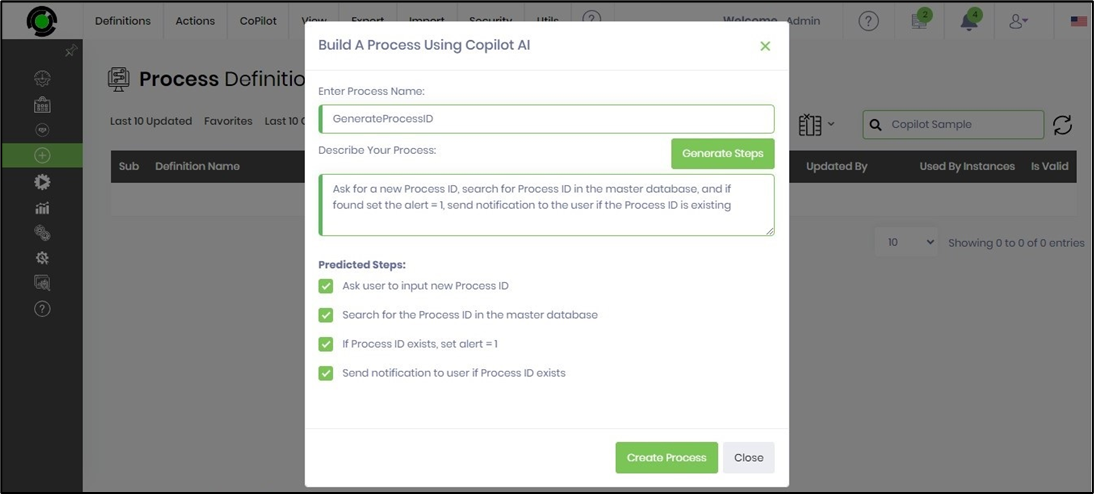
A pop-up window is displayed for configuration. Provide a process name and describe it in a few words, as shown in the example below. You may click the microphone icon and explain the process orally. Click the Generate Process button.

The predicted steps appear as a list of checkboxes, as shown below. If an item is irrelevant, you may uncheck it. When ready, click the Generate Process step.
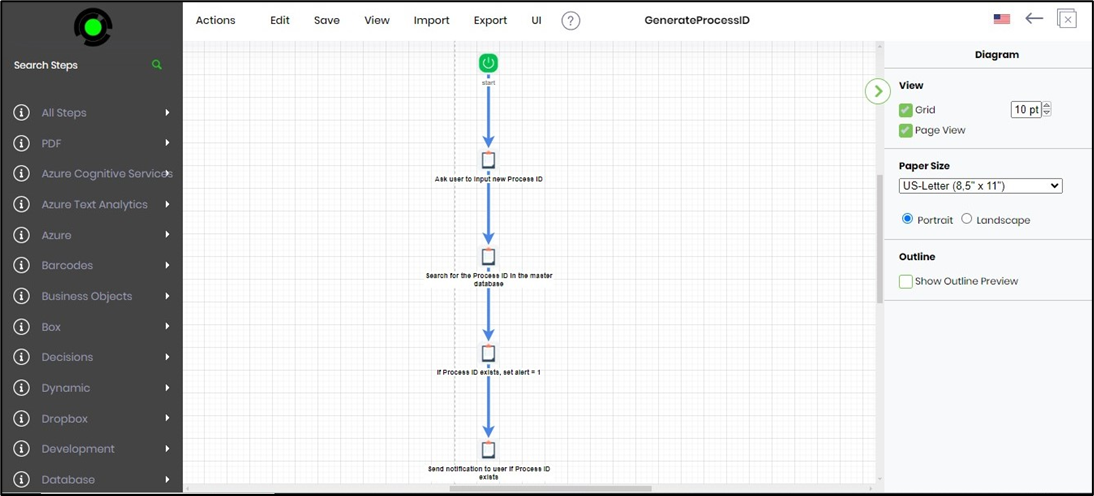
The AI Copilot generates a new process definition and workflow that aligns with the predicted steps. Defining the variables and globals to be used in the process would be beneficial. You can modify the workflow to include other process steps to enhance the functionality. Click the Save menu option to confirm the changes.
Process Designer - Predict new steps
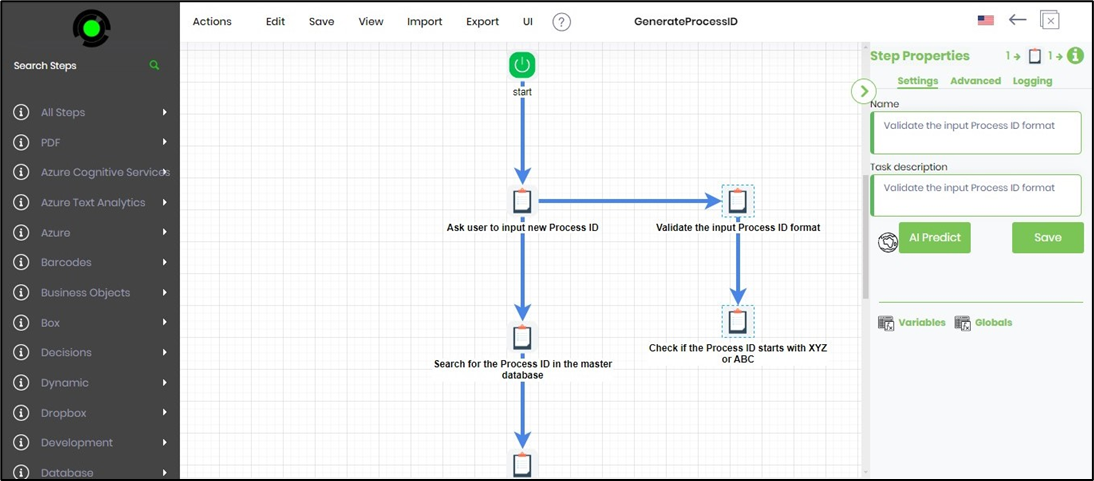
You may also use the AI Predict feature by selecting any process steps.
As shown below, select the Task step to use the AI Predict feature in the Step Properties pane. You can add a few more this way, as needed.
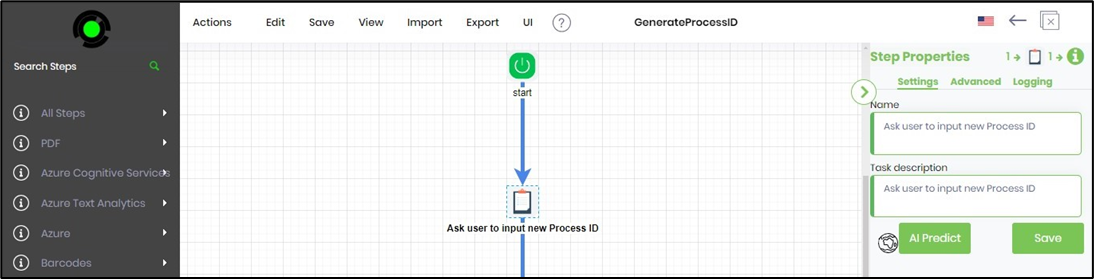
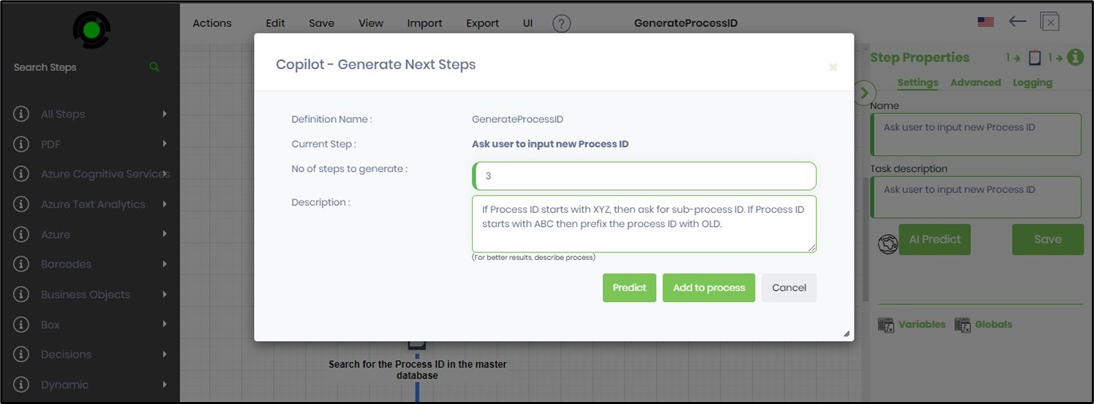
A pop-up window is displayed for configuration. Provide the number of steps required to generate, with a minimum of three steps. Describe the new steps. Click the Predict button when ready.
The new predicted steps appear as a list of checkboxes, as shown below. If an item is irrelevant, you may uncheck it. When ready, click the Add to Process button.
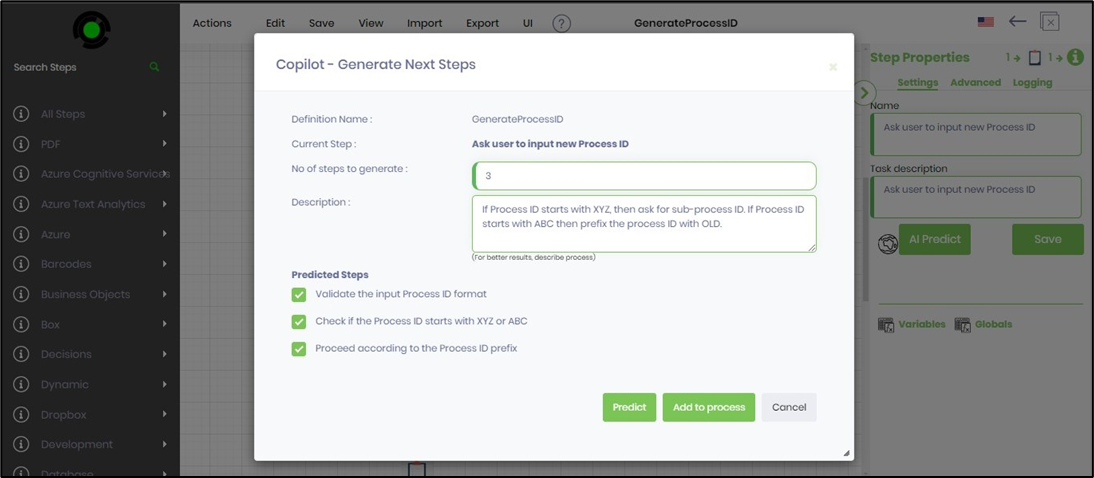
The AI Copilot updates the process definition by adding the new predicted steps to the workflow. Defining the new variables and globals to be used in the modified process would be beneficial. Then, click the Save menu option to confirm the workflow.