Description:
The Brand Detection step enables a FlowWright workflow to identify popular brands in an image.
This step is part of the Azure Cognitive Services category and appears in FlowWright as Brand detection. It accepts an image file path as input and stores the resulting brand-detection information in a workflow variable or global variable.
Use this capability when you need to analyze image content as part of an automated business process. For example, a workflow can process uploaded product images, promotional material, photographs, or other image files and use the detected brand information in subsequent workflow activities.
Typical uses include:
- Detecting brands in uploaded product images
- Supporting product-image classification
- Processing marketing or promotional images
- Identifying brand information for downstream processing
- Routing workflows based on image-analysis results
- Storing detected brand information for reporting
- Supporting image-based business rules
- Enriching workflow records with image-analysis information
This step makes image analysis part of an automated FlowWright workflow, so brand information doesn't need to be manually entered or reviewed.
Inputs
- Image file path – Specifies the path to the image file that should be analyzed. This property is required.
- Variable/Global to store the result – Specifies the workflow variable or global variable where the brand-detection result will be stored. This property is required.
Returns
- True – Indicates that the brand-detection operation completed successfully. Workflow execution continues through the True path.
- False – Indicates that the brand-detection operation did not complete successfully. Workflow execution continues through the False path.
Usage:
The Brand Detection step is typically placed after a workflow obtains or generates an image that needs analysis.
During execution:
- Provide the path to the image file.
- Execute the Brand Detection step.
- The image is processed for popular brand information.
- The resulting value is stored in the configured workflow variable or global variable.
- Continue workflow processing through the True or False path.
A typical workflow might look like this:

Typical workflow scenarios include:
- Product image processing
- Marketing-content review
- Automated image classification
- Brand-related data enrichment
- Image-based routing
- Product catalog processing
- Image analysis before approval
- Automated reporting
To use this step, set up an Azure ML service in the FlowWright application. Go to the Status > Settings > Configuration page. Select the Azure ML category from the drop-down menu. Click here to learn more about the Azure ML and Cognitive Service subscription.
A sample Azure ML configuration is provided here for reference.

Example:
Let’s build and execute the “clsAzureMLGetBrandsDef” example.
- Create a new process definition named “clsAzureMLGetBrandsDef” and open it in designer mode.
- Drag a "clsAzureMLgetBrands" step to the canvas.
- Connect the dots between the “Start” and “clsAzureMLgetBrands” steps, as shown above.
- Select the line between the steps to configure the “Connection Properties”. The default property values are “None, True, False, Error, and Evaluate”. Depending on the step’s purpose, you can configure additional values.
- Define a variable or a global to store the result.
-
Click the "clsAzureMLgetBrands" step to set up its "Required" properties. Enter a name for the step, specify an image file path, and select a variable or global reference to store the result. Then click the Save button. Note: Click the "AI Predict" button to let Copilot add new process steps that match your process description.

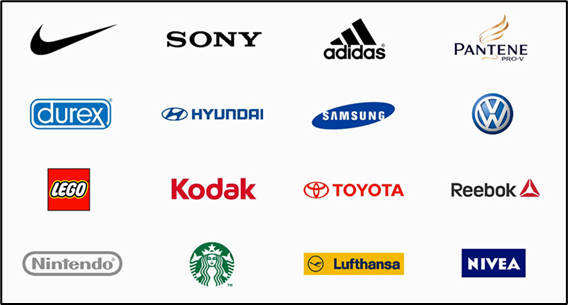
- The image file path indicates where the image is stored on the server. The example image used is included below for reference.
- The “Logging” configuration is essential for documentation and tracking workflow progress and completion percentage. This is achieved by configuring the step state and percent fields individually, as shown in the images below. Set up the “Logging” with the following properties.

- Save the process definition, create a new instance, and run it. Render the process instance. Click the process step to view its properties. The step should retrieve the brand details and store the result in “variable.result” as configured.

Tips:
- Ensure that the configured Image file path points to an accessible image before executing the step.
- Store the result in a workflow variable only when needed within the current workflow instance.
- Use a global variable when the result needs to be referenced more broadly within the workflow environment.
- Validate that the image-processing result is available before using it in subsequent business rules or workflow decisions.
- Use the False path to handle image-processing failures or unexpected input conditions.
- Combine this step with file-processing, decision, notification, reporting, or database steps to build end-to-end image-analysis workflows.
- If the exact result format is important to downstream processing, test the step with representative images and confirm the runtime output before designing dependent logic.
Feature Comparison:
Brand Detection vs. Describe Image:
Both Brand Detection (clsAzureMLGetBrands) and Describe Image (clsAzureMLDescribeImage) are Azure Cognitive Services image-analysis steps, but their intended outputs are different.
| Brand Detection | Describe Image |
|---|---|
| Detects popular brands in images. | Generates a description of an image in human-readable language with complete sentences. |
| Display name: Brand detection. | Display name: Describe image. |
| Requires an Image file path. | Also requires an Image file path. |
| Stores the result in a workflow variable/global. | Stores the description in a workflow variable/global. |
| Focuses specifically on brand information found in an image. | Focuses on providing a broader human-readable image description. |
| Useful for brand-oriented image processing and classification. | Useful when a workflow needs descriptive text representing the image. |
| The XML does not define the detailed structure of the brand result. | The step's purpose is explicitly described as producing human-readable language in complete sentences. |
| Provides True/False execution paths. | Also provides True/False execution paths. |
When to use each step
Use Brand Detection when the workflow needs to answer:
“Which popular brand information can be detected in this image?”
For example, a product-image workflow could use the result to enrich a product record or route the image for additional processing.
Use Describe Image when the workflow needs to answer:
“What does this image show, expressed as a human-readable description?”
For example, an image-documentation workflow could use the generated description in a report, document, notification, or other business output.
Definition Sample:
You may download the sample workflow definition from the link provided and import it into your FlowWright environment.
Note: Verify and complete any missing configuration after importing the sample, including:
- Image file path
- Variable/Global to store the result
- Image availability and accessibility
- Success and failure workflow branches
- Any downstream processing that consumes the returned result
After verifying the configuration, save and publish the workflow before execution.
Click here to download the sample file.