Description:
The Get Lookup Data workflow step retrieves a value from FlowWright lookup data using the configured lookup criteria.
The step allows the workflow designer to specify the lookup category, lookup item text, and an optional lookup item filter. The retrieved value can optionally be stored in a FlowWright Variable or Global variable for use by subsequent workflow activities.
The step supports:
- Specifying a lookup category.
- Specifying the lookup item text.
- Applying an optional lookup item filter.
- Storing the retrieved lookup value in a Variable or Global variable.
- Using dynamically supplied lookup information during workflow execution.
- Routing the workflow through True or False return paths.
Inputs
- Lookup category - Specifies the lookup category from which the data should be retrieved.
- Lookup item text - Specifies the text identifying the lookup item to retrieve.
- Lookup item filter - Specifies an optional filter to further identify or constrain the lookup item.
- Variable/Global to store the value- Specifies the FlowWright Variable or Global variable in which the retrieved lookup value can be stored.
Returns
- True – The True return path can be connected to the next workflow activity after the lookup-data operation completes successfully.
- False – The True return path can be connected to the next workflow activity after the lookup-data operation completes successfully.
Usage:
The Get Lookup Data step is typically used when a workflow needs to retrieve a lookup value during process execution rather than using a fixed value in the process definition.
The workflow can provide the lookup item text and, when needed, specify the lookup category and filter. The resulting value can be stored in a Variable or Global variable for use by subsequent activities.
A typical workflow pattern is:
Identify Lookup Item → Get Lookup Data → Store Result → Continue Process
For example:
Receive Request → Get Lookup Data → Use Retrieved Value → Process Request
The optional Variable/Global input allows the workflow designer to specify where the retrieved value should be stored.

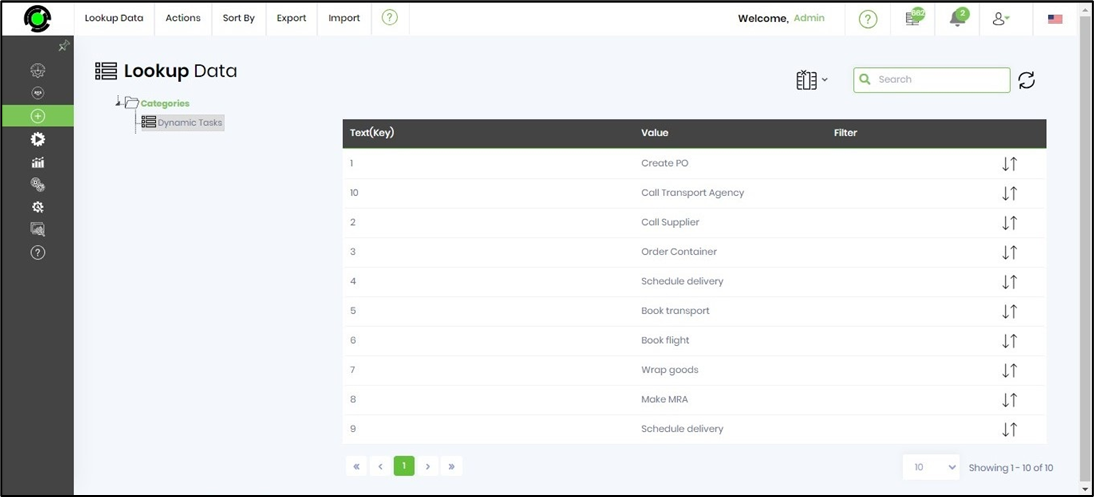
The “clsGetLookUpData” step requires the FlowWright Lookup Data to be preconfigured. To create a list, go to the Manage Config > Lookup Data page. A sample Lookup Data list is shown below.
Typical Workflow Suggestions:
Retrieve a Lookup Value for a Workflow Decision
Use the step when a workflow needs a lookup value before evaluating a business rule or decision.
Example:
Receive Request → Get Lookup Data → Evaluate Decision → Continue Process
The retrieved lookup value can be stored in a Variable and used by the decision logic.
Retrieve Lookup Data for Form Processing
Use this step when workflow processing requires a lookup value associated with information submitted through a form.
Example:
Form Submission → Get Lookup Data → Process Form Data → Complete Request
The lookup item text can be populated from workflow or form data.
Retrieve a Value Before Sending a Notification
Use this step when a workflow needs lookup data before preparing notification content.
Example:
Process Request → Get Lookup Data → Prepare Notification → Send Notification
The retrieved value can be stored in a Variable or Global variable and referenced by the notification activity.
Use a Dynamic Lookup Category and Item
Use this step when the lookup category and item text are determined during workflow execution.
Example:
Receive Input → Determine Lookup Criteria → Get Lookup Data → Continue Process
You can supply the category and lookup item text dynamically using workflow data.
Retrieve Filtered Lookup Data for Downstream Processing
Use the step when an optional filter is required to further identify the lookup item before the value is used by another workflow activity.
Example:
Identify Lookup Criteria → Get Lookup Data → Process Retrieved Value → Complete
The Lookup item filter can be configured when additional filtering is required.
Example:
Let’s build and execute the “clsGetLookupDataDef” example.
- Create a new definition named “clsGetLookupDataDef” and open it in designer mode.
- Drag the “UpdateVariable, clsGetLookupData" step to the canvas.
- Connect the dots between the “Start” and other steps, as shown above.
- Select the line between the steps to configure the “Connection Properties”. The default property values are “None, True, False, Error, and Evaluate”. Depending on the step’s purpose, you can configure additional values.
- Define variables or globals to store the value and the result.
- Click the "updateVariable" step to configure its “Required” properties. Provide a name for the step, then click the Save button. Note: Click the "AI Predict" button to have the Copilot add new process steps that match your process description.

- Click the "updateVariable" step to configure its “Optional” properties. Click the button to configure multiple variables. Click the Add Row (+) button to insert an empty row. Enter a variable name and value. Click the Save button. You may add multiple variables and values using the Add Row button.

- Click the "clsGetlookUpData" step to configure its “Required” properties. Provide a name for the step and a lookup item text or a variable reference. Then click the Save button. Note: Click the "AI Predict" button for the Copilot to add new process steps that match your process description.

- Click the "clsGetlookUpData" step to configure its “Optional” properties. Provide a lookup category reference, a lookup item filter reference, and a variable or global to store the value. Click the Save button.

- The “Logging” configuration is necessary for documentation and also measures workflow progress and percent complete. Configure the step state and percent fields individually, as shown below. Configure the “Logging” using the following properties.

- Save the process definition, create a new instance, and execute it. Render the process instance. Click the process step to view its properties. The step should retrieve the lookup data value and store the result in a “variable.storeValue” as configured.

Tips:
- Provide the required Lookup item text before executing the step.
- Use Lookup category when the lookup data needs to be associated with a specific category.
- Use Lookup item filter when additional filtering is required.
- Use a meaningful Variable or Global variable name when storing the retrieved value.
- Use workflow Variables when lookup criteria are determined dynamically.
- Verify that the lookup item text matches the intended lookup data.
- Keep lookup criteria consistent across workflows that use the same lookup data.
- Use the True path for normal processing after the lookup operation.
- Use the False path for appropriate alternate processing or error handling.
- Test the step with representative lookup data before deploying the workflow.
- Test both the configured and optional input combinations used by the workflow.
- Verify that downstream workflow activities reference the correct Variable or Global variable.
- Avoid unnecessary filtering when the lookup item text already uniquely identifies the required data.
Definition Sample:
You may create a FlowWright process definition that includes the Get Lookup Data step and configure it to meet the workflow requirements.
When configuring the step, verify:
- Lookup category, when required.
- Lookup item text.
- Lookup item filter, when required.
- Variable or Global variable used to store the retrieved value.
- Workflow Variable references, when lookup criteria are dynamic.
- True workflow path.
- False workflow path.
- Environment-specific workflow configuration.
After verifying the configuration, save the process definition before executing a process instance.
Click here to download the sample file.