Description:
The Log Error workflow step logs an error message to the System log. It allows the workflow to specify the source of the error, provide a detailed error message, and optionally select a logging priority.
The step supports:
- Specifying the source of an error.
- Providing a detailed error message.
- Logging multiline error information.
- Assigning a logging priority.
- Recording workflow errors in the System log.
- Routing workflow execution through True or False return paths.
Inputs
-
Source - Specifies the source associated with the error being logged. This is a required
stringinput. - MessageData - Specifies the error message or details that should be written to the System log.
- Priority - Specifies the logging priority for the error.
Errors
- True – The True return path can be connected to the next workflow activity after the error logging operation.
- False – The False return path can be used for error handling or an alternative workflow path.
Usage:
The Log Error step is typically placed in an error-handling path when a workflow needs to record information about an unsuccessful or exceptional operation.
A typical workflow pattern is:
Process Activity → Error → Log Error → Handle Error
For example:
Start
  ↓
Process Data
  ↓
   Error
     ↓
  Log Error
     ↓
Notify Administrator
Typical Workflow Suggestions:
Log Errors from a Failed Processing Step
Use the Log Error step after a workflow activity fails so that the failure information is recorded in the System log.
Example:
Process Data
     ↓
   Error
     ↓
 Log Error
     ↓
Continue Error HandlingError Source:
Data Processing
Error message:
Data processing failed for the current process instance.
Log Errors Before Notifying an Administrator
Use Log Error before a notification step so that the error is recorded before an administrator is notified.
Example:
Process Request
      ↓
    Error
      ↓
  Log Error
      ↓
Notify Administrator
Log Detailed Multi-Line Error Information
Because the Error message to log property uses a multilineTextBox data type, the step can be used to record a structured error message containing multiple lines.
Example:
Error Source:
Order Processing

Error message:

Order processing failed.

Order Number: {{OrderNumber}}
Customer: {{CustomerName}}
Process Instance: {{InstanceID}}
Processing Step: Validate Order
Log Errors from Integration Processing
Use the step in workflows that communicate with external systems or services.
Example:
Prepare Request
      ↓
External Integration
      ↓
    Error
      ↓
  Log Error
      ↓
Handle Integration Failure
Log Errors with an Appropriate Priority
Use the optional Priority property when the workflow needs to associate a logging priority with the error.
Example:
Validate Request
      ↓
    Error
      ↓
Log Error
      ↓
Error HandlingError Source:
Request Validation
Error message:
Request validation failed.
Priority:
[Select appropriate log priority]selectLogPriority property type.
Example:
Let’s build and execute the “clsLogErrorDef” example.
- Create a new process definition named “clsLogErrorDef” and open it in designer mode.
- Drag a "clsLogError" step to the canvas.
- Connect the dots between the “Start” and "clsLogError" steps, as shown above.
- Select the line between the steps to configure the “Connection Properties”. The default property values are “None, True, False, Error, and Evaluate”. Depending on the step’s purpose, you can configure additional values.
- Click the "clsLogError" step to configure its “Required” properties. Provide a name for the step, the source of the error message, and the message to log. Click the Save button. Note: Click the "AI Predict" button for the Copilot to add new process steps that match your process description.

- Click the "clsLogError" step to configure its “Optional” properties. Select a priority from the dropdown list (Low, Medium, High). Then click the Save button.

- The “Logging” configuration is necessary for documentation and also measures workflow progress and percent complete. This is achieved by configuring the step state and percent fields individually, as shown in the images below. Configure the “Logging” using the following properties.

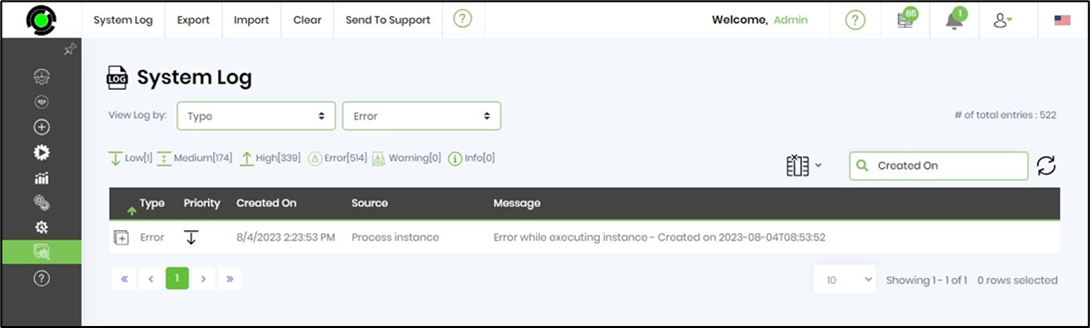
- Save the process definition, create an instance, and execute it. As configured, the process step should log the error message to the System log. Navigate to the Status—System log page and select the log by type and error. Note: If the error log table exceeds a predefined size, it is automatically trimmed (records are deleted). This scheduled job is defined on the server and is triggered when the table size grows.
Tips:
- Provide a meaningful Error Source so that the origin of the error can be identified easily.
- Include enough detail in the error message to help troubleshoot the failed operation.
- Use the multiline message field to organize complex error information into readable sections.
- Include relevant workflow context such as process instance information, record identifiers, or the failed operation when appropriate.
- Use meaningful and consistent error-source names across workflows.
- Configure Priority when the workflow requires differentiated log severity or importance.
- Do not include sensitive information such as passwords, authentication tokens, or secrets in the error message.
- Avoid logging unnecessary personal or confidential information.
- Connect the False path to appropriate error-handling logic.
- Test the workflow using both expected error and successful execution scenarios.
- Verify the System log after executing the workflow to confirm that the message is recorded as expected.
- Use consistent message formatting when multiple workflows write similar types of errors.
- Keep error messages specific rather than using generic messages such as
An error occurred. - Include the operation that failed in the error message where useful.
- If an error is followed by an administrator notification, log the error before sending the notification so that the event is recorded independently of the notification process.
- Verify the available logging-priority options in the FlowWright environment before documenting specific priority names.
Definition Sample:
You may download the sample definition and later import it into your FlowWright Process Definition (XML file) or Form Definition (HTML file).
Note: Verify and complete any missing configuration after importing the sample, including:
- Error Source.
- Error message to log.
- Priority.
- Workflow Variable references used in the message.
- Environment-specific logging configuration.
- Downstream True and False workflow paths.
- Error-handling and notification activities.
After verifying the configuration, save the Process Definition before execution.
Click here to download the sample file.