Description:
The IsTest Mode workflow step determines whether the current process instance runs in test mode. This logic step lets you provide different workflow behavior for test-mode and non-test-mode executions.
The step supports:
- Determining the execution mode of the current workflow instance at runtime.
- Identifying test-mode instance executions.
- Routing test-mode executions through a dedicated workflow path.
- Routing other executions through an alternative path.
- Using the result to control subsequent workflow processing.
- Adding test-specific processing without changing the main workflow structure.
Inputs
- None - The step determines the execution mode from the current workflow instance.
Returns
- True: The True return path can be used for the workflow path associated with a test-mode execution.
- False: Use the False return path for the workflow path associated with an execution that is not in test mode.
Usage:
The IsTestMode step is typically placed where a workflow needs to behave differently depending on whether the current instance is executing in test mode.
Because the step does not require any input properties, the workflow simply reaches the step and the step determines the execution mode of the current instance.
A typical workflow pattern is:
Start → Test Mode? → Select Processing Path
For example:
                    ┌── True → Test Processing
                    │
Start → Test Mode? ──┤
                    │
└── False → Production Processing- Execute test-specific activities.
- Bypass selected production operations during testing.
- Send test notifications instead of normal notifications.
- Use test-specific integration processing.
- Add diagnostic or validation activities.
- Route test instances to a controlled completion path.
- Continue through the standard workflow for non-test executions.
The step is particularly useful when the same process definition needs to support both testing and normal execution without requiring separate workflow definitions.

Typical Workflow Suggestions:
Separate Test and Normal Processing
Use the step at the beginning of a workflow to separate test execution from normal execution.
Example:
Start → Test Mode? → Test Path / Normal Path
             ┌── True → Test Path
             │
Start → Test Mode?
             │
             └── False → Normal Path
Use Test-Specific Notifications
Use the step to prevent test executions from following the same notification path as normal executions.
Example:
Process Request → Test Mode? → Prepare Test Notification / Send Normal Notification
For example:
                 ┌── True → Send Test Notification
                 │
Process → Test Mode?
                 │
                 └── False → Send Normal Notification
Bypass an External Integration During Testing
Use the step before an external integration when test executions should follow a different path.
Example:
Prepare Request → Test Mode? → Test Integration / External Integration
                    ┌── True → Simulated/Test Processing
                    │
Prepare Request → Test Mode?
                    │
└── False → External IntegrationThe Test Mode? step itself only determines the execution mode; any simulated or alternative integration behavior must be provided by the activities connected to the selected path.
Add Diagnostic Processing for Test Instances
Use the step to perform additional diagnostic activities when a workflow is being tested.
Example:
Start → Test Mode? → Test Diagnostics / Normal Processing
The test branch can contain logging, validation, inspection, or other activities appropriate for testing.
Use Test Data Processing
A workflow can route test executions through a test-data preparation sequence.
Example:
Start → Test Mode? → Prepare Test Data → Process / Process Normal Data
This can make it easier to validate the workflow without changing the primary processing path.
Test a Workflow Before Production Processing
Use the step as a controlled branch during workflow development.
Example:
Receive Request → Test Mode? → Test Processing / Standard Processing
The test path can execute selected activities while the normal path retains the standard business process.
This can be useful when validating a workflow definition before using it for normal processing.
Route Test Instances to a Controlled Completion Path
Some workflows may need to stop or complete differently when running in test mode.
Example:
Process Request → Test Mode? → Test Completion / Normal Completion
The test path can perform the activities needed to validate the workflow and then route to a controlled completion sequence.
Skip Production-Only Activities During Testing
Use the step before activities that should only occur during normal workflow execution.
Example:
                ┌── True → Test Activities
                │
Test Mode? ─────┤
                │
                └── False → Production Activities
Use Different Data Destinations
Use the step when test executions need to route their results differently from normal executions.
Example:
Process Data → Test Mode? → Test Destination / Normal Destination
The test path can connect to activities configured for a test environment, while the False path continues to the normal destination.
Downstream activities provide the actual destination behavior; the Test Mode? step only provides the execution-mode decision.
Add Additional Validation for Test Executions
Use the step to perform additional validation when testing a workflow.
Example:
Receive Input → Test Mode? → Extended Validation / Standard Validation
The test branch can include additional checks before the workflow proceeds.
Protect Production-Oriented Workflow Actions
Place the step before workflow activities that should not normally execute during test runs.
Example:
Prepare Action → Test Mode? → Test Alternative / Production Action
This provides an explicit decision point before the production-oriented activity.
Ensure the test path is genuinely safe for the environment where the test instance runs.
Use the Step as a Reusable Test Branch
The Test Mode? step can be incorporated into a standard workflow pattern that provides a consistent testing branch.
Example:
Start
  ↓
Test Mode?
  ├── True → Test Setup → Test Processing → Test Completion
  │
  └── False → Normal Processing → Normal Completion
Example:
Let’s build and execute the “isTestModeDef” example.
- Create a new process definition called “isTestModeDef” and open the definition in designer mode.
- Drag the “isTestMode, Task, AbortInstance, and placeHolder” steps to the canvas.
- Connect the dots between the “Start” and other steps, as shown above.
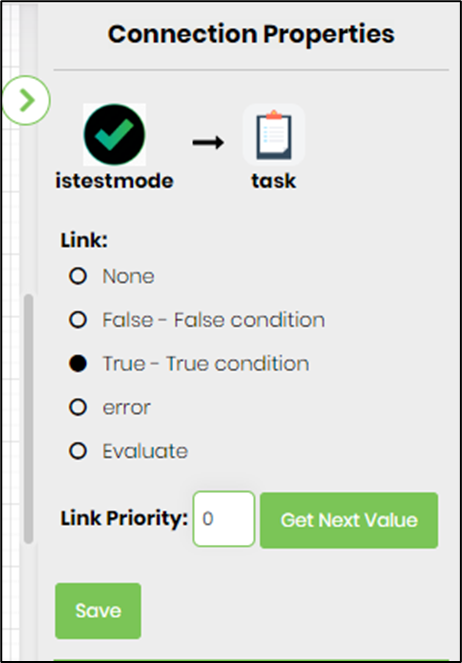
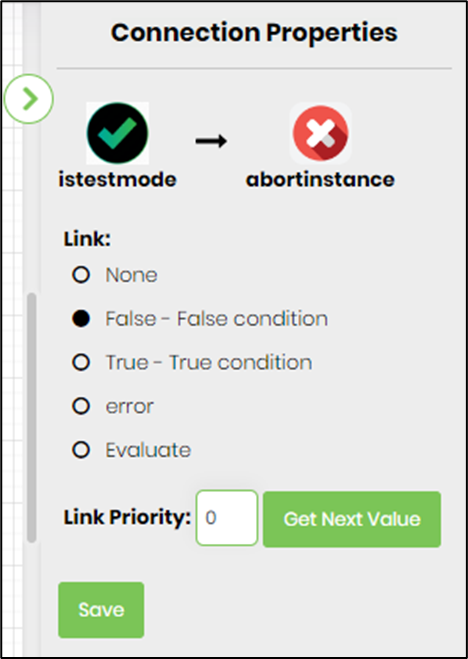
- Select the line between the steps to configure the “Connection Properties”. The default property values are “None, True, False, Error, and Evaluate”. Depending on the step’s purpose, you can configure additional values.
- Click the "isTestMode" step to configure its "Required" properties. Name the step, then click Save. Note: Click the "AI Predict" button to have the Copilot add new process steps that match your process description.

- The “Logging” configuration is necessary for documentation and also measures workflow progress and percent complete. Configure the step state and percent fields individually, as shown in the images below. Configure the “Logging” using the following properties.

- Select the link connecting the “isTestMode” step to the “Task” step, and select “True condition”
- Select the link connecting the “isTestMode” step to the “abortInstance” step, then select “False condition”
- Save the process definition, create a new instance, and execute it. Render the process instance and click the IsTestMode step to view its execution. When the workflow reaches the step, FlowWright determines the current instance's execution mode at runtime and follows the appropriate True or False path. The step's stated purpose is specifically to work with test-mode instance executions. Verify that:
- The workflow reaches the IsTestMode step.
- A test-mode instance follows the expected test-processing path.
- A normal execution follows the expected normal-processing path.
- Activities intended only for testing are connected to the appropriate branch.
- Activities intended for normal processing are connected to the appropriate branch.
- Downstream activities behave correctly on both paths.

- The process instance is executed, and the task step is assigned to the user configured in the task. Render the process instance. The execution has followed the “TRUE” path. If the executed instance is not in test mode, then the instance will follow the “FALSE” path.

Tips:
- Use the Test Mode? step when the same workflow definition needs different behavior for test and normal executions.
- Remember, this step has no configurable input properties. It decides based on the execution context of the current workflow instance.
- Keep test-specific activities on a clearly identifiable workflow path.
- Keep normal processing separate from test processing so that the workflow is easy to understand.
- Connect the True and False paths deliberately rather than leaving the execution-mode decision implicit.
- Test both execution scenarios before deploying the workflow.
- Verify that a test-mode instance reaches the intended test branch.
- Verify that a normal instance reaches the intended normal branch.
- Use the step before production-oriented activities when those activities require different handling during testing.
- Use a dedicated test notification or test-processing path when testing could otherwise affect users or external systems.
- Be careful when testing workflows that interact with external systems. A test-mode branch does not automatically make downstream activities safe.
- If the test path bypasses an activity, verify that the rest of the workflow still receives the values or state it expects.
- Keep test-mode logic simple and visible. A clearly drawn test branch is easier to maintain than scattered test-specific conditions.
- Use logging to document the purpose of the test-mode decision without exposing unnecessary sensitive information.
- Consider using a consistent test-mode pattern across workflows that require different behavior during testing.
- Review the workflow after modifying either the test or normal branch.
- Do not assume that the Test Mode? step changes the execution mode. Its documented purpose is to determine the execution mode at runtime.
- Do not assume that the step enables, disables, or otherwise modifies test mode.
- Do not assume the step provides additional test-environment behavior. Implement test-specific behavior in the activities connected to the appropriate path.
- The XML does not document the precise internal conditions used to determine test mode, so do not assume how an instance is classified beyond the step's stated purpose.
Notes:
- The Test Mode? step is defined in the Logic category with the internal name
istestmode, label “Determine the execution mode of instance in run time. We can use this step to work with test mode instance executions.”, and display name “Test Mode?”. - The step is implemented by
FlowWright.Workflow.ClsIsTestModeinFlowWright.Workflow.dlland is defined as a Process step with 2 incoming connections and 2 outgoing connections. - The step has no properties and no property types.
- The step provides two return values:
- False
- True
Definition Sample:
You may download the sample definition from the link provided and later import it into your FlowWright Process Definition (XML file) or Form Definition (HTML file) page.
Note: Verify and complete any missing configuration after importing the sample, including:
- Test-mode workflow path.
- Normal workflow path.
- Downstream True and False connections.
- Test-specific activities.
- Production/normal activities.
- Workflow Variable references used by downstream steps.
- Environment-specific settings.
- Logging configuration.
Because the IsTestMode The step itself has no properties, so no step-input values need to be populated after importing a sample.
After verifying the configuration, save the Process Definition before execution.