clsDynamicTaskBuilder step
Description:
The Dynamic Tasks step enables a FlowWright workflow to dynamically generate workflow tasks based on an XML definition provided during workflow execution.
Many business processes cannot determine the number, type, or assignment of tasks until runtime. For example, an approval process may require different approvers depending on purchase amount, department, project, or organizational hierarchy. Instead of creating numerous workflow branches during design time, this step allows task definitions to be generated dynamically from XML.
The step accepts an XML document describing the tasks to be created. During execution, FlowWright interprets the XML and creates the required workflow tasks. The generated tasks become part of the active workflow instance and are executed according to the supplied task definition.
Typical uses include:
- Building dynamic approval tasks
- Creating reviewer task lists
- Generating tasks from external systems
- Creating workflow tasks based on business rules
- Building project-specific task lists
- Dynamically assigning work items
- Creating variable approval chains
- Supporting metadata-driven workflow execution
This step enables organizations to create highly flexible workflows that adapt automatically to changing business conditions while reducing the need for complex workflow designs.
Inputs
- taskXML – Specifies the XML document that defines the workflow tasks to be created dynamically during runtime. This property is required.
Returns
- True – The task XML was successfully processed, and the workflow tasks were created. Workflow execution continues through the success path.
- False – One or more tasks could not be created because of invalid XML, missing task information, incorrect configuration, or another execution error. Workflow execution follows the alternate path.
Usage:
The Dynamic Tasks step is typically used when the workflow must determine task assignments or task definitions during runtime rather than at workflow design time.
During execution:
- Read the configured task XML.
- Validate the XML structure.
- Parse the task definitions.
- Create the workflow tasks defined in the XML.
- Add the generated tasks to the active workflow instance.
- Continue workflow execution through either the True or False return path.
A typical workflow might look like this:

Typical workflow scenarios include:
- Dynamic approval routing
- Runtime task generation
- Department-specific workflows
- Role-based task creation
- Integration-driven task creation
- Customer-specific business processes
- Dynamic review workflows
- Workflow customization using metadata
Example:
Let’s build and execute the “clsDynamicTaskBuilderDef” example.
- Create a new process definition named “clsDynamicTaskBuilderDef” and open it in designer mode.
- Drag the “updateGlobals, placeHolder, and clsDynamicTaskBuilder” steps to the canvas.
- Connect the dots between the “Start” and other steps, as shown above.
- Select the line between the steps to configure the “Connection Properties”. The default property values are “None, True, False, Error, and Evaluate”. Depending on the step’s purpose, additional values are available for configuration.
- Define a variable or a global to store the XML data.
-
Click the "updateGlobals" step to configure its "Required" properties. Provide a name for the step, then click the Save button. Note: Click the "AI Predict" button to have the Copilot add new process steps that match your process description.

- Click the "updateGlobals" step to configure its "Optional" properties. Click the button to configure multiple globals. A pop-up window appears for configuration. Click the Add Row (+) button to insert an empty row. Enter the global name and value. Click the Save button. You may add multiple globals using the Add Row button.

- The global value contains the Task attributes as key-value pairs in HTML tags.
<tasks order="serial"> <task name="ToDo1 - Send Flowers" desc="Send flowers" owner="admin" duration="5" durationType="days" includeWeekends="1"/> <task name="ToDo2 - Send Chocolates" desc="Send chocolates" owner="admin" duration="3" durationType="days" includeWeekends="1"/> </tasks>
- Click the "clsDynamicTaskBuilder" step to configure its "Required" properties. Provide a name for the step and specify the variable or global reference that holds the XML data. Click the Save button. Note: Click the "AI Predict" button to have the Copilot add new process steps that match your process description.

- The “Logging” configuration is necessary for documentation and also measures workflow progress and percent complete. This is achieved by configuring the step state and percent fields individually, as shown below. Configure the “Logging” using the following properties.

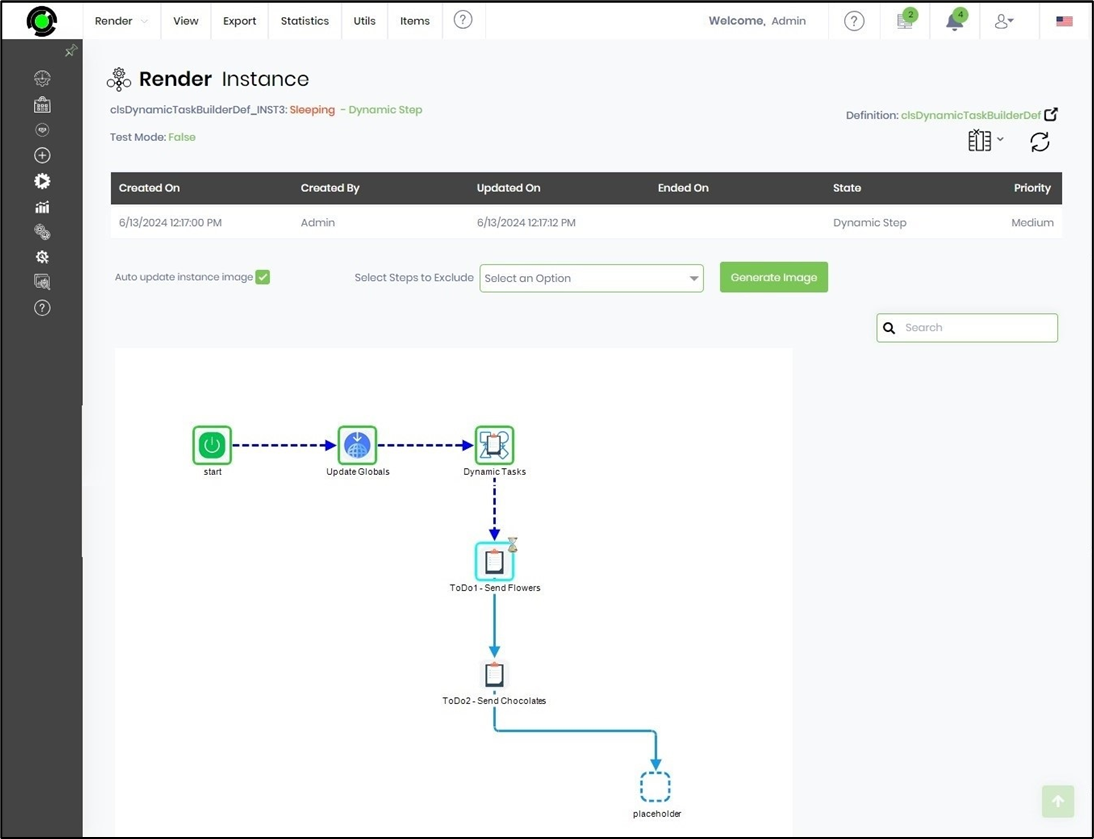
- Save the process definition, create a new instance, and execute it. Render the process instance. Click the process step to view its properties. The step should dynamically create tasks based on the XML data, as shown below.
Tips:
- Validate the XML before executing the step to minimize runtime errors.
- Generate task XML using a consistent schema across workflows.
- Use meaningful task names and assignments within the XML definition.
- Route the False execution path to logging and administrator notification activities.
- Test dynamic task generation using representative XML samples before deploying to production.
- Combine this step with REST APIs, Database Queries, Business Rules, Decision Tables, Get Users' Full Names, or integration steps to create intelligent runtime workflows.
Notes:
- The Task XML property is required.
- Workflow tasks are generated dynamically from the supplied XML definition.
- The XML must conform to the expected runtime task schema.
- The generated tasks become part of the active workflow instance.
- The step does not require predefined task structures within the workflow designer.
- Both the True and False execution paths should be implemented for complete workflow handling.
- Invalid or incomplete task XML may prevent task creation.
Dynamic Tasks vs. Dynamic Steps:
Although both workflow steps dynamically construct workflow elements at runtime, they operate on different workflow components and use different configuration models.
| Dynamic Tasks | Dynamic Steps |
|---|---|
| Dynamically creates workflow tasks during runtime. | Dynamically creates workflow steps during runtime. |
| Builds tasks from an XML definition supplied to the workflow. | Builds workflow steps from runtime data based on a selected dynamic type. |
| Requires only the Task XML property. | Requires a Dynamic Type selection and a Variable/Global holding dynamic step data. |
| Focuses on generating work assignments and runtime tasks. | Focuses on dynamically constructing the workflow execution path, including serial and parallel branches. |
| Ideal when task definitions are produced dynamically by business rules or external systems. | Ideal when the workflow structure itself must change during execution. |
As a general guideline:
- Use Dynamic Tasks when workflows need to dynamically create or assign workflow tasks from an XML definition generated during runtime.
- Use Dynamic Steps when workflows need to dynamically construct serial or parallel workflow execution paths based on runtime configuration or business logic.
Definition Sample:
You may download the sample workflow definition from the link provided and import it into your FlowWright environment.
Note: Verify and complete any missing configuration after importing the sample, including:
- Task XML definition
- XML schema validation
- Success and failure workflow branches
- Appropriate task assignments
After verifying the configuration, save and publish the workflow before execution.
Click here to download the sample file.