ChoiceTask Step
Description:
This step routes a task to a selected number of users, from whom the user must choose one option from a predefined list.
Inputs
- description – Step description
- routeTo -Select users to route to
- routeToRoles--Select roles to route to
- taskDesc--Task Description
- taskBody -A task detail description
- routedItem--Item that is routed
- showURL-- URL to render within the task
- emailAddresses--Email addresses to route tasks to
- returnVals—Set return values
- priority--Task Priority (low, medium, high, normal, urgent)
- daysToComplete--# of days, minutes, hours, and months to complete the task by
- expireType--Task expire type (days, months, hours, minutes)
- includeWeekends—On = Include weekends (toggle ON/OFF)
- useFullDuration - the task uses the full duration and continues
- taskRoutingRules- Task routing rules types (default,
- taskReminder- Set Task reminder to send reminder mails
- sendEmailNotification— Yes = email notification will be sent to each user for the task (toggle ON/OFF)
- sendSeparateEmails - Send separate emails. Select Yes/No
- emailSubject-- Subject of the email message
- emailBody-- Body of the email message
- emailFiles - Set the server path for file attachments
- emailCCList - Email cc List
- userCanReAssign – Yes = user can re-assign the task to other active users (toggle YES/NO)
- commentRequired - User comments are required mandatory
Returns
- returns are dynamically generated based on the provided values for the “returnVals” input
- timeout – when the task times out
Step Returns Collection
- stepReturn.routeTo - list of users (GUID), the task is routed to
- stepReturn.completedByUser – user (GUID), the task completed by
- stepReturn.rejectedUserList - list of users (GUID), the task is rejected by
Usage:

Example:
Let’s build and execute the “choiceTaskDef” example.
- Create a new process definition named “choiceTaskDef” and open it in designer mode.
- Drag a “choiceTask” step to the canvas.
- Connect the dots between the “Start” and “choiceTask” steps.
- Define a variable or a global to store the list of routed users.
- Click the "choiceTask" step to configure its "Required" properties. Provide a name for the step and a task description. Click the button to configure the return values.
- Note: According to the legend, the task step has one incoming connection and three outgoing connections. Click the "AI Predict" button to have the Copilot add new process steps that match your process description.

- Click the “choiceTask” step to configure its “Optional” properties. Click the button to configure the users to route to, the application role (users) to route to, and the user selection. Provide a task detail description. Provide the routed item information. Provide the URL to render. Provide the email addresses (separated by semicolons) to which the task should be routed.

- Select the task priority from the list (low, medium, high, normal, urgent). Select the task expiration type (days, hours, months, minutes). Provide the task completion duration value. If desired, select the 'Include Weekends' option as 'Yes'. Select “Yes” for the task to wait for the entire duration, even after completion.

-
Task Routing Rules - Select task routing rules (default, task lock, least # of tasks in total, least # of tasks by definition) to be applied during runtime.
- “Default” means the task has no lock status.
- “Task lock” means the task is locked by a user.
- “Least # of tasks in Total” means the task is assigned to the user with the fewest total tasks.
- “Least # of tasks by Definition” means the task is assigned to the user with the least count of tasks by definition.

- Configure task reminders. Click the Add Row (+) button to insert an empty row. Enter the time duration, subject, and message body. Click the Save button. You can insert multiple Task Reminders using the Add Row function.

- Select “Yes” to send an email notification. The notification duration is determined by the Status, as set in the 'Email Notifications' section under “Settings” (Status). Select “Yes” to send separate emails to users (which include different task IDs in the URL). Provide the email subject text. Click the button to configure email attachments on the App Server. Provide an Email CC list (semicolon-separated). Select “Yes” to reassign the task during runtime. Select “Yes” for mandatory task comments. Click the “Auto Config Choices” button to label outgoing link connections based on the configured choice task values. Click the Save button.

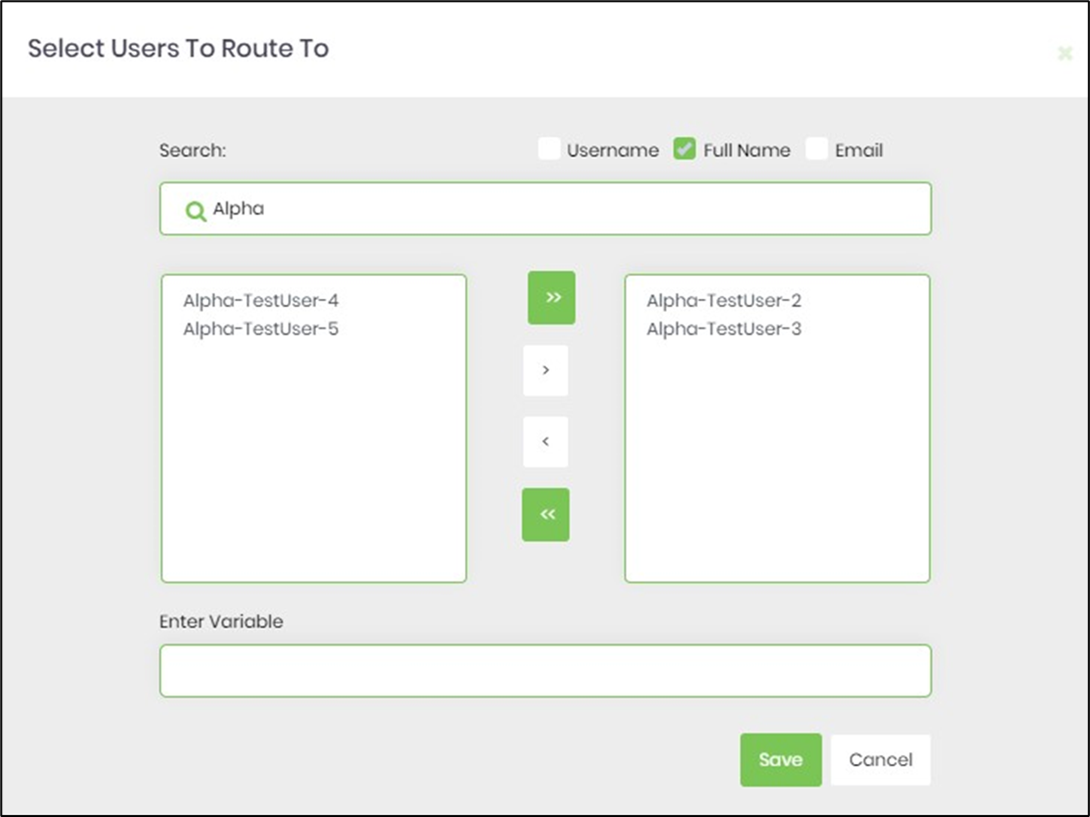
- Search for users by the first three letters, then select from the list in the left pane using the arrow buttons. The task can be assigned to multiple users.
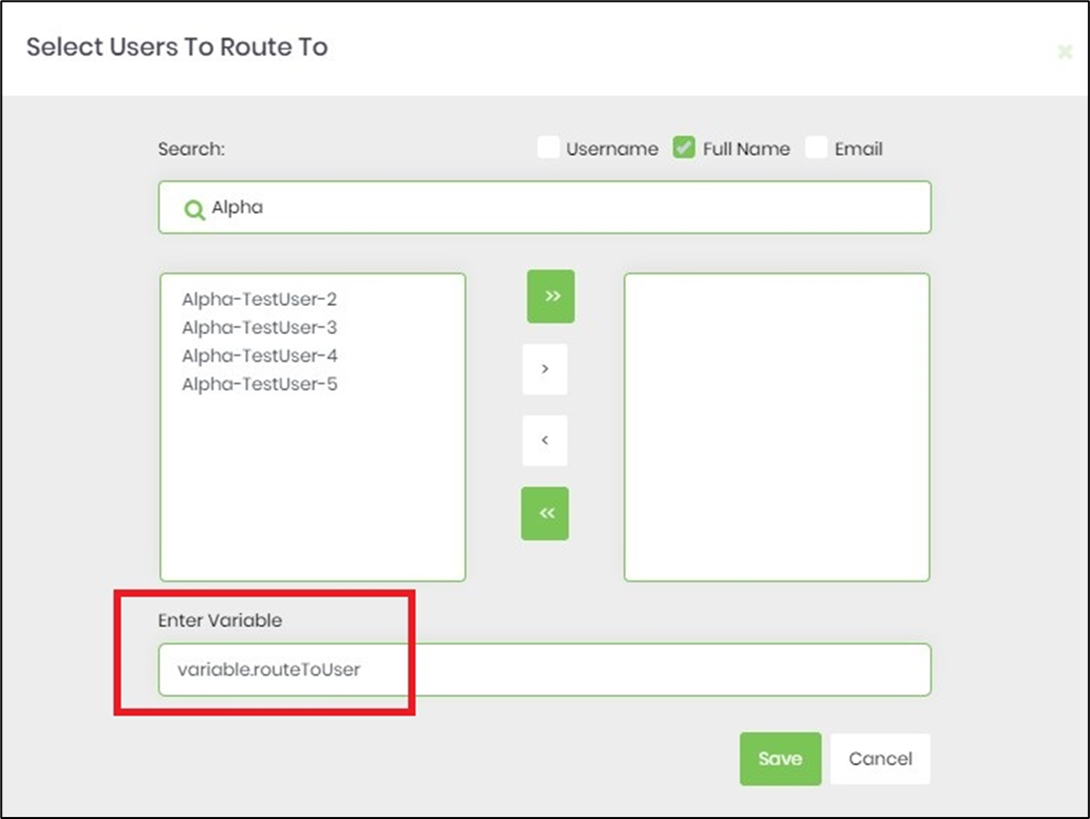
- The Task can also be assigned to a user by GUID (provided we know the value beforehand). Configure the variable to reference the user's GUID. The username selection should be empty, as the function is mutually exclusive, as shown in the image below.
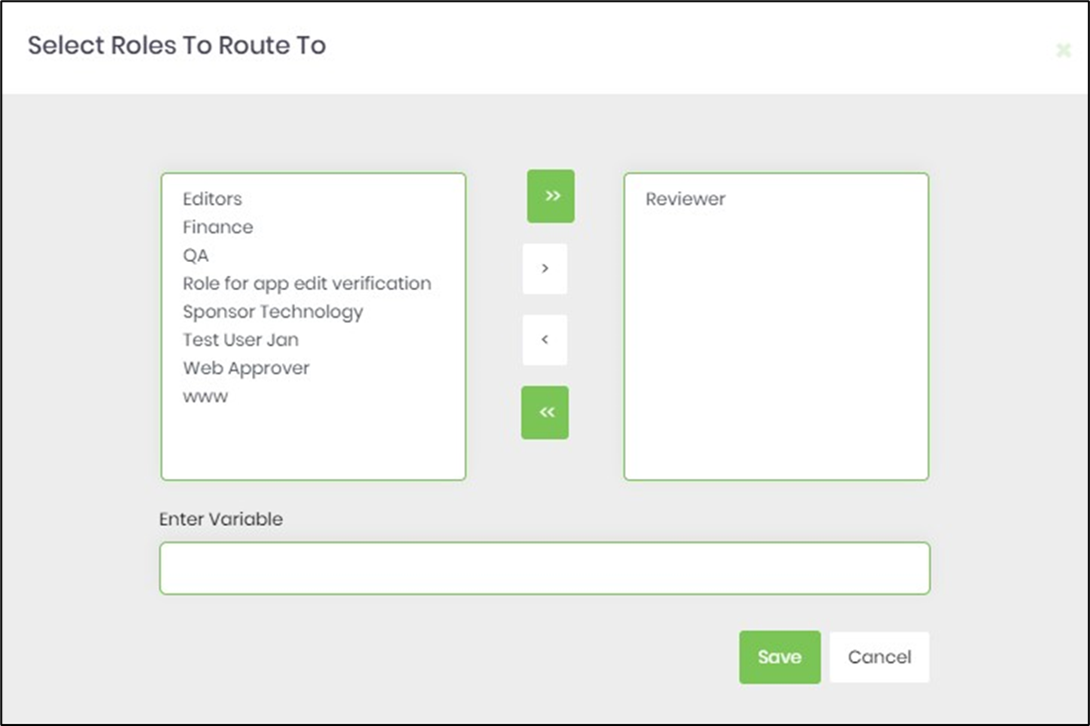
- The Task can also be assigned to users grouped by application role. Use the arrow buttons to select from the list in the left pane.
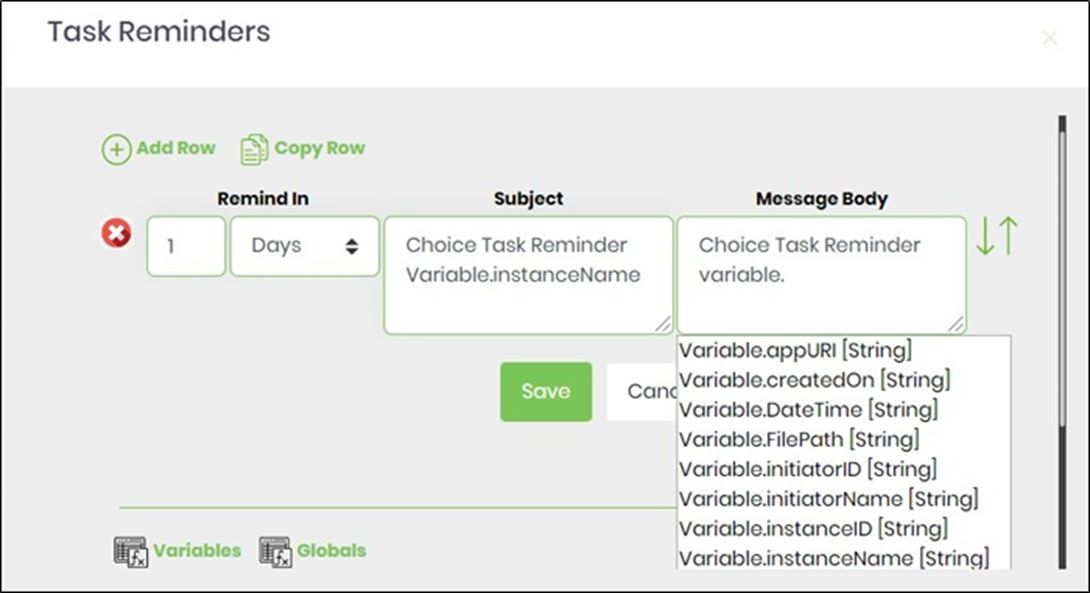
- Click Task Reminder to set the task reminder intervals. Enable "Send Email Notification" to “On”. Task reminders with a positive value are calculated from the task creation date. Task reminders with a negative value are calculated by subtracting that duration from the task's due date. The task reminder message body supports line breaks.
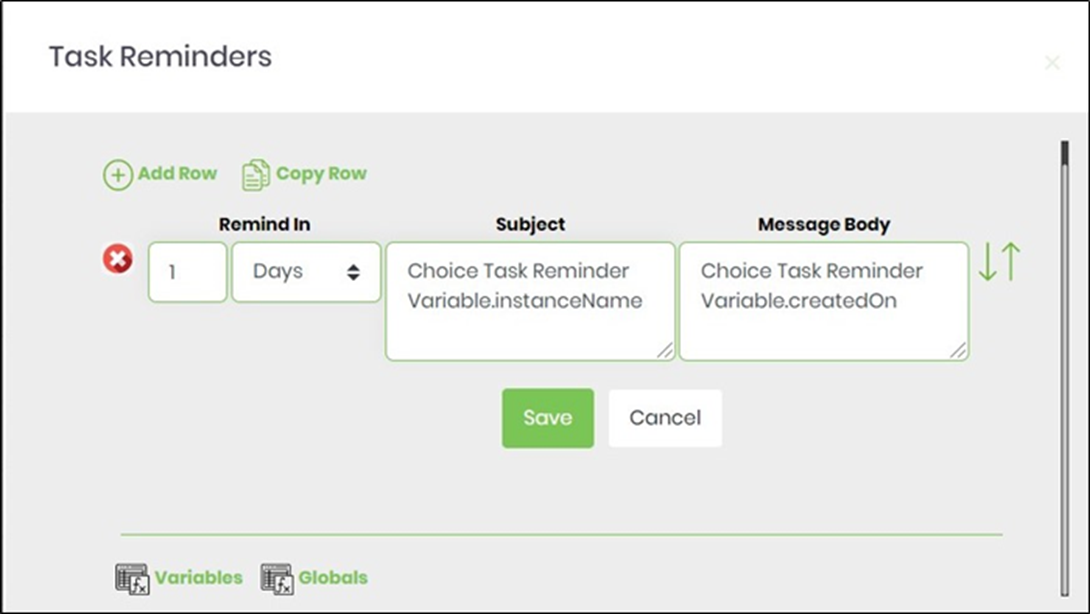
- Use Variable(s) references to create more meaningful reminder messages, as shown below.

- Use Variable(s) references to create more meaningful reminder messages, as shown below.
- Click the Email body and use the existing template (you can also edit it) as the email body, or create a custom template.

- Click Replace Link(s), Variable(s), or Global(s) and include any system variables to make the email message more meaningful.

- Click Replace Link(s), Variable(s), or Global(s) and select any reference to add a more meaningful email message.

- Configure the return values for the task. A pop-up window opens for configuration. Click the Add Row button to insert an empty row. Enter the return value. Click the Save button. You may add multiple return values by using the Add Row button.

- Note: The process definition "validates" the Choice Step, which has return values configured but not used in the process workflow. In the following example, the Choice Step is configured with three choices, but only two are active in the workflow. Using the Action—Validate feature, the application displays an alert to correct the issue.

- Use the Auto Config Choice button to set link connection values.

- The link connection values are configured automatically, and the confirmation message appears in the top-right corner.

- The “Logging” configuration is necessary for documentation and to measure workflow progress and percent complete. This is done by configuring the step state and percent fields individually, as shown below. Configure the “Logging” using the following properties. The "Send Test Mail" feature sends a test email with the configured email body to the current (logged-in) user. Click the “Auto Config Choices” button to label outgoing link connections based on the configured choice task values.

- Save the process definition, create a new instance, and execute it. Render the process instance. Click the process step to view its properties. The step should route the choice task to users.
Definition Sample:
You may download the sample definition(s) from the provided link and later import them (drag-and-drop) into your FlowWright Process Definition (XML file) or Form Definition (HTML file) page.
Note: Please verify and complete the import process steps for any missing configurations, including file path references and database connections. Then, save the definition to confirm the changes.
Click here to download the sample file.