The standard FlowWright installer does not include Microsoft SQL Server. It can be used to upgrade an existing FlowWright installation or connect to your own database server for the FlowWright database.
Download the FlowWright Package, then double-click the “FlowWright” icon. Follow the installation wizard.

Next, the License Agreement window will appear. Select the “I accept the terms in the License Agreement” radio button, then click the “Next” button.

Enter the “User Name” and “Organization” in the “Customer Information” window, then click “Next”.
In the next step, you can install either the Standard (non-multitenant) or Multitenant version of FlowWright.

The “FlowWright” Installation wizard’s shield is displayed. Click the “Install” button to start the FlowWright installation.

The installation process begins as shown below.

The installation is complete, and the FlowWright 10.x application is launched as shown below.

Click the “Finish” button to launch the FlowWright Application. Log in to FlowWright using “admin” as the username and “FlowWright10!” as the password.

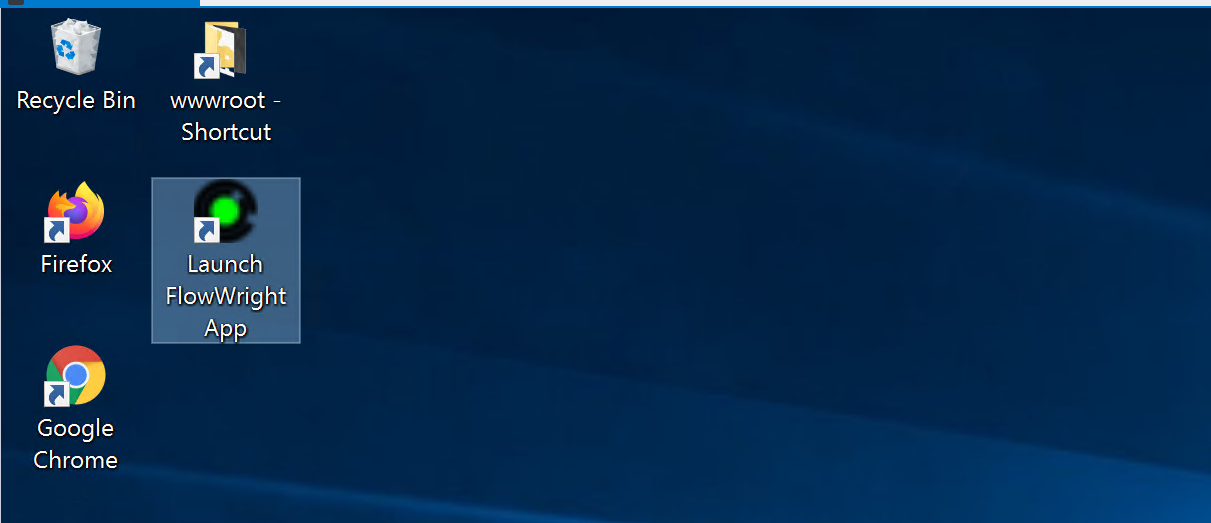
An icon is also placed on the Start menu and the Desktop, as shown below:
Follow these instructions to create a FlowWright database and configure it for use.
FlowWright's default database is Microsoft SQL Server. FlowWright supports the following databases:
- Microsoft SQL Server
- Microsoft Azure
Microsoft SQL Server Workflow Database Setup.
- If you don’t have a SQL server, download Microsoft SQL Server Express for free using the following link.
- Connect to the SQL Server instance using Enterprise Manager or Visual Studio.
- Create a new database called "FlowWright".
- Execute the following database script file: FlowWright-MSSQLServer.sql from the directory: "C:\FlowWright\wwwroot\DBScript"
-
Change the connection string within the file appSettings.json located at: C:\FlowWright

*Change the connection string within the file appSettings.json located at C:\FlowWright, but *do not change the connection name.
-
Change the connection string within the file appSettings.json located at: C:\FlowWright
- Make sure to restart Microsoft Internet Information Server (IIS).
- Make sure to start the FlowWright engine's services.
Windows Azure Database Setup.
- If you do not have a Microsoft Azure account, please sign in using the following link.
- Connect to the Microsoft Azure instance using Enterprise Manager or Visual Studio.
- Create a new database called "FlowWright".
- Execute the following database script file: FlowWright-MSAzure.sql from the directory: "C:\FlowWright\wwwroot\DBScript".
-
Change the connection string within the file appSettings.json located at: C:\FlowWright
*Change the connection string within the file appSettings.json located at C:\FlowWright, but *do not change the connection name. - Make sure to restart Microsoft Internet Information Server (IIS).
- Make sure to start the FlowWright engine's services.
HealthCheck:
You must run a Health Check to determine the version number, database ports and connections, and the FlowWright Engine Services' execution status. Click the link here to know more.
A screenshot example of the health check before the application login.

A screenshot example of the health check after application login.

Version Changes and History:
You must perform version updates to update the database and configuration changes if you're migrating from older versions of FlowWright. Click the link here to learn more.
Navigate to the Status - Upgrade menu as shown in the example below.
