vCardGenerator Step
Description:
The vCardGenerator workflow step creates a vCard file from contact information supplied through the step properties. The generated vCard file path is stored in a specified workflow variable or global variable for use by subsequent workflow steps.
The step is displayed in the FlowWright designer as Create vCard.
The step supports:
- Creating a vCard from contact information
- First and last name
- Job title and organization
- Street, city, ZIP, and country
- Home, cell, and work phone numbers
- Notes and fax information
- Email address
- Website
- Storing the generated vCard file path in a workflow variable or global variable
- True and False return paths
The XML defines the step as a Process step with two incoming and two outgoing connections.
Inputs
- First Name – Required first name of the contact.
- lastName – Required last name of the contact.
- jobTitle – Required job title of the contact.
- Organization – Required organization associated with the contact.
- Street – Required street address.
- City – Required city.
- Zip – Required ZIP/postal code.
- Country – Required country.
- Home Phone – Optional home telephone number.
- Cell Phone – Required cell phone number.
- Work Phone – Required work telephone number.
- Notes – Optional notes associated with the contact.
- Fax - Optional fax number.
- Email – Required email address.
- Website - Required website address.
- Variable/Global to hold the vCard file path - Required workflow variable or global variable used to hold the path of the generated vCard file.
Returns
- True – True return path from the Create vCard step.
- False – False return path from the Create vCard step.
Usage:
The Create vCard step is typically used when a workflow needs to convert contact information into a vCard file for storage, distribution, or use by subsequent workflow activities.
Contact information can be supplied directly or mapped from workflow data.
For example, a workflow can:
- Collect contact information from a form and create a vCard.
- Generate a contact card for a newly created customer.
- Create a vCard after an employee or business contact is registered.
- Generate a vCard from CRM or customer information.
- Store the path to the generated vCard file in a workflow variable for later processing.
- Use the generated file as part of a document or email workflow.
The Variable/Global to hold the vCard file path property stores the location of the generated file path.

When the workflow reaches the Create vCard step, the supplied contact information is used to create the vCard file, and the generated file path is stored in the configured variable or global variable.
Typical Workflow Suggestions:
Customer Contact Creation
Use the Create vCard step after collecting customer contact information.
Example:
Capture Customer Details → Create vCard → Store/Distribute Contact
This can provide a portable contact file for customer information collected during a workflow.
Employee Onboarding
Use the step to create a contact card from employee information collected during onboarding.
Example:
Employee Registration → Create vCard → Send Contact Information
The generated vCard can be made available to downstream workflow activities.
CRM Contact Processing
Use Create vCard when customer or business-contact information is retrieved from another system.
Example:
Get CRM Contact → Create vCard → Store vCard
This can convert workflow data into a portable contact file.
Business Contact Management
Use the step to create vCards for contacts captured through business processes.
Example:
Capture Business Contact → Create vCard → Save Contact File
Email and Document Workflows
Use Create vCard when a workflow needs to generate a contact file for a subsequent document or communication activity.
Example:
Create Contact → Create vCard → Send Email
The generated file path can be retained in a workflow variable for use by subsequent processing.
Contact Export
Use the step when workflow data needs to be transformed into a portable contact file.
Example:
Retrieve Contact Details → Create vCard → Archive/Export
Example:
Let’s build and execute the “vCardGeneratorDef” example.
- Create a new definition called “vCardGeneratorDef” and open the definition in designer mode.
- Drag a “vCardGenerator” step to the canvas.
- Connect the Start and “vCardGenerator” steps, as shown above.
- Select the line between the steps to configure the “Connection Properties”. The default property values are “None, True, False, Error, and Evaluate”. Depending on the step’s purpose, additional values are available for configuration.
- Define a variable or global to store the VCard file path.
- Click the “vCardGenerator” step to configure its “Required” properties. Enter the field values as shown below. Specify a variable or global to store the VCard file path. Click the Save button. Note: Click the "AI Predict" button to have Copilot add new process steps that match your process description.

- Click the “vCardGenerator” step to configure its “Optional” properties. Enter values in the “Home Phone, Notes, and Fax” fields. Click the Save button.

- The “Logging” configuration is necessary for documentation and also measures workflow progress and percent complete. This is achieved by configuring the step state and percent fields individually, as shown in the images below. Configure the “Logging” using the following properties.

- Save the process definition, create a new instance, and execute it. Render the process instance. Click the process step to view its properties. The step should generate the file path information for the vCard file.
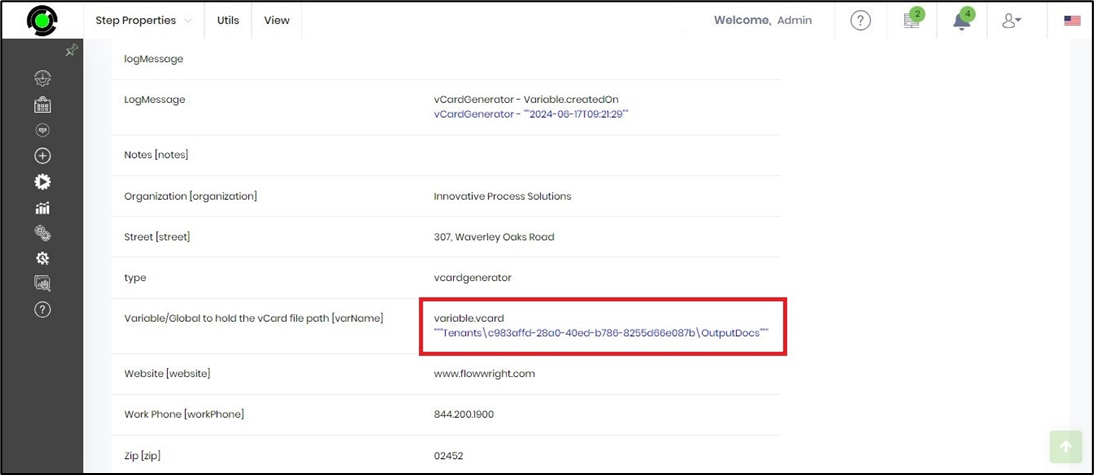
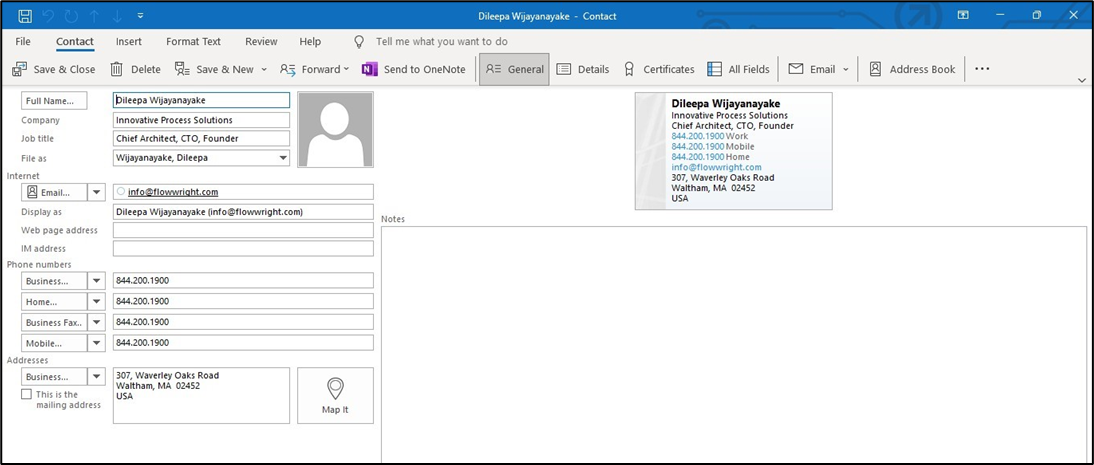
- Concatenate the AppURI with the output file path to download the .vcf file. Open the .vcf file in Outlook and save the generated vCard. A sample vCard is shown below for reference.
Tips:
- Provide all required contact properties before executing the step.
- Use workflow variables to dynamically map contact information when values are provided by forms, database queries, integrations, or earlier workflow steps.
- Ensure that the Variable/Global to hold the vCard file path property points to an appropriate workflow variable or global variable.
- Use meaningful step names such as “Create Customer vCard”, “Generate Employee Contact”, or “Create CRM vCard” to make the workflow easier to understand.
- Optional Home Phone, Notes, and Fax information can be supplied when available.
- Verify that required Email and Website values are available before the step executes.
- Test the generated vCard and downstream file-handling activities together when building an integration workflow.
Notes:
The vCardGenerator step is defined in the Engine category with the internal name vcardgenerator and display name Create vCard.
The workflow step is implemented by the FlowWright.Workflow.ClsGeneratevCard namespace in FlowWright.Workflow.dll and is defined as a Process step. It supports 2 incoming connections and 2 outgoing connections.
The XML defines 16 input properties. First Name, Last Name, Job Title, Organization, Street, City, Zip, Country, Cell Phone, Work Phone, Email, Website, and the variable/global property are required. Home Phone, Notes, and Fax are optional.
The Variable/Global to hold the vCard file path property is specifically intended to hold the path of the generated vCard file.
All defined inputs use the FlowWright string property type, which is implemented through FlowWright.DataTypes.ClsTextBox.
Definition Sample:
You may download a sample definition when provided and import it into your FlowWright Process Definition.
Note: Verify and complete any missing configuration after importing a sample, including:
- Contact information
- Required phone, email, and website values
- Variable/global used to hold the vCard file path
- Outgoing workflow connections
- Environment-specific file handling
After verifying the configuration, save the Process Definition before execution.
Click here to download the sample file.