getConfigurationValues Step
Description:
The Get Configuration Settings step enables a FlowWright workflow to access configuration values defined in the FlowWright configuration store.
Rather than embedding server names, URLs, email addresses, API endpoints, feature flags, or other environment-specific values directly into workflow definitions, this step retrieves them dynamically at runtime. This allows workflows to remain portable across Development, Test, Staging, and Production environments while simplifying maintenance.
This step supports retrieving either a single configuration value or multiple configuration values in a single operation. Retrieved values are stored in workflow variables or global variables, making them immediately available to downstream workflow activities.
Typical uses include:
- Retrieving API endpoints
- Loading email server settings
- Reading application URLs
- Obtaining file storage locations
- Loading integration settings
- Retrieving feature flags
- Reading timeout values
- Accessing environment-specific configuration
Using centralized configuration management reduces maintenance effort and eliminates the need to modify workflow definitions when configuration values change.
Inputs
- Configuration Key – Specifies the name of a single configuration setting to retrieve from the FlowWright configuration repository.
- Name of the Variable/Global – Specifies the workflow variable or global variable that will receive the value of the selected configuration key.
- Multiple Config Settings – Allows multiple configuration settings to be mapped and retrieved in a single step execution. Each configuration value can be mapped directly to its corresponding workflow variable or global variable.
Returns
- True – The requested configuration setting or mapped configuration settings were successfully retrieved. Workflow execution continues through the success path.
- False – One or more configuration values could not be retrieved or another execution error occurred. Workflow execution follows the alternate path for error handling.
Usage:
The Get Configuration Settings step is typically placed near the beginning of a workflow to load configuration values used throughout execution.
During execution:
- Read the configured configuration key or mapped configuration settings.
- Retrieve the requested values from the FlowWright configuration repository.
- Store the returned values in the configured workflow variables or global variables.
- Continue workflow execution via the True-or-False return path.
A typical workflow might look like this:

Typical workflow scenarios include:
- Loading REST API endpoints before invoking external services
- Reading SMTP configuration before sending email notifications
- Retrieving document repository paths
- Loading environment-specific URLs
- Reading authentication configuration
- Loading application feature settings
- Initializing workflow execution with system configuration values
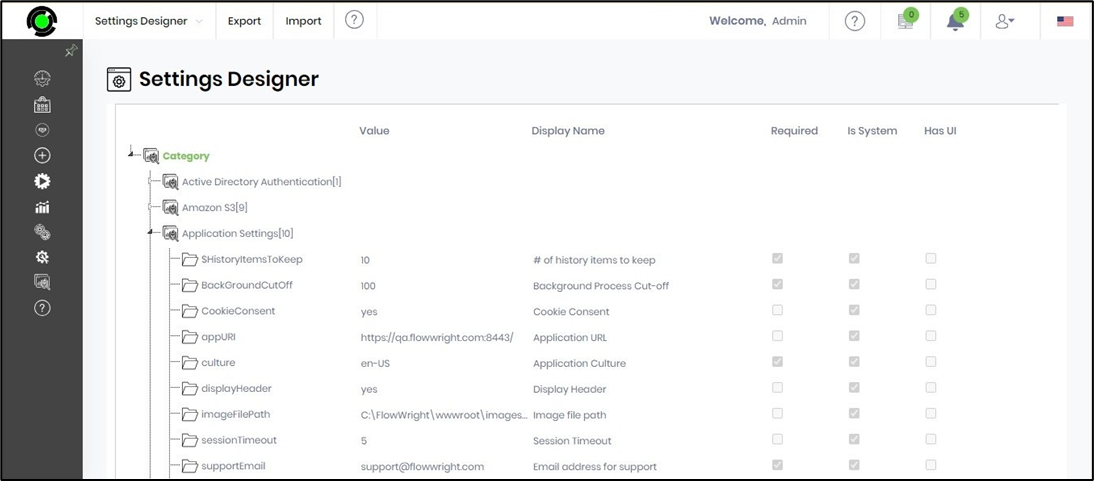
Settings Designer:
This page manages the configuration settings for the FlowWright application. To view the following UI, select Status > Settings > Settings Designer.
Example:
Let’s build and execute the “getConfigurationValuesDef” example.
- Create a new process definition named “getConfigurationValuesDef” and open it in designer mode.
- Drag a “getConfigurationValues” step to the canvas.
- Connect the dots between the “Start” step and “getConfigurationValues” steps, as shown above.
- Select the line between the steps to configure the “Connection Properties”. The default property values are “None, True, False, Error, and Evaluate”. Depending on the step’s purpose, additional values are available for configuration.
- Define a variable or a global to store the result.
- Click the "getConfigurationValues" step to configure its "Required" properties. Provide a name for the step, then click the Save button. Note: Click the "AI Predict" button to have the Copilot add new process steps that match your process description.

- Click the "getConfigurationValues" step to configure its "Optional" properties. Provide a configuration key to fetch. Provide a variable or global reference to store the result. Click the button to configure multiple configuration keys to fetch.

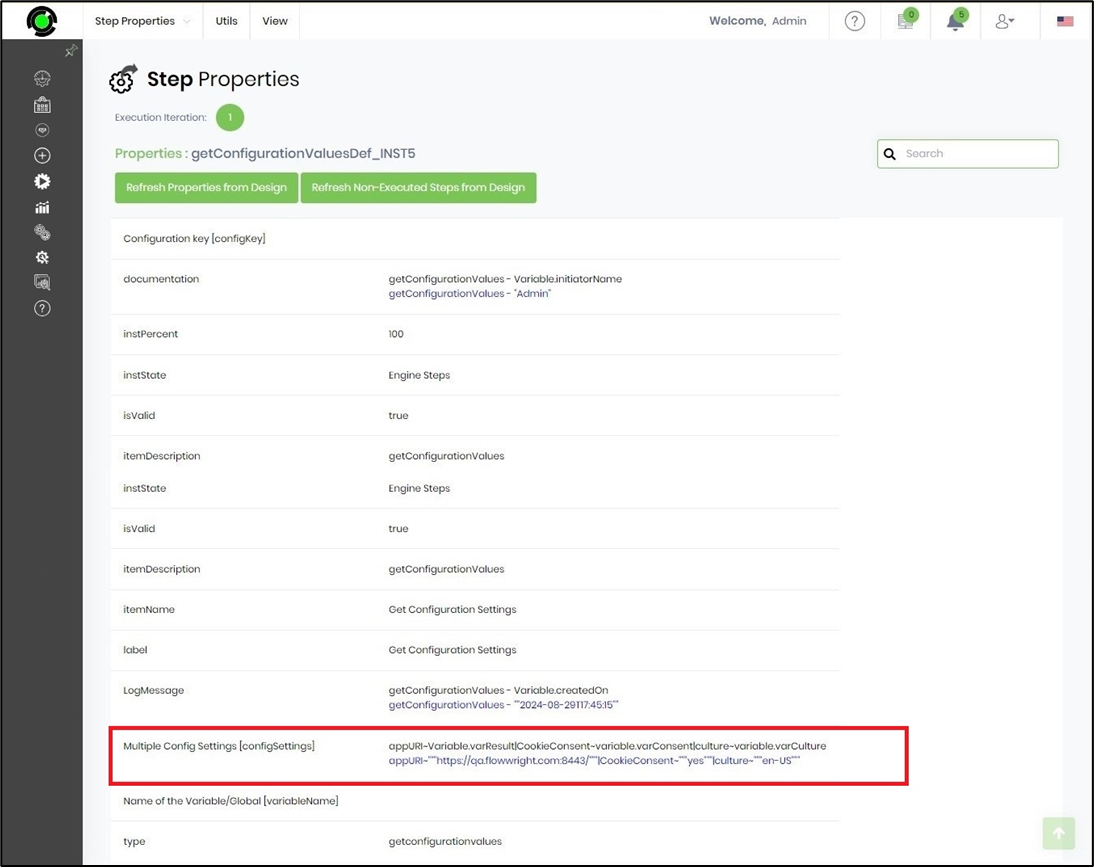
- Click the button to configure multiple configuration keys. A pop-up window appears for configuration. Click the Add Row (+) button to insert an empty row. Enter the Config Key and its value. Click the Save button. You may add multiple Config Key Values using the Add Row button. Note: You may provide configuration keys to fetch either single or multiple values, not both.

- The “Logging” configuration is necessary for documentation and also measures workflow progress and percent complete. This is achieved by configuring the step state and percent fields individually, as shown below. Configure the “Logging” using the following properties.

- Save the process definition, create a new instance, and execute it. Render the process instance. Click the process step to view its properties. The step should fetch the single or multiple configuration values defined in the Settings Designer from the application.
Tips:
- Store environment-specific values in the FlowWright configuration repository instead of hardcoding them into workflow definitions.
- Use the Multiple Config Settings option when the workflow requires several configuration values.
- Use descriptive configuration key names that clearly identify their purpose.
- Validate configuration values during deployment to avoid runtime failures.
- Route the False path to logging or notification steps to simplify troubleshooting.
- Keep sensitive values, such as service endpoints or integration settings, centrally managed for easier administration.
- Combine this step with REST Call, Send Email, Create Process Instance, Update Variable Values, Check if File Exists, or DB Decision Table steps to build environment-independent workflows.
Notes:
- The step supports retrieving either a single configuration value or multiple mapped configuration settings.
- Retrieved values are stored in the configured workflow variables or global variables for use by subsequent workflow steps.
- The availability of configuration values depends on the FlowWright configuration repository.
- The True and False return paths should both be implemented to provide complete workflow handling.
- Configuration values can be updated centrally without modifying workflow definitions.
- Execution details and configuration retrieval results are recorded in the FlowWright workflow execution log.
Get Configuration Settings vs. Update Variable Values:
Both workflow steps populate workflow variables, but they obtain values from different sources.
| Get Configuration Settings | Update Variable Values |
|---|---|
| Retrieves values from the FlowWright configuration repository. | Assigns values directly within the workflow. |
| Supports retrieving one or multiple configuration settings. | Updates workflow variables using constants, expressions, or existing values. |
| Intended for centralized environment-specific configuration. | Intended for workflow-specific variable manipulation. |
| Returns True or False based on configuration retrieval. | Performs variable assignments without reading configuration settings. |
As a general guideline:
- Use Get Configuration Settings when workflows require centrally managed application or environment configuration values.
- Use Update Variable Values when workflow variables need to be assigned or modified as part of workflow processing.
Definition Sample:
You may download the sample workflow definition from the link provided and import it into your FlowWright environment.
Note: Verify and complete any missing configuration after importing the sample, including:
- Configuration key or configuration mappings
- Workflow variables or global variables
- Multiple configuration mappings (if applicable)
- Success and failure workflow branches
- Required configuration entries in the FlowWright configuration repository
After verifying the configuration, save and publish the workflow before execution.
Click here to download the sample file.