moveFormsDefinitionToFolder Step
Description:
The Move Form Definition To Folder step enables a FlowWright workflow to relocate an existing form definition into a selected form folder at runtime.
Instead of manually organizing form definitions through the FlowWright administration interface, this step allows workflows to automate form management based on deployment activities, approval workflows, governance policies, or lifecycle events.
The workflow specifies that the form definition moves with the destination form folder. When the move operation completes successfully, the workflow continues through the True execution path. If the operation cannot be completed, the workflow follows the False path, allowing error handling, notification, or corrective action.
Typical uses include:
- Organizing newly imported form definitions
- Moving approved forms into production folders
- Archiving obsolete forms
- Categorizing forms by department
- Supporting release management workflows
- Maintaining governance and compliance standards
- Organizing reusable enterprise forms
By automating form organization, administrators can maintain a clean, well-structured forms repository while reducing manual effort.
Inputs
- Definition to Use – Specifies the form definition identifier that will be moved to another form folder.
- Select Folder to Save Definition – Specifies the destination form folder where the selected form definition will be moved.
Returns
- True – The form definition was successfully moved to the selected folder. Workflow execution continues through the success path.
- False – The form definition could not be moved because of an invalid definition, unavailable destination folder, insufficient permissions, or another execution error. Workflow execution follows the alternate path.
Usage:
The Move Form Definition To Folder step is typically used in administrative, deployment, migration, or governance workflows.
During execution:
- Read the configured form definition identifier.
- Locate the selected destination form folder.
- Move the form definition into the specified folder.
- Continue workflow execution through either the True or False return path.
A typical workflow might look like this:

Typical workflow scenarios include:
- Organizing imported form definitions
- Moving approved forms into production folders
- Relocating forms after QA validation
- Archiving retired forms
- Organizing forms by department or business unit
- Supporting automated deployment pipelines
- Managing enterprise form lifecycle transitions
Example:
Let’s build and execute the “moveFormsDefinitionToFolderDef” example.
- Create a new definition called “moveFormsDefinitionToFolder” and open the definition in designer mode.
- Drag a “moveFormsDefinitionToFolder” step to the canvas.
- Connect the dots between the “Start” and “moveFormsDefinitionToFolder” steps, as shown above.
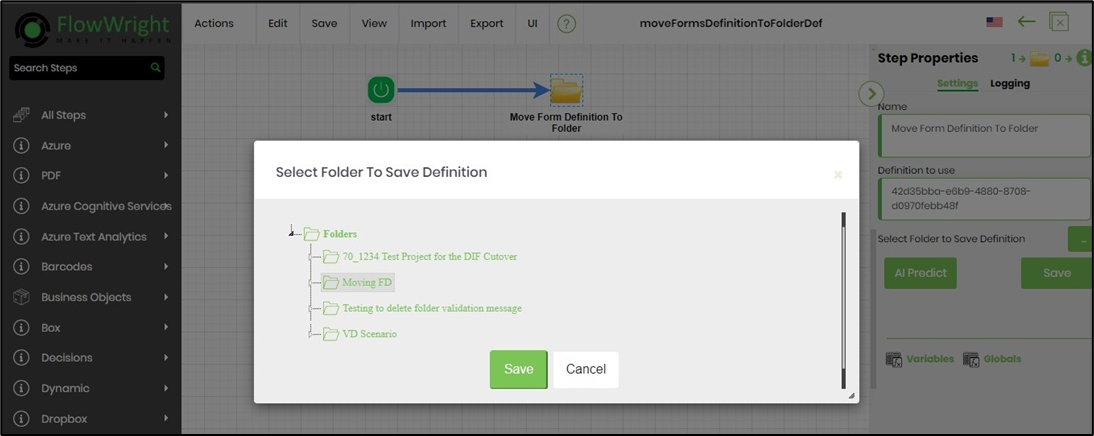
- Click the "moveFormsDefinitionToFolder" step to configure its "Required" properties. Provide the step name and the Form Definition GUID. Click the button to select the destination folder, then click Save. Note: Click the "AI Predict" button to have Copilot add new process steps that match your process description.

- Click the button to select the destination folder on the application server. A configuration pop-up window appears. Select the destination folder, or right-click to create a new folder and enter a name. Click the Save button.
- The “Logging” configuration is necessary for documentation and also measures workflow progress and percent complete. This is achieved by configuring the step state and percent fields individually, as shown in the images below. Configure the “Logging” using the following properties.

- Save the process definition, create a new instance, and execute it. Render the process instance. Click the process step to view its properties. The step should move the Form Definition to the target folder on the application server. The step returns “TRUE” upon successful completion.

Tips:
- Organize form definitions into folders by department, business function, or deployment environment.
- Store the form definition identifier in a workflow variable when moving dynamically selected forms.
- Include this step in automated deployment and release workflows to eliminate manual administration.
- Verify that the destination form folder exists before attempting the move.
- Route the False path to logging and notification steps to simplify troubleshooting.
- Ensure the executing account has permission to modify form definitions and manage form folders.
- Combine this step with Import Form Definition, Publish Form Definition, Get Form Definition ID, Get Configuration Settings, or Send Email steps to automate form lifecycle management.
Notes:
- A valid form definition identifier is required before the step can execute.
- A destination form folder must be selected.
- The step changes only the organizational location of the form definition; it does not modify the form itself.
- Successful execution depends on the availability of the destination folder and appropriate security permissions.
- Both the True and False return paths should be implemented to provide complete workflow handling.
- Execution details and form management operations are recorded in the FlowWright workflow execution log.
Move Form Definition To Folder vs. Get Form Definition ID:
Both workflow steps work with FlowWright form definitions, but they perform different functions.
| Move Form Definition To Folder | Get Form Definition ID |
|---|---|
| Moves an existing form definition into a selected form folder. | Retrieves the identifier of a form definition for later workflow use. |
| Performs an administrative organization task. | Retrieves form metadata without modifying the repository. |
| Changes the folder location of a form definition. | Does not modify the form definition or its location. |
| Returns True or False based on the success of the move operation. | Returns workflow paths based on whether the requested form definition information was successfully retrieved. |
As a general guideline:
- Use Move Form Definition To Folder when workflows need to automatically organize or relocate form definitions within the FlowWright repository.
- Use Get Form Definition ID when workflows need to retrieve a form definition identifier for subsequent workflow operations.
Definition Sample:
You may download the sample workflow definition from the link provided and import it into your FlowWright environment.
Note: Verify and complete any missing configuration after importing the sample, including:
- Form definition identifier
- Destination form folder
- Success and failure workflow branches
- Appropriate administrative permissions
- Notification or deployment activities
After verifying the configuration, save and publish the workflow before execution.
Click here to download the sample file.