persistProcessInstance Step
Description:
The Persist Process Execution step enables a FlowWright workflow to explicitly persist the current execution state of a running process instance.
Persisting a process instance allows the FlowWright workflow engine to save the current execution context, including workflow variables, execution state, and runtime information. This is particularly useful in long-running workflows that pause while waiting for external events, scheduled activities, user interaction, or asynchronous processing.
Unlike business processing steps that manipulate workflow data or perform external operations, this step performs an internal workflow engine operation that ensures the current process state is safely committed before execution proceeds.
Typical uses include:
- Long-running approval workflows
- Human task workflows
- Waiting for external messages
- Event-driven workflows
- Scheduled or delayed workflow execution
- High-volume workflow processing
- Improving workflow resiliency
- Reducing memory consumption during long-running processes
By explicitly persisting workflow execution, organizations can improve workflow reliability and ensure process state is maintained across application restarts or extended execution periods.
Inputs
- None - This step has no configurable input properties. It operates on the currently executing process instance.
Returns
- The uploaded XML does not define explicit return paths for this step.
Note: Unlike many FlowWright workflow steps that expose True and False execution branches, Persist Process Execution performs an internal workflow engine operation and simply continues workflow execution after successfully persisting the current process instance.
Usage:
The Persist Process Execution step is typically placed before workflow activities that involve waiting, long-running execution, or asynchronous processing.
During execution:
- Capture the current workflow execution context.
- Persist the current process instance to the FlowWright persistence store.
- Preserve workflow variables and execution state.
- Continue executing the workflow with the persisted process instance.
A typical workflow might look like this:

Typical workflow scenarios include:
- Persisting a workflow before a human approval task
- Saving workflow state before waiting for an external message
- Preserving execution before long-running integration processing
- Preparing workflows for delayed execution
- Improving resiliency during complex workflow orchestration
- Supporting asynchronous business processes
- Preserving process state before scheduled activities
Example:
Let’s build and execute the “persistProcessInstanceDef” example.
- Create a new definition called “persistProcessInstanceDef” and open the definition in designer mode.
- Drag the “UpdateVariables,” “subWorkflow,” “persistProcessInstance,” “executeSQL,” and “getXMLValue” steps to the canvas.
- Connect the dots between the “Start” and other steps, as shown above
- Select the line between the steps to configure the “Connection Properties”. The default property values are “None, Error, and Evaluate”. Depending on the step’s purpose, additional configuration options are available.
- Define a variable or a global variable to store the result.
- Click the “UpdateVariables” step to configure its “Required” properties. Provide a name for the step, then click the Save button. Note: Click the "AI Predict" button to have the Copilot add new process steps that match your process description.

- Click the “UpdateVariables” step to configure its “Optional” properties. Click the button to configure multiple variables. A pop-up window appears for configuration. Click the Add Row button to insert an empty row. Enter the variable name and value. Click the Save button. You may add multiple variables using the Add Row button.

- Click the “sub-workflow” step to configure its “Required” properties. Provide a name for the step, then select the process definition from the drop-down list. Click the Save button. Note: Click the "AI Predict" button to have the Copilot add new process steps that match your process description.

- Click the “sub-workflow” step to configure its “Optional” properties. Select “Yes” to pass variables from the parent to the child instance. Select “Yes” to pass variables from the child to the process instance. You can configure this setting to pass globals between parent and child instances. Click the Save button.

- Click the button to configure the parent-to-child variable mappings as shown below. Click the Add Row button to insert empty rows. Provide the mapping between sub-process variables and parent process variables or values. Click the Save button. You may insert multiple variable mappings by using the Add Row button.

- Click the button to configure the child-to-parent variable mappings as shown below. Click the Add Row button to insert empty rows. Provide the mapping between sub-process variables and parent process variables or values. Click the Save button. You may insert multiple variable mappings using the Add Row button.

- Click the “persistProcessInstance” step to configure its “Required” properties. Provide a name for the step, then click the Save button. Note: Click the "AI Predict" button to have the Copilot add new process steps that match your process description.

- Click the “executeSQL” step to configure its “Required” properties. Provide a name for the step. Select the connection string from the drop-down list. Enter the SQL statement. Select the result format as XML or JSON. Click the Save button. Note: Click the "AI Predict" button to have the Copilot add new process steps that match your process description.

- Click the “executeSQL” step to configure its “Optional” properties. If the other database is not the default, provide its name. Provide the variable or global reference to store the value. Select “Yes” to return a single SQL result set. Provide the command timeout value in seconds. Click the button to configure multiple SQL parameters and values. Click the Save button.

- Click the button to configure multiple SQL parameters and values. Click the Add Row button to insert empty rows. Provide the mapping between SQL Param Name and SQL Param Value. Click the Save button. You may insert multiple SQL Parameter mappings by using the Add Row button.

- Click the “getXMLNode” step to configure its “Required” properties. Provide the XPath expression to query the collection. Provide the variable or global reference to store the XML result. Provide the node reference row from which to retrieve the value. Provide a variable or global to store the collection index. Provide the variable or global reference to hold the XML value. Click the Save button. Note: Click the "AI Predict" button for the Copilot to add new process steps that match your process description.

- The “Logging” configuration is necessary for documentation and also measures workflow progress and percent complete. This is achieved by configuring the step state and percent fields individually, as shown in the images below. Configure the “Logging” using the following properties.

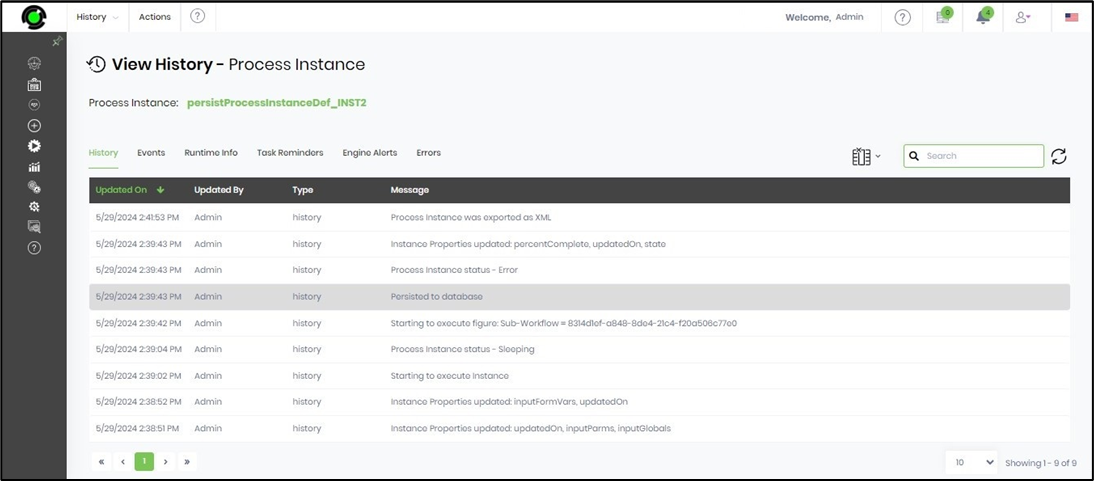
- Save the process definition, create a new instance, and execute it. This “persistProcessInstance” step persists the current instance in the database as configured.
- In this example, the process instance values from the Start step through the “persistProcessInstance” step are recorded in the database. This step allows completion even when the current instance is not yet finished. On the process instance page, select the current process instance and navigate to the View—History menu option. The instance history, including the persistence-to-database event, is displayed in a table on a new page.
Tips:
- Place this step before workflow activities that may remain idle for extended periods.
- Use this step in workflows that rely on external events, messages, or human interaction.
- Include this step in long-running business processes to improve workflow resiliency.
- Consider persisting execution before asynchronous integrations that may take significant time to complete.
- Use persistence strategically in enterprise workflows to reduce resource usage during idle periods.
- Combine this step with Wait, Receive Message, Human Task, Send Email, or Create Process Instance steps to build scalable long-running workflows.
Notes:
- This step operates on the currently executing process instance.
- No configuration properties are required.
- The step performs an operation on the internal workflow engine to persist the current execution state.
- It is particularly useful for workflows that include wait states or asynchronous processing.
- The uploaded XML does not define explicit return paths for this step.
- Execution details are recorded in the FlowWright workflow execution log.
Persist Process Execution vs. Wait:
Both workflow steps are commonly used in long-running workflows, but they serve different purposes.
| Persist Process Execution | Wait |
|---|---|
| Saves the current execution state of the process instance. | Suspends workflow execution until a specified time or condition is met. |
| Preserves workflow context for reliability and recovery. | Delays workflow execution without performing persistence itself. |
| Performs an internal workflow engine operation. | Controls workflow timing and execution flow. |
| Typically used before long-running or asynchronous activities. | Used whenever workflow execution must pause until a future event or scheduled time. |
As a general guideline:
- Use Persist Process Execution when the workflow needs to save its current execution state before continuing or entering a long-running activity.
- Use Wait when the workflow must intentionally pause until a specified time, duration, or event.
Definition Sample:
You may download the sample workflow definition from the link provided and import it into your FlowWright environment.
Note: This step does not require any configuration after importing. Simply place it at the appropriate location within your workflow where execution state should be persisted before continuing with long-running, asynchronous, or wait-based activities.
After verifying the workflow sequence, save and publish the workflow before execution.