getTaskFileAttachments Step
Description:
This step retrieves the task's file attachment info path.
Inputs
- taskStepID – Select Task Step
- resultFormat – Result Type
- taskFileAttachments – Variable / Global to hold the task file attachments path in XML / JSON
Returns
- true – true condition
- false – false condition
Usage:
Example:
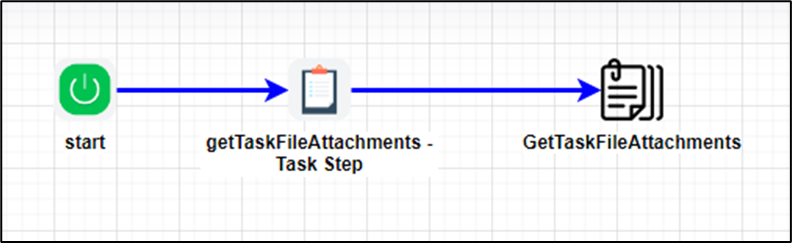
Let’s build and execute the “getTaskFileAttachmentsDef” example.
- Create a new process definition named “getTaskFileAttachmentsDef” and open it in designer mode.
- Drag a “Task, getTaskFileAttachments” step to the canvas.
- Connect the dots between the “Start” and other steps, as shown above.
- Define a variable or a global variable to store the attachment file path information.
- Click the “Task” step to configure its “Required” properties. Enter a name and a task description. Click the Save button. Note: Click the "AI Predict" button to have the Copilot add new process steps that match your process description.

- Click the “Task” step to configure its “Optional” properties. Then route the task to yourself or another user. In this case, the system variable “variable.initiatorID” routes the task to the user who initiated the process instance.

- Click the “getTaskFileAttachments” step to configure its “Settings” properties. From the drop-down list, select the Task step. From the list, select the result type, either XML or JSON. Provide a variable or global reference to store the file attachment path information. Click the Save button. Note: Click the "AI Predict" button for the Copilot to add new process steps that match your process description.

- The “Logging” configuration is necessary for documentation and also measures workflow progress and percent complete. This is achieved by configuring the step state and percent fields individually, as shown below. Configure the “Logging” using the following properties.

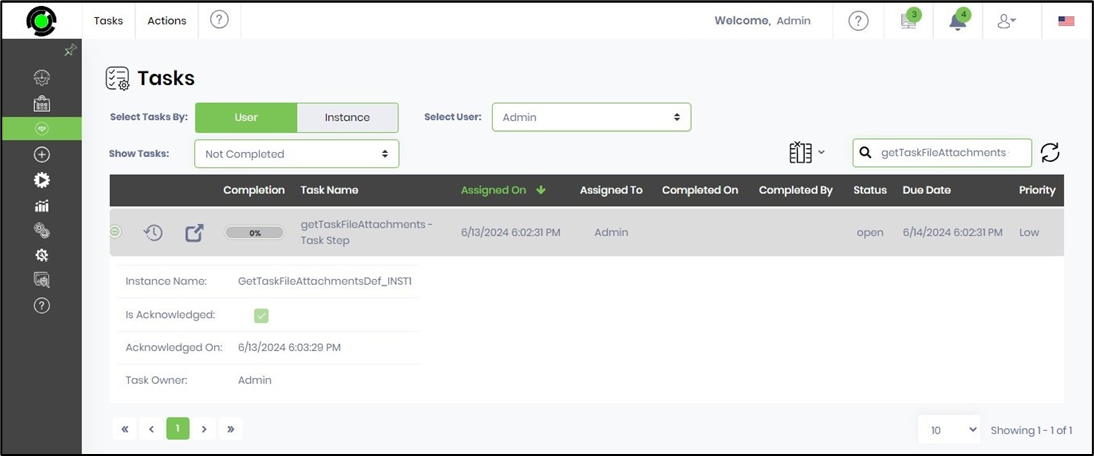
- Save the process definition, create a new instance, and then execute it. The task is assigned to the configured user. You'll need to navigate to the Engage - Task page to view the task or use the task notification. Click the task row to open it.
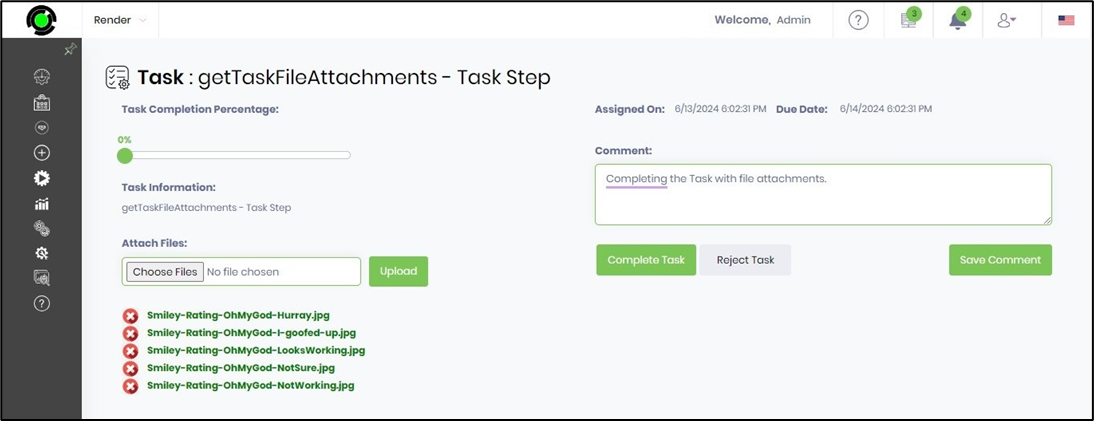
- Use the Attach File feature to add attachments from the local folder to the task. Enter the task comments, then click the Complete Task button.
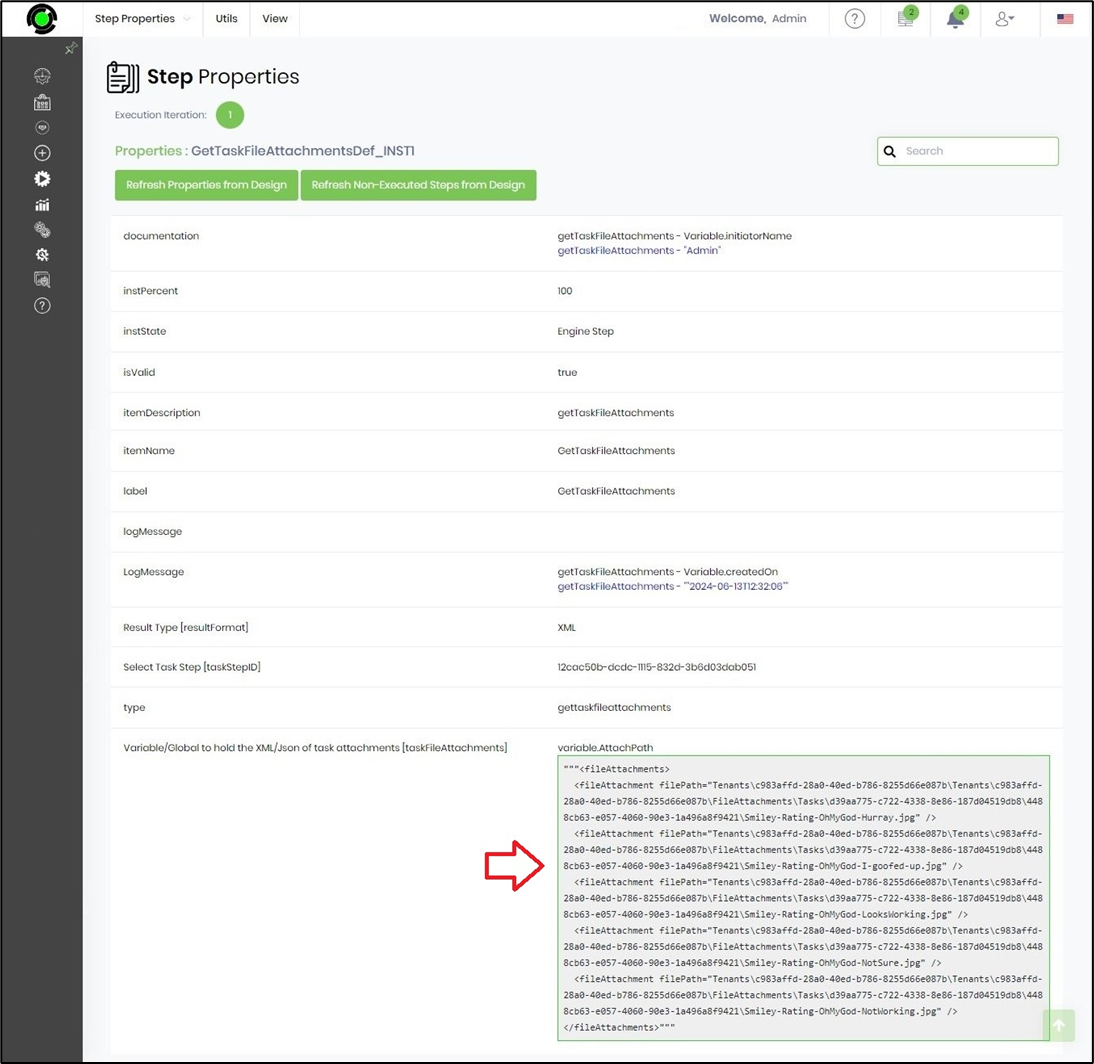
- The task is completed, and the process moves to the getTaskFileAttachments step in the workflow. The file attachment path is retrieved and stored in the variable or global reference provided. The process is complete.
- Navigate to the "Process Instances" page. Select the process instance and render it to view. Click the “getTaskFileAttachments” step to view its properties. The step retrieves the file paths of the attachments added to the task.
Definition Sample:
You may download the sample definition(s) from the link provided and later import them (drag-and-drop) into your FlowWright Process Definition (XML file) or Form Definition (HTML file) page.
Note: Please verify and complete the process steps for any missing configurations, such as file path references and database connections, after the import. Then, save the definition to confirm the changes.
Click here to download the sample file.