zipFile Step
Description:
The ZipFile step enables a FlowWright workflow to create a compressed ZIP archive from an existing file or folder.
Compressing files reduces storage requirements, simplifies file distribution, and allows multiple files to be packaged into a single archive. This step accepts the path to a source file or folder, compresses its contents, stores the resulting ZIP archive in a specified destination folder, and records the path to the generated ZIP file in a workflow or global variable.
The generated ZIP file can then be used by subsequent workflow steps for email delivery, document archival, cloud storage, FTP transfers, REST API uploads, or other integration scenarios.
Typical uses include:
- Compressing documents before emailing
- Archiving completed workflow files
- Creating backup packages
- Packaging reports for download
- Compressing integration files before transfer
- Preparing files for cloud storage
- Creating ZIP archives for customer delivery
- Reducing storage space for completed workflow artifacts
This step provides an efficient method for packaging files while allowing downstream workflow activities to dynamically reference the generated ZIP archive.
Inputs
- Source File or Folder - Specifies the file or folder to compress into a ZIP archive.
- Destination Folder Path - Specifies the folder where the generated ZIP archive will be created.
- Variable/Global that Holds the ZIP File Path - Specifies the workflow variable or global variable that will receive the full path of the generated ZIP archive after successful compression.
Returns
- True – The source file or folder was successfully compressed, the ZIP archive was created in the destination folder, and the generated ZIP file path was stored in the configured workflow variable or global variable.
- False – The ZIP archive could not be created because of an invalid source path, inaccessible destination folder, insufficient permissions, file access issues, or another execution error. Workflow execution follows the alternate path.
Usage:
The ZipFile step is typically used before workflow activities that require compressed files for transmission, storage, or archival.
During execution:
- Read the configured source file or folder.
- Validate that the source exists.
- Create a ZIP archive.
- Save the archive in the specified destination folder.
- Store the path to the generated ZIP file in the configured workflow variable or global variable.
- Continue workflow execution via the True-or-False return path.
A typical workflow might look like this:

Typical workflow scenarios include:
- Compressing reports before emailing customers
- Creating backup archives of workflow documents
- Packaging multiple files before FTP transfer
- Compressing files before cloud uploads
- Creating downloadable document packages
- Archiving completed projects
- Preparing integration files for external systems
Example:
Let’s build and execute the “ZipFileDef” example.
- Create a new definition called “unZipFileDef” and open the definition in designer mode.
- Drag a "zipFile, unZipFile" step to the canvas.
- Connect the dots between the “Start” step and “unZipFile” steps, as shown above.
- Select the line between the steps to configure the “Connection Properties”. The default property values are “None, Error, Evaluate, and Timeout”. Depending on the step’s purpose, additional values are available for configuration.
- Define a variable or a global variable to store the result.
- Click the “ZipFile” step to configure its properties. Enter the source file or folder path on the FlowWright server. Click the Save button. Note: Click the "AI Predict" button to have the Copilot add new process steps that match your process description.

- Click the “unZipFile” step to configure its properties. Enter the destination file or folder path on the FlowWright server. Click the Save button. Note: Click the "AI Predict" button to have the Copilot add new process steps that match your process description.

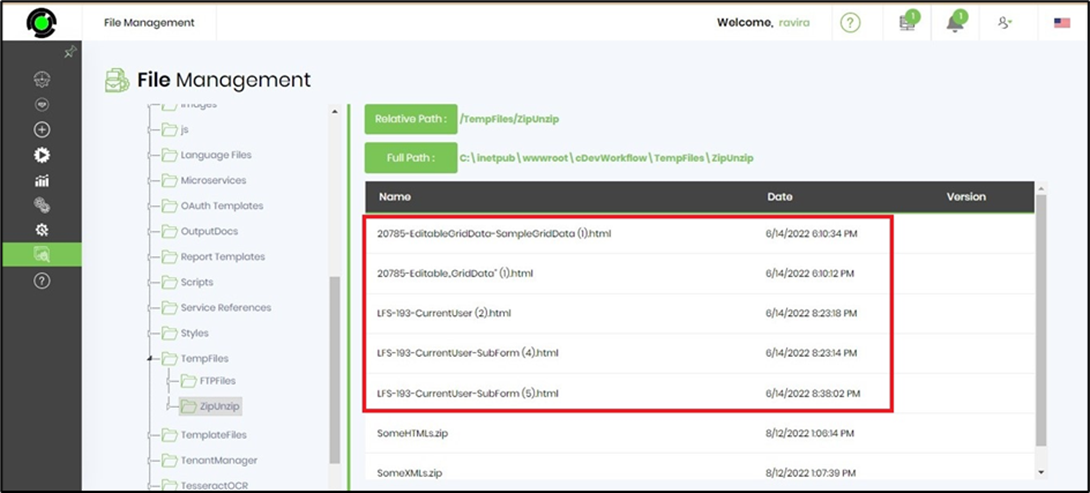
- Save the process definition, create a process instance, and execute it. Render the completed process instance to view the step properties. The step should have extracted the files to the destination folder. Note: The File Management feature is not available in FW v10.x. Use the File Explorer utility to view the same file path.
Tips:
- Verify that the source file or folder exists before executing this step.
- Store the destination folder in a configurable workflow variable or environment variable to simplify deployment.
- Use a descriptive name for the variable that stores the path to the generated ZIP file.
- Archive large collections of files as a single ZIP file to simplify downstream processing.
- Route the False path to logging and notification activities for easier troubleshooting.
- Combine this step with the Send Email, REST Call, FTP Upload, Archive Process Instance, Upload Document, or UnZipFile steps to build complete file-packaging and distribution workflows.
Notes:
- All three configuration properties are required.
- The step supports compressing either a single file or an entire folder.
- The path to the generated ZIP file is stored in the configured workflow variable or global variable.
- The source files remain unchanged after compression.
- Both the True and False return paths should be implemented to provide complete workflow handling.
- Ensure that the destination folder is writable by the FlowWright application.
- Execution details are recorded in the FlowWright workflow execution log.
ZipFile vs. UnZipFile:
Although both steps work with ZIP archives, they perform opposite operations.
| ZipFile | UnZipFile |
|---|---|
| Creates a ZIP archive from a file or folder. | Extracts files from an existing ZIP archive. |
| Accepts a source file or folder. | Accepts an existing ZIP file. |
| Produces a compressed ZIP archive. | Produces the extracted files and folders. |
| Stores the path to the generated ZIP file in a workflow variable or a global variable. | Does not define an output variable for extracted files. |
| Used before file transfer, backup, or archival. | Used after receiving or downloading compressed files. |
| Requires a Source File or Folder, a Destination Folder Path, and a Variable/Global that Holds the ZIP File Path. | Requires File Path to ZIP and Destination Folder. |
As a general guideline:
- Use ZipFile when a workflow needs to compress files or folders before storage, transfer, or distribution.
- Use UnZipFile when a workflow needs to extract the contents of an existing ZIP archive before processing its contents.
Definition Sample:
You may download the sample workflow definition from the link provided and import it into your FlowWright environment.
Note: Verify and complete any missing configuration after importing the sample, including:
- Source file or folder path
- Destination folder path
- ZIP file path variable or global variable
- Success and failure workflow branches
- Validation that the destination folder is accessible
After verifying the configuration, save and publish the workflow before execution.
Click here to download the sample file.