createFormInst Step
Description:
This step creates a new Form Instance from an existing one.
Inputs
- sourceFormInstID - Variable/Global that holds the source form instance id
- newformInstanceID - Variable/Global that holds the new form instance id
- formInstanceName - Name of the form instance (optional)
Returns
- True – step executed successfully
- False – step failed to execute
Usage:
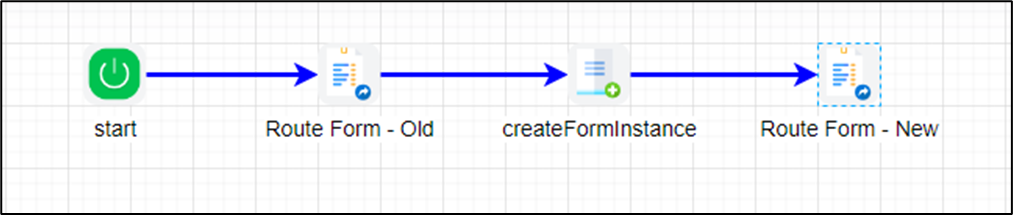
Example:
Let’s build and execute the “createFormInstDef” example.
- Create a new process definition named “createFormInstDef” and open it in designer mode.
- Drag the “RouteForm Steps, createFormInst” steps to the canvas.
- Connect the dots between the “Start” and the other steps, as shown above.
- Define a variable or a global to hold the new Form Instance ID.
- Click the "RouteForm" step to configure its "Required" properties. Select the Form definition from the drop-down list. Provide a variable to store the Form Instance ID. Configure the user who will route the Form. Click the Save button. Note: Click the "AI Predict" button to have the Copilot add new process steps that match your process description.

- Click the “createFormInst” step to configure its “Required” properties. Provide variable or global references to store the source and new Form Instance IDs. Click the Save button. Note: Click the "AI Predict" button to have the Copilot add new process steps that match your process description. Click the Save button.

- Click the “createFormInst” step to configure its “Optional” properties. Provide the Form Instance name (optional). Then click the Save button.

- Click the second “RouteForm” step to configure its “Required” properties. Select the exact Form definition from the drop-down list. Provide the variable reference for the new Form Instance ID. Configure the user to route the Form. Click the Save button. Note: Click the "AI Predict" button to have the Copilot add new process steps that match your process description.

- The “Logging” configuration is necessary for documentation and also measures workflow progress and percent complete. This is achieved by configuring the step state and percent fields individually, as shown below. Configure the “Logging” using the following properties.

- Save the process definition, create a new instance, and execute it. The process step should create the new Form Instance using the existing Form Instance as a reference. Navigate to the Form—Instances page to view both Form Instances.

Definition Sample:
You may download the sample definition(s) from the link provided and later import them (drag-and-drop) into your FlowWright Process Definition (XML file) or Form Definition (HTML file) page.
Note: Please verify and complete the process steps for any missing configurations, such as file path references and database connections, after the import. Then, save the definition to confirm the changes.
Click here to download the sample file.