Loggly Step
Description:
This step sends messages to the Loggly service.
Inputs
- Message data to Log – Input the message which needs to be logged.
Returns
- True – step executed successfully
- False – step failed to execute
Usage:
The Loggly step requires a subscription from https://www.loggly.com. After signing up, configure the account information in the FlowWright configuration:

Example:
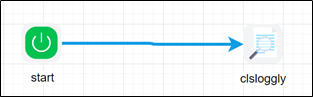
Let’s build and execute the “clsLogglyDef” example.
- Create a new process definition named “clsLogglyDef” and open it in designer mode.
- Drag a “clsLoggly” step to the canvas.
- Connect the dots between the “Start” and “clsLoggly” steps, as shown above.
- Click the “clsLoggly” step to configure its “Required” properties. Provide a name for the step. Click the button to configure the Loggly service message. Click the Save button. Note: Click the "AI Predict" button to have the Copilot add new process steps that match your process description.

- Click the button to configure the message for the Loggly service. A pop-up window appears for configuration. Click the Add Row (+) button to insert an empty row. Enter the key and value. Click the Save button. You may add multiple keys and values using the Add Row button.

- The “Logging” configuration is necessary for documentation and also measures workflow progress and percent complete. This is achieved by configuring the step state and percent fields individually, as shown in the images below. Configure the “Logging” using the following properties.

- Save the process definition, create a new instance, and execute it. The process step should send messages to the Loggly service as configured.
- Log in to https://www.loggly.com/ using the userID and password to verify this message.
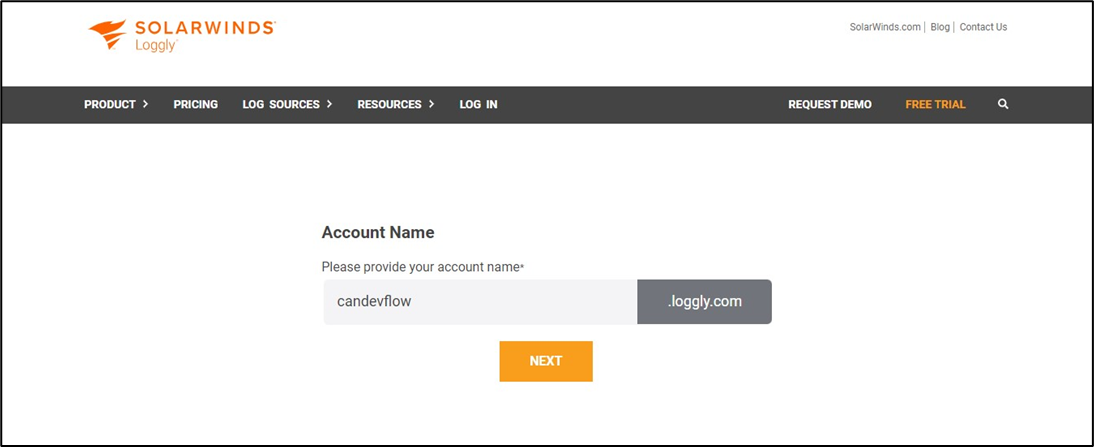
- The received message is stored in JSON format in Loggly.

Definition Sample:
You may download the sample definition(s) from the link provided and later import them (drag-and-drop) into your FlowWright Process Definition (XML file) or Form Definition (HTML file) page.
Note: Please verify and complete the import process steps for any missing configurations, such as file path references and database connections. Then, save the definition to confirm the changes.
Click here to download the sample file.