PublishMSMQ Step
Description:
The Publish MSMQ Message workflow step publishes or sends a message to a Microsoft Message Queuing (MSMQ) queue.
The step supports:
- Specifying the machine name.
- Specifying the queue name.
- Identifying whether the queue is public.
- Defining a message label.
- Defining the message body.
- Continuing workflow processing through True or False return paths.
Inputs
-
machineName –The
machineNameproperty specifies the machine name associated with the MSMQ queue. -
queueName – The
queueNameproperty specifies the name of the MSMQ queue. -
IsPublic – The
isPublicproperty identifies whether the queue is public. -
messageLabel – The
messageLabelproperty specifies the message label. -
messageBody – The
messageBodyproperty specifies the message body to be sent.
Returns
- True – The True path can be connected to the next workflow activity after the message-publishing operation.
- False – The False path can be connected to an alternative or error-handling workflow path.
Usage:
The Publish MSMQ Message step is used when a FlowWright workflow needs to send a message to an MSMQ queue.
A typical workflow pattern is:
Prepare Data → Publish MSMQ Message → Continue Process
The workflow provides the machine name, queue name, message label, and message body. The Is Public Queue property can optionally be used to identify the queue as public or not.
For example:
Process Request → Prepare Message → Publish MSMQ Message → Continue Processing
The True and False return paths can then be connected to subsequent workflow activities.

MSMQ is a queuing service built into the Microsoft Windows operating system. For more information, see the Windows documentation on MSMQ.
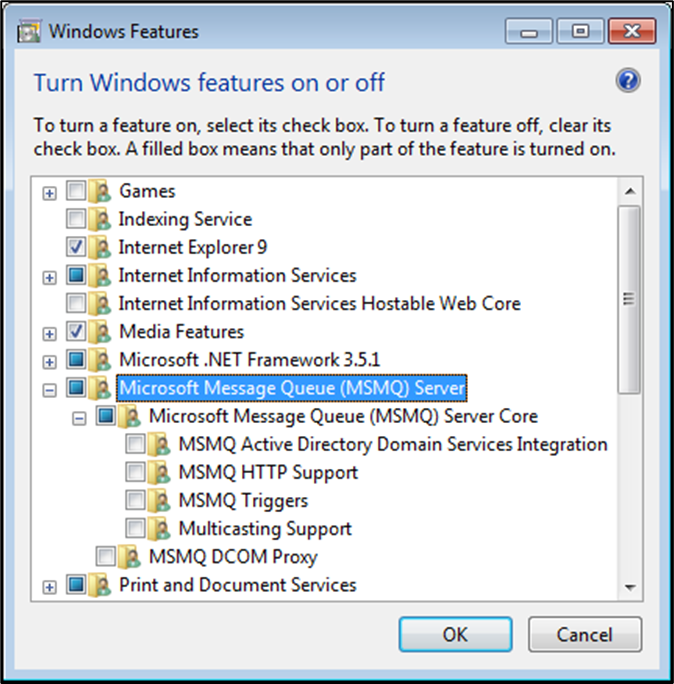
To install MSMQ, run OptionalFeatures from a command prompt to open the 'Windows Features' dialog.
In the dialog's feature tree, select the top-level feature 'Microsoft Message Queue (MSMQ) Server.' This also selects the sub-feature 'Microsoft Message Queue (MSMQ) Server Core.' The dialog should look like this:
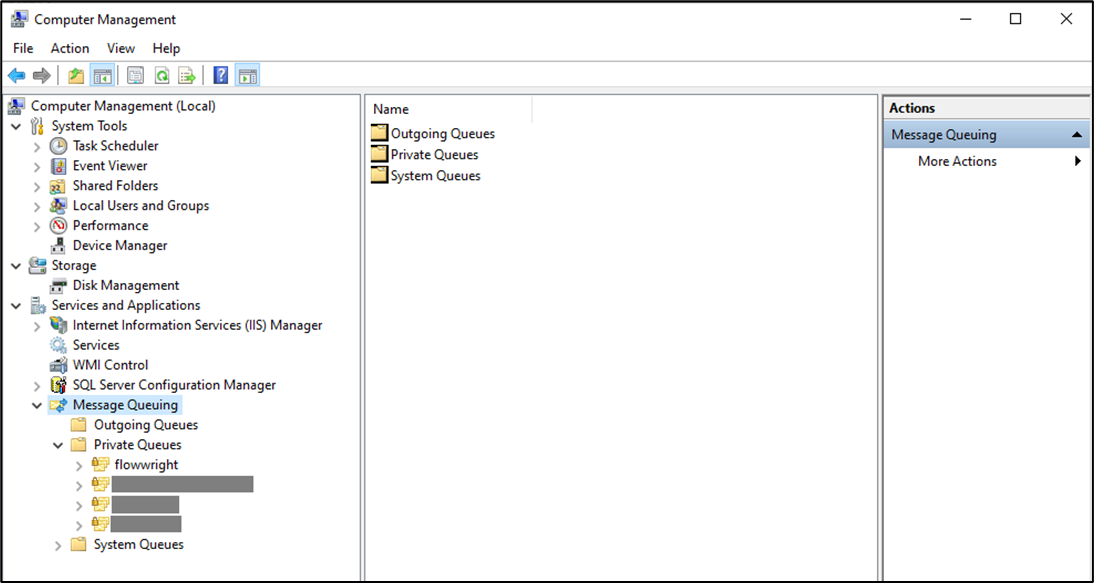
After you configure the message queues in Computer Management, the list is displayed for reference, as shown.
Example:
Let’s build and execute the “clsPublishMSMQDef” example.
- Create a new definition named “clsPublishMSMQDef” and open it in designer mode.
- Drag a "clsPublishMSMQ" step to the canvas.
- Connect the dots between the “Start” step and “clsPublishMSMQ” steps, as shown above.
- Select the line between the steps to configure the “Connection Properties”. The default property values are “None, True, False, Error, and Evaluate”. Depending on the step’s purpose, you can configure additional values.
- Click the “clsPublishMSMQ” step to configure its “Required” properties. Enter a name for the step. Enter an MSMQ queue name. Enter the message label and the sample text to send. Click the Save button. Note: Click the "AI Predict" button to have the Copilot add new process steps that match your process description.

- Click the “clsPublishMSMQ” step to configure its “Optional” properties. If the message queue is private, set “No". Then click the Save button.

- The “Logging” configuration is necessary for documentation and also measures workflow progress and percent complete. Configure the step state and percent fields individually, as shown in the images below. Configure the “Logging” using the following properties.

- Save the process definition, create a new instance, and execute it. The process step should publish or send messages to the queue as configured.
Typical Workflow Suggestions:
Send a Workflow Notification
Use the step to send a notification generated by a FlowWright workflow to an MSMQ queue.
Example:
Process Event → Publish MSMQ Message → Continue Process
Message Label:
Workflow NotificationProcess {{ProcessName}} requires attention.
Instance: {{InstanceID}}
Status: {{Status}}
Send an Order Processing Message
Use the step to send order-processing information to an MSMQ queue.
Example:
Approve Order → Publish MSMQ Message → Complete Order
Message Label:
Order ProcessingOrder ID: {{OrderID}}
Customer: {{CustomerName}}
Amount: {{OrderAmount}}
Status: Approved
Send a Process Completion Message
Use this step to notify another application when a workflow process reaches a particular completion point.
Example:
Complete Process → Publish MSMQ Message → Update Process Status
Message Label:
Process CompletedProcess ID: {{ProcessID}}
Instance ID: {{InstanceID}}
Completion Status: {{Status}}
Send a Message to a Public MSMQ Queue
Use this step when the destination queue is configured as a public queue.
Example:
Prepare Integration Data → Publish MSMQ Message → Continue Integration
Configuration:
Machine Name: Server01
Queue Name: IntegrationQueue
Is Public Queue: YesisPublic property is optional and uses the selectYesNo data type.
Branch After Publishing the MSMQ Message
Use the step's return paths to continue processing differently depending on the result of the message-publishing operation.
Example:
Prepare Message → Publish MSMQ Message
                    +---- True ----> Continue Processing
                    |
Publish MSMQ Message+
                    |
                    +---- False ---> Handle Failure
Tips:
- Enter the correct Machine Name for the MSMQ queue.
- Verify the Queue Name before executing the workflow.
- Configure Is Public Queue according to the target queue configuration.
- Always provide the required Message Label.
- Always provide the required Message to Send.
- Use workflow variables to create dynamic message content where appropriate.
- Keep message labels consistent when downstream applications use them for identifying messages.
- Keep message-body formats consistent when downstream systems consume the messages.
- Test the configured queue before deploying the workflow to production.
- Connect the True path to the activity that should follow successful processing.
- Connect the False path to appropriate alternative or error-handling processing.
- Verify the machine and queue values when moving a workflow between environments.
- Avoid assuming that the step creates a queue automatically because queue-creation behavior is not defined in the XML.
- Verify the meaning and expected value of Is Public Queue in the target MSMQ environment.
- Do not assume specific retry, timeout, acknowledgment, or delivery-guarantee behavior from the step definition.
Definition Sample:
You may download the sample definition(s) from the link provided and later import them (drag-and-drop) into your FlowWright Process Definition (XML file) or Form Definition (HTML file) page.
After adding or importing this step into a process definition, verify and complete the environment-specific configuration, including:
- The correct MSMQ machine name.
- The intended queue name.
- Whether the queue should be treated as public.
- The message label.
- The message body.
- The True workflow path.
- The False workflow path.
- Any downstream activities that process the publishing result.