pdfValidate Step
Description:
The PDF Validate Standard step enables a FlowWright workflow to validate a PDF document against a selected PDF compliance standard.
Many business and regulatory processes require PDF documents to conform to specific standards before they can be archived, exchanged, published, or submitted to external organizations. This step automates the verification process by validating the document and generating validation output for downstream workflow activities.
The workflow specifies the source PDF document, selects the required validation type, defines an output location for the validation results, and specifies a FlowWright virtual file path for subsequent document handling.
Typical uses include:
- Validating archival PDF documents
- Verifying PDF compliance before document distribution
- Supporting regulatory and compliance workflows
- Validating documents before long-term storage
- Quality assurance for generated PDF reports
- Preparing documents for customer delivery
- Validating scanned business documents
- Supporting automated document governance
By validating PDF documents automatically during workflow execution, organizations can improve document quality and ensure compliance with required PDF standards.
Inputs
- Input File Path - Specifies the full path of the PDF document that will be validated.
- Validation Type - Specifies the PDF validation standard against which the document will be evaluated. The available options are determined by the configured PdfValidationType data type.
- Output File Path – Specifies the location where the validation output or generated validation document will be saved.
- PDF Virtual File Path – Specifies the FlowWright virtual file path associated with the validation output for use by subsequent workflow activities.
Returns
- True – The PDF document was successfully validated against the selected standard. Workflow execution continues through the success path.
- False – The validation could not be completed, or the document failed processing because of an invalid file, unsupported validation type, inaccessible output location, or another execution error. Workflow execution follows the alternate path.
Usage:
The PDF Validate Standard step is typically used after a PDF document has been generated, received, scanned, or modified and must be validated before further processing.
During execution:
- Read the configured input PDF file.
- Load the selected PDF validation standard.
- Validate the document against the specified standard.
- Generate the validation output.
- Save the validation results to the configured output location.
- Associate the output with the configured PDF virtual file path.
- Continue workflow execution through either the True or False return path.
A typical workflow might look like this:

Typical workflow scenarios include:
- Validating generated invoices before customer delivery
- Verifying compliance documents before archival
- Validating engineering reports prior to publication
- Checking scanned records before document management storage
- Validating regulatory submissions
- Supporting automated document quality assurance
- Preparing PDF files for long-term preservation
Example:
Let’s build and execute the “pdfValidateDef” example.
- Create a new process definition named “pdfValidateDef” and open it in Designer mode.
- Drag the “pdfValidate” step to the canvas.
- Connect the dots between the “Start” step and the “pdfValidate” step, as shown above.
- Select the line between the steps to configure the “Connection Properties”. The default property values are “None, True, False, Error, and Evaluate”. Depending on the step’s purpose, additional values are available for configuration.
- Define a variable or a global variable to store the file path result.
- Click the "pdfValidate" step to configure its "Required" properties. Provide a name for the step. Provide the source file path on the application server. Select the PDF validation type. Provide variable references to store the Output and Virtual PDF file paths. Click the Save button. Note: Click the "AI Predict" button for the Copilot to add new process steps that match your process description.

- The “Logging” configuration is necessary for documentation and also measures workflow progress and percent complete. This is achieved by configuring the step state and percent fields individually, as shown in the images below. Configure the “Logging” using the following properties.

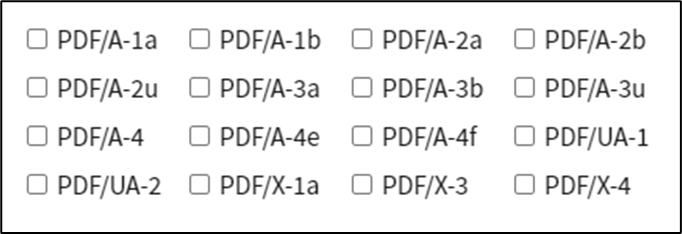
- Save the process definition, create a new instance, and execute it. Render the process instance. Click the “pdfValidate” process step to view its properties. This step validates the PDF document against one of the following PDF standards and returns “True”.
Tips:
- Validate PDF documents before distributing them to customers or external organizations.
- Select the validation type appropriate for your organization's document retention or compliance requirements.
- Store validation output in a dedicated folder for auditing and troubleshooting.
- Verify that the input PDF exists before executing the validation step.
- Configure the PDF virtual file path when validation results will be accessed by other FlowWright workflow steps.
- Route the False path to logging or notification activities to simplify issue resolution.
- Combine this step with the Remove Blank Pages, PDF Create From Pages, Merge PDF Files, Split PDF, or Send Email steps to build comprehensive PDF-processing workflows.
Notes:
- A valid input PDF file is required.
- A PDF validation type must be selected before execution.
- The output file path must reference a writable location.
- The available validation standards depend on the configured PdfValidationType.
- The configured PDF virtual file path enables subsequent workflow components to reference the validation output.
- Both the True and False return paths should be implemented to provide complete workflow handling.
- Execution details and validation activities are recorded in the FlowWright workflow execution log.
PDF Optimize File vs. PDF Validate Standard:
Both workflow steps process PDF documents, but they serve different purposes.
| PDF Optimize File | PDF Validate Standard |
|---|---|
| Optimizes a PDF document by reducing its file size. | Validates a PDF document against a selected PDF standard. |
| Focuses on improving storage efficiency and document performance. | Focuses on verifying compliance with PDF standards and document quality. |
| Generates an optimized version of the original PDF. | Generates validation results based on the selected validation type. |
| Does not require a validation standard. | Requires a Validation Type to specify the PDF standard to validate against. |
| Ideal for email delivery, document storage, and bandwidth optimization. | Ideal for regulatory compliance, archival verification, and quality assurance workflows. |
As a general guideline:
- Use the PDF Optimize File when workflows need to reduce PDF document size before storing, uploading, or distributing them.
- Use PDF Validate Standard when workflows must verify that PDF documents comply with a required validation standard before archival, regulatory submission, or external distribution.
Definition Sample:
You may download the sample workflow definition from the link provided and import it into your FlowWright environment.
Note: Verify and complete any missing configuration after importing the sample, including:
- Input PDF file path
- PDF validation type
- Output file path
- PDF virtual file path
- Success and failure workflow branches
- Required file system permissions
After verifying the configuration, save and publish the workflow before execution.