clsUTCToTimeZone Step
Description:
The Convert UTC Date Times to Selected Time Zone step enables a FlowWright workflow to convert one or more UTC date and time values into a selected local time zone.
Many organizations store timestamps in UTC to ensure consistency across distributed systems and global business operations. However, users generally expect to view dates and times in their own regional time zone. This step converts stored UTC values into the selected local time zone, allowing workflows to display meaningful dates in forms, reports, dashboards, notifications, emails, and external applications.
The step accepts a destination time zone and a configurable mapping of UTC date/time values to workflow variables or global variables. During execution, each UTC value is converted into the selected local time zone and written to its corresponding variable.
Typical uses include:
- Displaying appointment times for local users
- Converting audit timestamps for reports
- Preparing regional notification emails
- Displaying workflow activity times
- Presenting scheduled events in local time
- Formatting timestamps for dashboards
- Converting imported UTC values for business users
- Localizing report output for different offices
This step enables organizations to provide consistent UTC-based data storage while presenting localized date and time values to users across different geographic regions.
Inputs
- Select Time Zone - Specifies the destination time zone that the UTC values will be converted into. This property is optional.
- Select UTC Date/Times and Variables/Globals - Specifies one or more UTC date/time values and the workflow variables or global variables that will receive the converted local date/time values. This property is required.
Returns
- True – The UTC date/time values were successfully converted to the selected time zone and stored in the configured workflow variables or global variables. Workflow execution continues through the success path.
- False – One or more UTC values could not be converted because of an invalid UTC value, unsupported time zone, incorrect mapping configuration, or another execution error. Workflow execution follows the alternate path.
Usage:
The Convert UTC Date Times to Selected Time Zone step is typically used after UTC timestamps have been retrieved from a database or external system and before presenting them to users.
During execution:
- Read the configured destination time zone.
- Retrieve the configured UTC date/time mappings.
- Convert each UTC date/time value into the selected local time zone.
- Store each converted value in its corresponding workflow variable or global variable.
- Continue workflow execution through either the True or False return path.
A typical workflow might look like this:

Typical workflow scenarios include:
- Displaying meeting schedules for regional users
- Preparing customer appointment notifications
- Localizing workflow audit reports
- Displaying process completion times
- Generating regional dashboards
- Converting imported UTC timestamps
- Displaying service request history
- Preparing localized email notifications
Example:
Let’s build and execute the “clsUTCToTimeZoneDef” example.
- Create a new process definition named “clsUTCToTimeZoneDef" and open it in designer mode.
- Drag the “clsUTCToTimeZone” step to the canvas.
- Connect the dots between the “Start” and “clsUTCToTimeZone” steps, as shown above.
- Select the line between the steps to configure the “Connection Properties”. The default property values are “None, True, False, Error, and Evaluate”. Depending on the step’s purpose, additional values are available for configuration.
- Define a variable or a global to store the result.
-
Click the “clsUTCToTimeZone” step to configure its “Required” properties. Provide the step name. Select the time zone from the drop-down list to convert the UTC datetime value. Click the button to configure the UTC datetime value. Click the Save button. Note: Click the "AI Predict" button to have the Copilot add new process steps that match your process description.

- Click the button to configure the UTC datetime value. A pop-up window will appear. Enter the UTC datetime value or a variable reference. The UTC value will be converted to the selected time zone and stored in the variable or global reference. Click the Save button.

- Click the “clsUTCToTimeZone” step to configure its “Optional” properties. Select the time zone from the drop-down list, then click the Save button.

- The “Logging” configuration is necessary for documentation and also measures workflow progress and percent complete. This is achieved by configuring the step state and percent fields individually, as shown below. Configure the “Logging” using the following properties.

- Save the process definition, create a new instance, and execute it. Render the process instance. Click the process step to view its properties. The step should convert UTC dates and times to the selected time zone, as shown below.
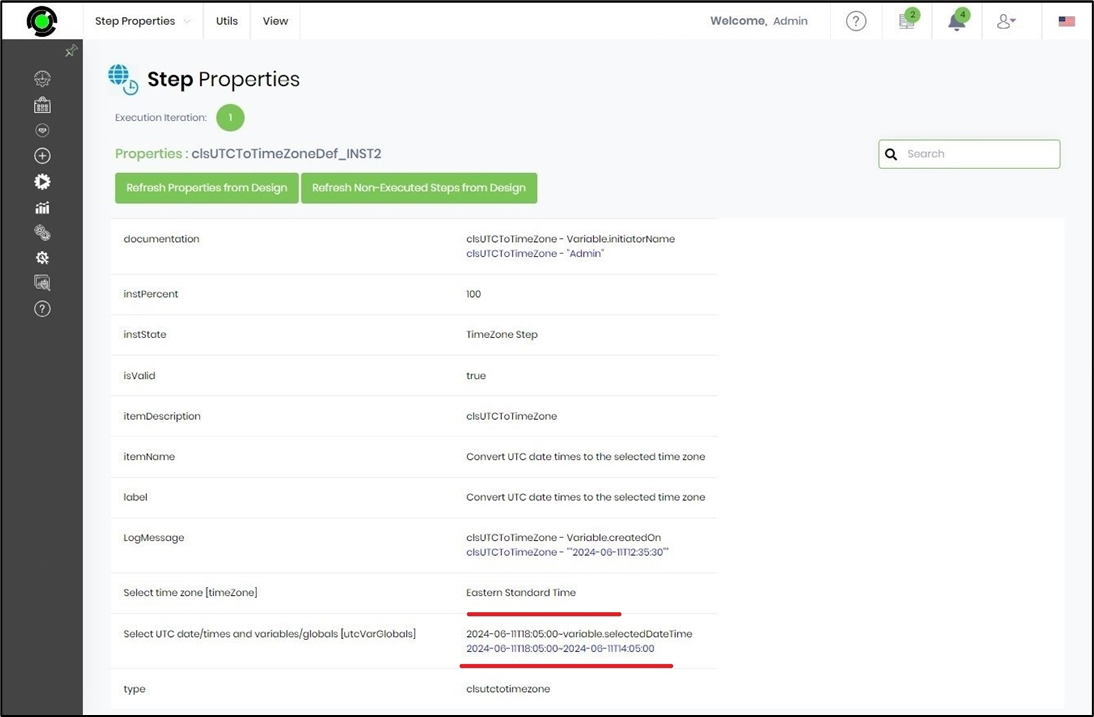
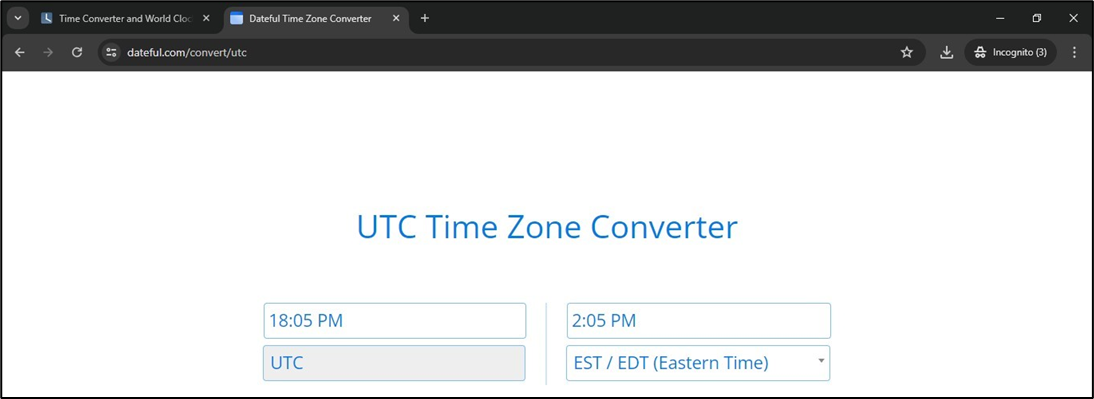
- In this example, the UTC value “2024-06-11T18:05:00” is converted to “2024-06-11T14:05:00” in the Eastern Standard Time Zone.
Tips:
- Store timestamps in UTC whenever workflows span multiple geographic regions.
- Convert UTC values only when presenting information to end users.
- Configure the correct destination time zone for the intended audience.
- Use the mapping configuration to convert multiple UTC values during a single workflow execution.
- Route the False execution path to logging and notification activities for easier troubleshooting.
- Combine this step with Convert Date Time with Time Zone to UTC, reporting steps, email notifications, dashboards, REST integrations, and workflow forms to provide consistent global time management.
Notes:
- The Select UTC Date/Times and Variables/Globals property is required.
- The Select Time Zone property is optional.
- Multiple UTC values can be converted during a single execution using the configured mapping.
- Converted local date/time values are stored in the mapped workflow variables or global variables.
- The step converts UTC values into a selected local time zone without modifying the original UTC values.
- Both the True and False return paths should be implemented for complete workflow handling.
- Using UTC for storage and local time zones for presentation helps maintain consistency across global business operations.
Convert UTC Date Times to Selected Time Zone vs. Convert Date Time with Time Zone to UTC:
Although both workflow steps perform time zone conversions, they operate in opposite directions and are designed for different business scenarios.
| Convert UTC Date Times to Selected Time Zone | Convert Date Time with Time Zone to UTC |
|---|---|
| Converts one or more UTC date/time values into a selected local time zone. | Converts a local date and time into Coordinated Universal Time (UTC). |
| Intended for displaying stored UTC values in a user's local time zone. | Intended for standardizing user-entered or locally generated date/time values before storage or integration. |
| Uses mappings between UTC date/time values and workflow variables/globals. | Requires an Enter Date Time value and an output variable. |
| Uses a destination Time Zone for conversion. | Uses a source Time Zone representing the local date/time being converted. |
| Converts multiple UTC values through its mapping configuration. | Can convert a single value or multiple values using Update Multiple DateTimes. |
| Stores converted local date/time values in mapped workflow variables or globals. | Stores the resulting UTC value in a workflow variable or global variable. |
As a general guideline:
- Use Convert UTC Date Times to Selected Time Zone when workflows retrieve UTC timestamps and need to display them in a user's regional time zone.
- Use Convert Date Time with Time Zone to UTC when workflows receive local date/time values that must be standardized into UTC before storage, reporting, or integration.
Definition Sample:
You may download the sample workflow definition from the link provided and import it into your FlowWright environment.
Note: Verify and complete any missing configuration after importing the sample, including:
- Destination time zone
- UTC date/time and variable/global mappings
- Success and failure workflow branches
After verifying the configuration, save and publish the workflow before execution.
Click here to download the sample file.