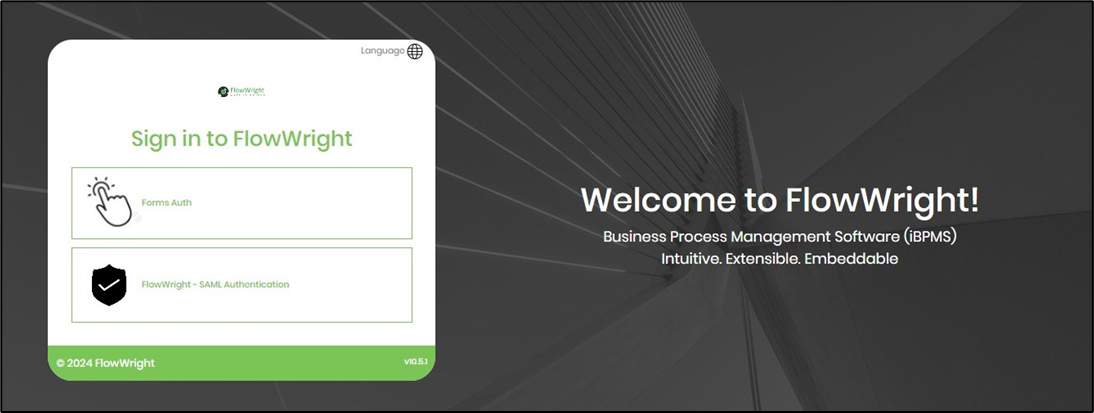
SAML provides a secure way to exchange user authentication and authorization between the identity provider and service providers. When a user logs in to a SAML-enabled application, the service provider requests authorization from the appropriate identity provider. The identity provider authenticates the user’s credentials and then returns the user's authorization to the service provider. The user can now use the application.
As an Admin User, create the SAML Authentication Provider definition in FlowWright. To do so, navigate to the Administration menu and select the Authentication menu option. The Authentication Providers page opens in the same tab.

The page lists the authentication providers, as shown in the example below. Authentication Providers are sorted by Name and include the Type, Namespace, DLL Path, and Verification Status columns. Use the “Search” text box to filter the results.

On the Authentication Provider page, select the “Actions > Create” menu option.

Provide an Auth Provider name and description, select the Auth Provider from the list, and choose the Auth key as shown below. Enter the appropriate SAML parameters. Click Create to initiate the action. The new Auth Connection is created, and a confirmation alert appears in the top-right corner.

Provide any name for the Auth Connection, and the Auth Key can be any keyword you choose. This tells the Login screen which provider to use.
- RequestAppURL - FlowWright Application URL
- SAMLAuthURL - SAML provider authentication URL
- SAMLLogoutURL - SAML provider logout URL
- SAMLCertificate - Contents of the digital certificate
As an Admin User, create the Login UI Auth Connection to provide a login interface for the FlowWright application.
On the Authentication Connections page, select the "Actions > Login UI Auth Connections" menu option.

The Configure Login UI Authentication Connections page is shown below. In the drop-down list, you can select which authentication connections to include or exclude from the user interface. The table below lists active OAuth connections.

Use the drop-down list to select 'Login UI Auth Connections' by checking their boxes. You may also remove login options by unchecking their boxes. A confirmation message appears in the top-right corner.
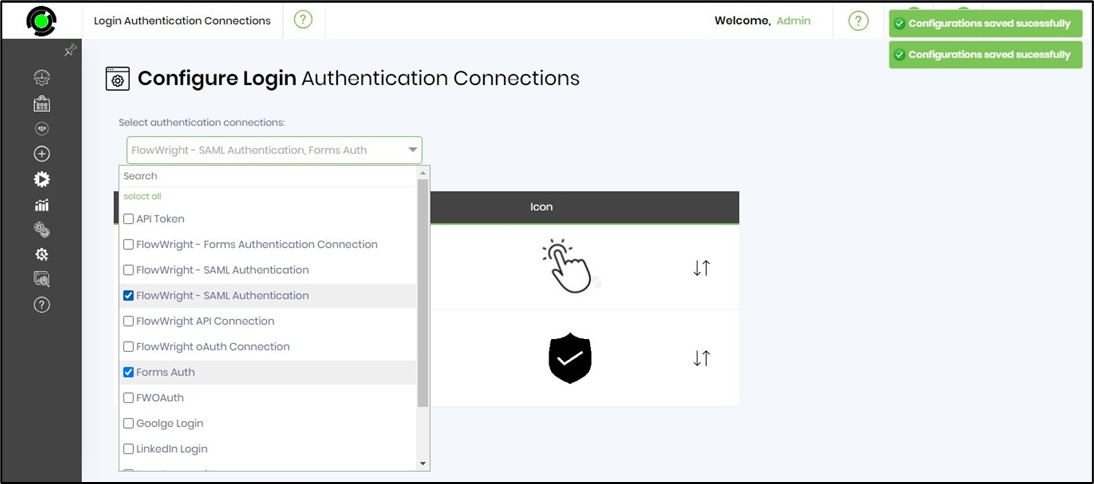
The Login UI Auth Connections, which facilitate form logins, are visible below. You may use the arrow keys to rearrange the order of the positions.