FlowWright supports Windows-integrated authentication. After a user signs in to a Windows domain on their PC or device, FlowWright recognizes their identity without requiring a username and password in specific browsers. A prompt will be displayed to authenticate in browsers that don't remember it.
Configuring Windows authentication.
Follow the steps below to switch the application to Windows authentication mode:
- Edit the c:\FlowWright\appSettings.json file
- Set the mode attribute to Windows

- Save the modified file.
- Close all browsers. Open the website in a new browser and try to access the administration interface at <site domain>/admin.
If you encounter a 401 error, please refer to the 'Enabling Windows authentication in IIS' section below.
With this configuration, the system automatically authenticates users against Windows Active Directory.
When Windows authentication is enabled, the "Sign out" menu option in the top-right corner is not displayed.
Enabling Windows authentication in IIS.
If you are experiencing a 401 error with Windows authentication, you need to enable Windows authentication in IIS:
- Start the Internet Information Services (IIS) Manager.
- Locate and select your site in the IIS tree.
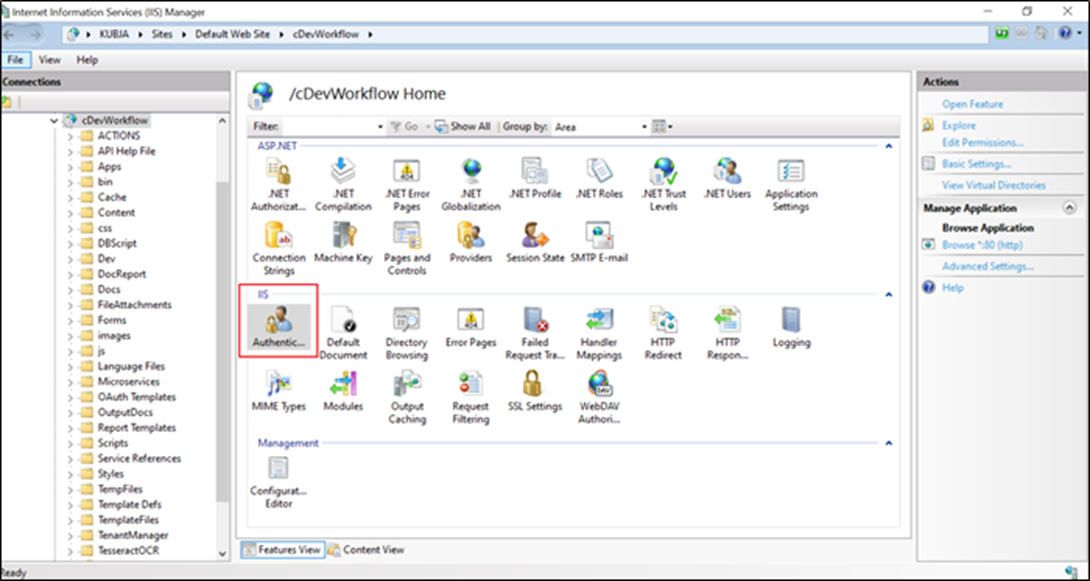
- Double-click the Authentication icon.
Windows Authentication is not included in the list.
If your IIS installation does not include Windows Authentication by default, you need to install it:
- Go to Control Panel -> Programs and Features -> Turn Windows features on or off.
- Expand Internet Information Services -> World Wide Web Services.
- Under Security, select the Windows Authentication check box.
- Click OK to finish the configuration.
Windows Authentication appears as an option in the IIS website's authentication settings.
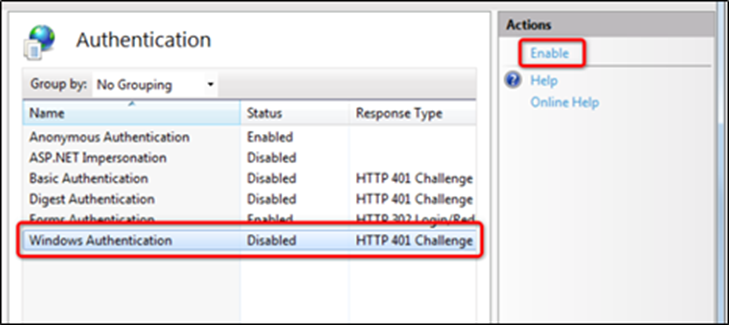
- Select Windows Authentication. Click Enable in the Actions menu. IIS now supports Windows authentication on your site.