Description:
The Set lookup data workflow step is a Development step used to set lookup data values within FlowWright.
The step supports:
- Specifying a lookup category.
- Specifying the lookup item text.
- Specifying the lookup item value.
- Optionally specifying a lookup item filter.
- Using workflow Variables or Globals to provide dynamic values.
- Continuing workflow processing based on the operation result.
- Returning a True or False result for subsequent workflow processing.
Inputs
-
Lookup category - The
categoryproperty specifies the lookup category associated with the lookup item. -
Lookup item text - The
textproperty specifies the text of the lookup item. -
Lookup item value - The
valueproperty specifies the value associated with the lookup item. -
Lookup item filter - The
filterproperty specifies an optional filter associated with the lookup item.
Returns
- True – The True return path can be connected to the next workflow activity after the lookup data operation succeeds.
- False – The False return path can be used for error handling or an alternative workflow path.
Usage:
The Set lookup data step is typically placed after a workflow has determined the lookup information that needs to be created or updated.
A typical workflow pattern is:
Prepare Lookup Information → Set Lookup Data → Continue Processing
For example:
Get Business Data
       ↓
Prepare Lookup Values
       ↓
Set Lookup Data
       ↓
Continue Workflow

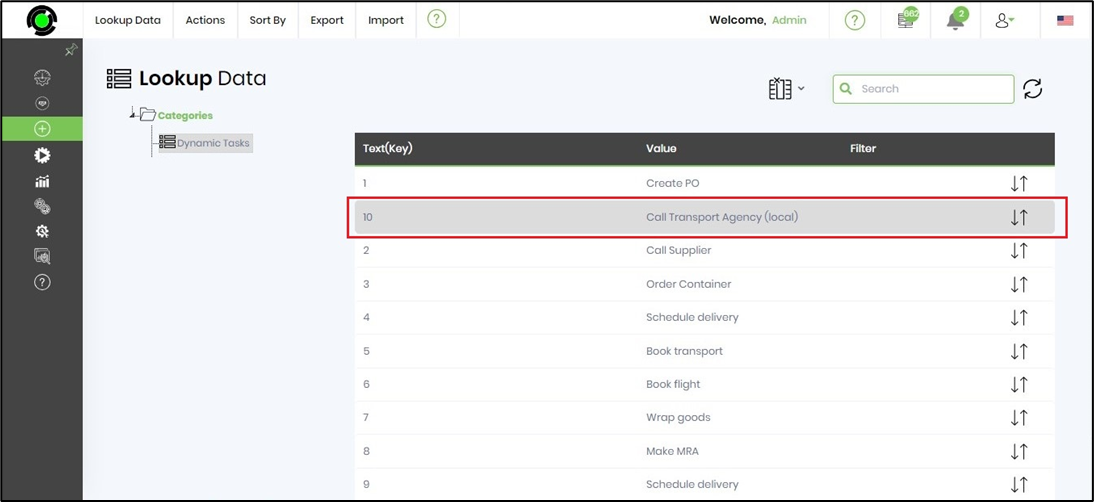
The “clsSetLookUpData” step requires the FlowWright Lookup Data to be preconfigured. To create a list, navigate to the Manage Config—Lookup Data page. A lookup data list is provided here for reference.

Typical Workflow Suggestions:
Create or Set a Status Lookup Item
Use Set lookup data to establish a lookup item representing a business status.
Example:
Prepare Status
      ↓
Set Lookup Data
      ↓
Continue ProcessingLookup category:
Request Status
Lookup item text:
Approved
Lookup item value:
APP
Set Multiple Lookup Items
Use multiple Set lookup data steps when a workflow needs to configure several lookup entries.
Example:
Set Lookup Data
      ↓
Set Lookup Data
      ↓
Set Lookup Data
      ↓
ContinueRequest Status → New → NEW
Request Status → Approved → APP
Request Status → Rejected → REJ
Set Lookup Data from Workflow Values
Use Variables or Globals to provide dynamic lookup values.
Example:
Get Workflow Data
       ↓
Build Lookup Values
       ↓
Set Lookup Data
       ↓
ContinueCategory = Customer Status
Text = {{StatusText}}
Value = {{StatusCode}}
Set Customer-Related Lookup Data
Use the step when workflow processing needs to establish lookup information associated with customer-related data.
Example:
Get Customer Information
        ↓
Prepare Lookup Data
        ↓
Set Lookup Data
        ↓
Continue Customer ProcessingLookup category:
Customer Type
Lookup item text:
Enterprise
Lookup item value:
ENT
Set Department or Organizational Lookup Data
Use lookup data to represent organizational values determined by workflow processing.
Example:
Get Department Information
         ↓
Set Lookup Data
         ↓
Continue ProcessingLookup category:
Department
Lookup item text:
Finance
Lookup item value:
FIN
Set Lookup Data with a Filter
Use a lookup item filter when the workflow needs to provide a filter value along with the lookup information.
Example:
Prepare Lookup Values
        ↓
Set Lookup Data
        ↓
Continue ProcessingLookup category:
Customer Status
Lookup item text:
Approved
Lookup item value:
APP
Lookup item filter:
ActiveConfirm the exact meaning and application of the filter against the FlowWright implementation.
Set Lookup Data After an Approval
Use Set Lookup Data After an Approval decision when the workflow needs to establish or update lookup information.
Example:
Approval
   ↓
Approved
   ↓
Set Lookup Data
   ↓
Continue
Set Lookup Data After Form Submission
Use the step after a form has collected information that should become lookup data.
Example:
Form Submission
      ↓
Validate Data
      ↓
Set Lookup Data
      ↓
Continue Process
Set Lookup Data During Initialization
Use Set Lookup Data during workflow initialization when lookup information needs to be established before the main process begins.
Example:
Start
  ↓
Initialize Lookup Data
  ↓
Set Lookup Data
  ↓
Main Process
Build Lookup Data from External Information
Use the step after retrieving information from another system.
Example:
External Data
     ↓
Transform Values
     ↓
Set Lookup Data
     ↓
Continue Workflow
Use Dynamic Lookup Categories
Use a Variable or Global to determine the lookup category during workflow execution.
Example:
Determine Category
       ↓
Set Lookup Data
       ↓
ContinueLookup category:
{{LookupCategory}}
Lookup item text:
{{LookupText}}
Lookup item value:
{{LookupValue}}
Handle Lookup Data Operation Failure
Use the False return path for alternate processing when the lookup data operation does not succeed.
Example:
Set Lookup Data
     ↙       ↘
  True      False
   ↓           ↓
Continue    Log / Notify /
Process     Handle Error
Set Lookup Data Before Another Workflow Step Uses It
Use Set Lookup Data as a preparation step before another activity depends on the lookup information.
Example:
Prepare Data
    ↓
Set Lookup Data
    ↓
Subsequent Processing
Example:
Let’s build and execute the “clsSetLookupDataDef” example.
- Create a new process definition called “clsSetLookupDataDef” and open the definition in designer mode.
- Drag a "clsSetLookUpData" step to the canvas.
- Connect the dots between the “Start” and "clsSetLookUpData" step, as shown above.
- Select the line between the steps to configure the “Connection Properties”. The default property values are “None, True, False, Error, and Evaluate”. Depending on the step’s purpose, you can configure additional values.
- Click the "clsSetLookUpData" step to configure its “Required” properties. Provide a name for the step and enter the lookup item text value that matches the Lookup Data list. Then click the Save button. Note: Click the "AI Predict" button to have the Copilot add new process steps that match your process description.

- Click the "clsSetLookUpData" step to configure its “Optional” properties. Enter the lookup category, the lookup item value to update, and the filter. Then click the Save button.

- The “Logging” configuration is necessary for documentation and also measures workflow progress and percent complete. Configure the step state and percent fields individually, as shown in the images below. Configure the “Logging” using the following properties.

- Save the process definition, create a new instance, and execute it. Render the process instance and click the process step to inspect its properties and execution result. When the workflow reaches the Set Lookup Data step, verify that:
- The intended lookup category is supplied.
- The lookup item text is supplied.
- The lookup item value is supplied when required.
- The lookup item filter is configured when required.
- The workflow follows the expected True or False path.
- The lookup data reflects the intended values after execution.

- Click the process step to view its properties. The step should “set or update” the lookup data value as configured.
Tips:
- Provide the required Lookup item text.
- Provide a Lookup category when the lookup item needs to be associated with a specific category.
- Provide Lookup item value when the lookup item requires a separate value.
- Use Lookup item filter when filtering information is required by the workflow.
- Use Variables or Globals for dynamic lookup values where supported.
- Use meaningful lookup item text so the resulting lookup information is easy to understand.
- Use consistent lookup values across related workflow definitions.
- Test the step with representative lookup information before deployment.
- Test both the True and False workflow paths.
- Verify the resulting lookup information after execution.
- Test the workflow with and without the optional category.
- Test the workflow with and without the optional value.
- Test the workflow with and without the optional filter.
- Use descriptive Variables or Globals when lookup values are generated dynamically.
- Keep lookup categories and values consistent across development, test, and production environments.
- Avoid unnecessary hard-coded lookup values when they need to vary by environment.
- Review existing lookup data before using the step to establish additional values.
- Test duplicate or already-existing lookup information where applicable.
- Verify the expected behavior when the same lookup item is configured more than once.
- Verify the expected behavior of the optional filter.
- Do not assume whether the operation creates a new lookup item, updates an existing item, or performs another type of lookup-data operation unless confirmed by the FlowWright implementation.
- Do not assume the exact meaning or matching behavior of Lookup item filter without validating it in the runtime.
- Do not assume the exact conditions that produce True or False solely from the XML definition.
- Keep sensitive values out of workflow logging where the lookup information contains confidential data.
Definition Sample:
You may download the sample definition(s) from the link here and later import them (drag-and-drop) to your FlowWright Process Definition (XML file) or Form Definition (HTML file) page.
Before executing the imported definition, verify:
- Lookup category
- Lookup item text
- Lookup item value
- Lookup item filter
- Workflow Variable references
- Environment-specific lookup configuration
- Downstream True workflow path
- Downstream False workflow path
- Expected lookup data after execution
After verifying the configuration, save the Process Definition before execution.