ChoiceTask Step
Description:
The Choice Task workflow step creates a human task and routes it to selected users or roles. Unlike a standard Task step, the Choice Task includes a dedicated Return values configuration for mapping the possible choices associated with the task.
The step supports:
- Routing tasks to selected users.
- Routing tasks to selected roles.
- Defining task descriptions and detailed instructions.
- Associating an item with the task.
- Rendering a URL associated with the task.
- Routing tasks to email addresses.
- Defining return values for the choice task.
- Setting task priority.
- Configuring task completion duration.
- Configuring task expiration.
- Including or excluding weekends when calculating duration.
- Using the full configured duration.
- Configuring task-routing rules.
- Configuring task reminders.
- Sending email notifications.
- Sending separate emails.
- Configuring email subject and body.
- Including email attachments.
- Configuring CC recipients.
- Allowing users to reassign the task.
- Requiring comments.
Inputs
- description – Step description
- routeTo -Select users to route to
- routeToRoles--Select roles to route to
- taskDesc--Task Description
- taskBody -A task detail description
- routedItem--Item that is routed
- showURL-- URL to render within the task
- emailAddresses--Email addresses to route tasks to
- returnVals—Set return values
- priority--Task Priority (low, medium, high, normal, urgent)
- daysToComplete--# of days, minutes, hours, and months to complete the task by
- expireType--Task expiration type (days, months, hours, minutes)
- includeWeekends—On = Include weekends (toggle ON/OFF)
- useFullDuration - the task uses the full duration and continues
- taskRoutingRules- Task routing rule types (default,
- taskReminder- Set Task reminder to send reminder mails
- sendEmailNotification— Yes = email notification will be sent to each user for the task (toggle ON/OFF)
- sendSeparateEmails - Send separate emails. Select Yes/No
- emailSubject-- Subject of the email message
- emailBody-- Body of the email message
- emailFiles - Set the server path for file attachments
- emailCCList - Email cc List
- userCanReAssign – Yes = user can reassign the task to other active users (toggle YES/NO)
- commentRequired - User comments are required
Returns
- Returns - are dynamically generated based on the provided values for the “returnVals” input
- Timeout – when the task times out
Step Returns Collection
- stepReturn.routeTo - list of users (GUID), the task is routed to
- stepReturn.completedByUser – user (GUID), the task is completed by
- stepReturn.rejectedUserList - list of users (GUID), the task is rejected by
Usage:
The Choice Task is useful when a workflow requires a human participant to make a defined choice rather than simply complete a general-purpose task.
Typical uses include:
- Approval decisions
- Request disposition
- Document review outcomes
- Customer-service decisions
- Case routing
- Exception handling
- Business-process decisions
- Manual classification
- Escalation decisions
- Selecting the next processing option
The defining feature is the required Return values configuration, which provides a structured way to map the task's choices.

When the workflow reaches the Choice Task, it routes the configured task to the selected recipients. The user selects from the configured return values, allowing the workflow to use that selection in subsequent processing.
Typical Workflow Suggestions
Request Approval
Use a Choice Task when a reviewer must select from a defined set of outcomes.
Example:
Submit Request → Choice Task: Request Decision → Process Selected Outcome
Possible return values could be:
- Approve
- Reject
- Request Changes
Document Review
Use a Choice Task to capture the outcome of a document review.
Example:
Generate Document → Choice Task: Document Review → Publish / Revise / Reject
The Task detail description can explain the review criteria, while Return values can represent the allowed outcomes.
Customer Request Disposition
Use a Choice Task when customer-service personnel need to select how to handle a request.
Example:
Receive Request → Choice Task: Request Disposition → Resolve / Escalate / Request Information
This provides a structured decision point instead of relying on free-form task completion.
Exception Handling
Use a Choice Task to let an operator decide how to process an exception.
Example:
Automated Processing → Exception → Choice Task: Exception Resolution → Retry / Escalate / Close
Case Routing
Use a Choice Task when a user must select the appropriate destination for a case.
Example:
Create Case → Choice Task: Select Case Route → Finance / Operations / Support
Change Request Review
Use a Choice Task to provide structured outcomes for a change request.
Example:
Submit Change → Choice Task: Change Review → Approve / Reject / Modify
Escalation Decision
Use a Choice Task when a manager needs to decide how to proceed with an issue.
Example:
Issue Detected → Choice Task: Escalation Decision → Resolve / Escalate / Close
Configure Task Priority, completion duration, and reminders when the decision needs to be made within a defined timeframe.
Manual Classification
Use a Choice Task when a human needs to classify or categorize an item using a controlled set of choices.
Example:
Receive Request → Choice Task: Select Request Type → Billing / Technical / General
The selected choice can then determine which downstream workflow branch handles the request.
Example:
Let’s build and execute the “choiceTaskDef” example.
- Create a new process definition named “choiceTaskDef” and open it in designer mode.
- Drag a “choiceTask” step to the canvas.
- Connect the dots between the “Start” and “choiceTask” steps.
- Select the line between the steps to configure the “Connection Properties”. The default property values are “None, Error, Evaluate, and Timeout”. Depending on the step’s purpose, additional values are available for configuration.
- Define a variable or a global variable to store the list of routed users.
- Click the "choiceTask" step to configure its "Required" properties. Provide a name for the step and a task description. Click the button to configure the return values.
- Note: According to the legend, the task step has one incoming connection and three outgoing connections. Click the "AI Predict" button to have the Copilot add new process steps that match your process description.

- Click the “choiceTask” step to configure its “Optional” properties. Click the button to configure the users to route to, the application role (users) to route to, and the user selection. Provide a task detail description. Provide the routed item information. Provide the URL to render. Provide the email addresses (separated by semicolons) to which the task should be routed.

- Select the task priority from the list (low, medium, high, normal, urgent). Select the task expiration type (days, hours, months, minutes). Provide the task completion duration value. If desired, select the 'Include Weekends' option as 'Yes'. Select “Yes” for the task to wait for the entire duration, even after completion.

-
Task Routing Rules - Select task routing rules (default, task lock, least # of tasks in total, least # of tasks by definition) to be applied during runtime.
- “Default” means the task has no lock status.
- “Task lock” means the task is locked by a user.
- “Least # of tasks in Total” means the task is assigned to the user with the fewest total tasks.
- “Least # of tasks by Definition” means the task is assigned to the user with the least count of tasks by definition.

- Configure task reminders. Click the Add Row (+) button to insert an empty row. Enter the time duration, subject, and message body. Click the Save button. You can insert multiple Task Reminders using the Add Row function.

- Select “Yes” to send an email notification. The notification duration is determined by the Status, as set in the 'Email Notifications' section under “Settings” (Status). Select “Yes” to send separate emails to users (which include different task IDs in the URL). Provide the email subject text. Click the button to configure email attachments on the App Server. Provide an Email CC list (semicolon-separated). Select “Yes” to reassign the task during runtime. Select “Yes” for mandatory task comments. Click the “Auto Config Choices” button to label outgoing link connections based on the configured choice task values. Click the Save button.

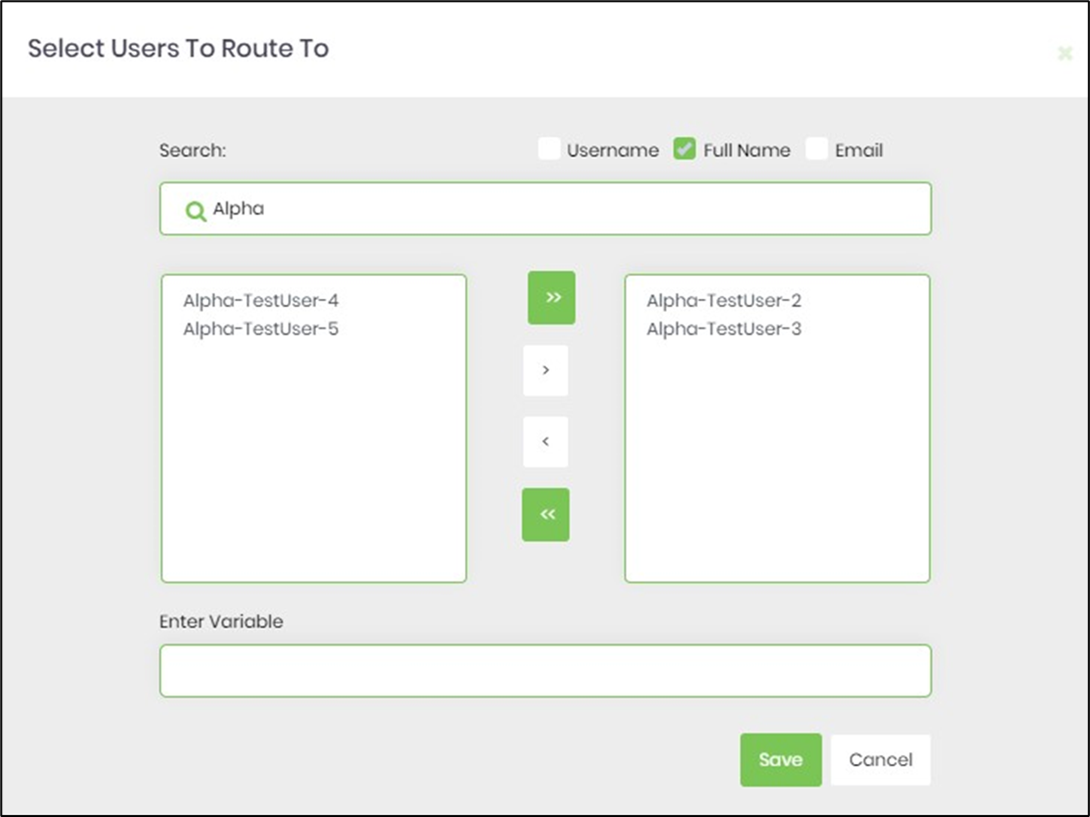
- Search for users by the first three letters, then select from the list in the left pane using the arrow buttons. You can assign the task to multiple users.
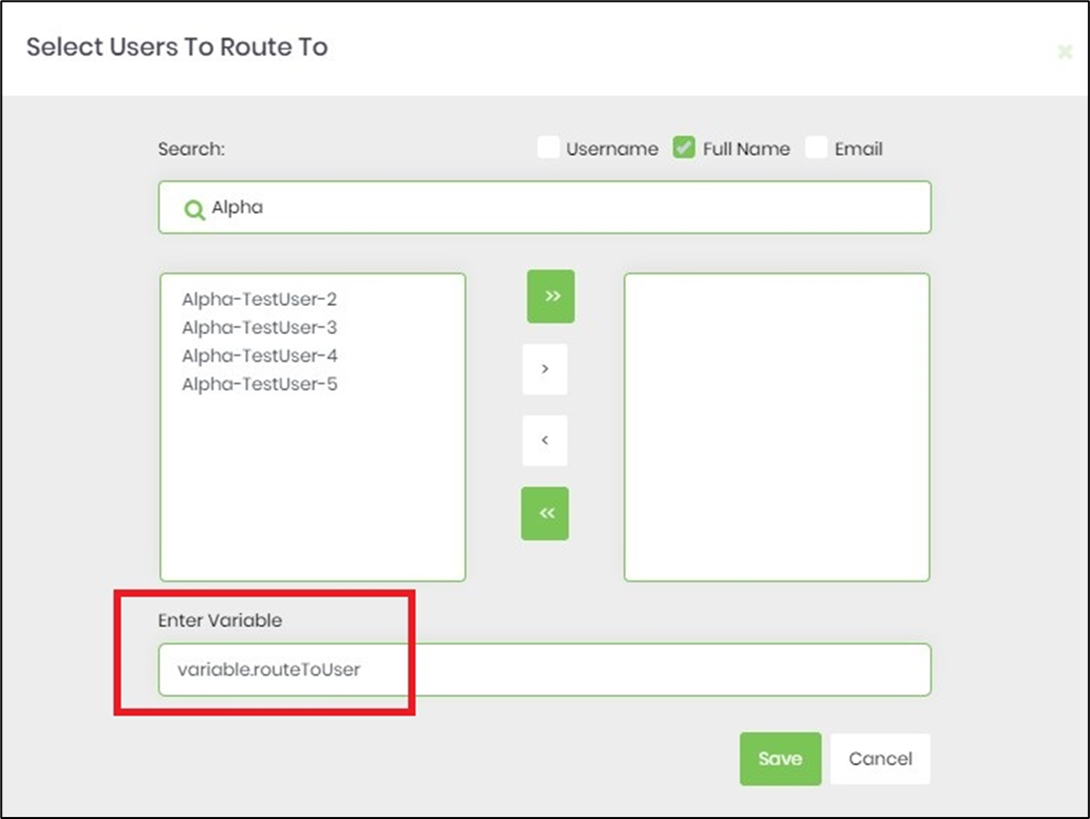
- You can also assign the task to a user by GUID (provided we know the value beforehand). Configure the variable to reference the user's GUID. Leave the username selection empty, as the function is mutually exclusive, as shown in the image below.
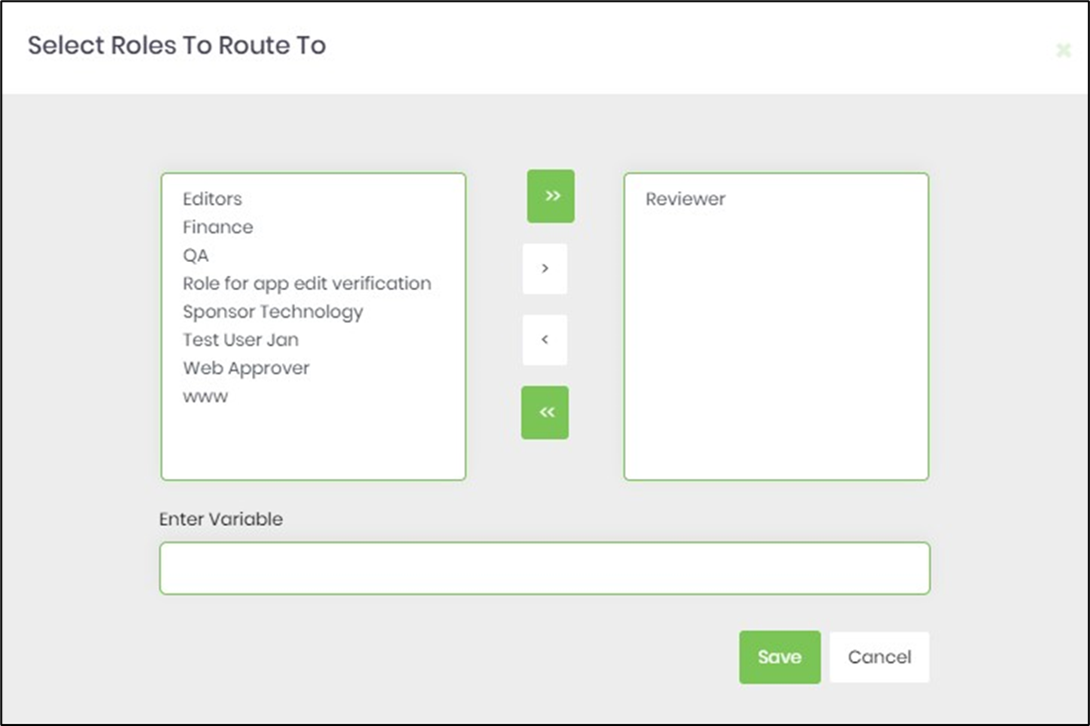
- The Task can also be assigned to users grouped by application role. Use the arrow buttons to select from the list in the left pane.
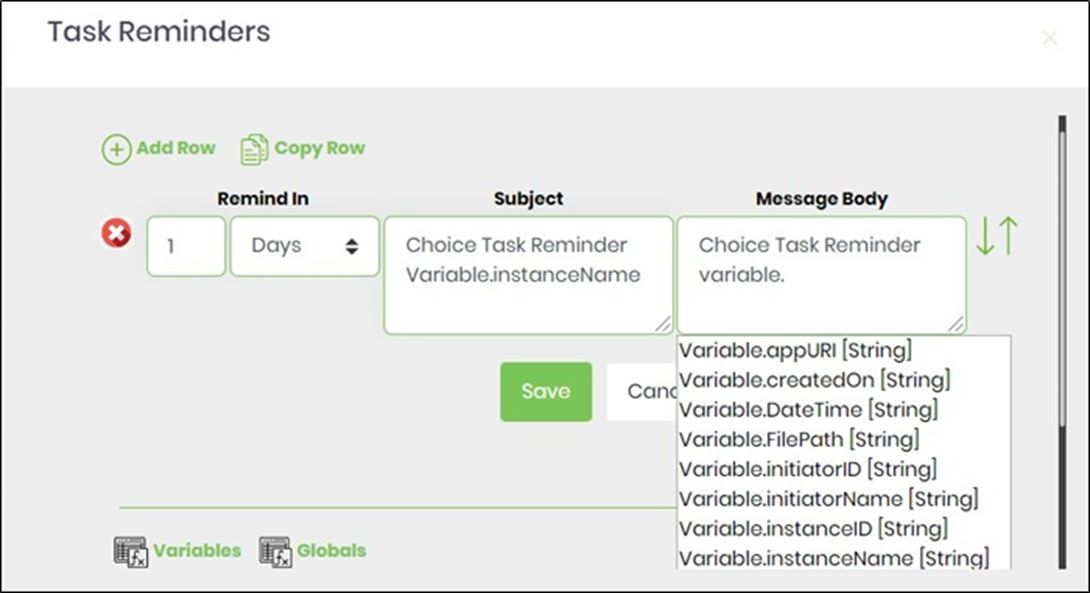
- Click Task Reminder to set the task reminder intervals. Enable "Send Email Notification" to “On”. Task reminders with a positive value are calculated from the task creation date. Task reminders with a negative value are calculated by subtracting that duration from the task's due date. The task reminder message body supports line breaks.
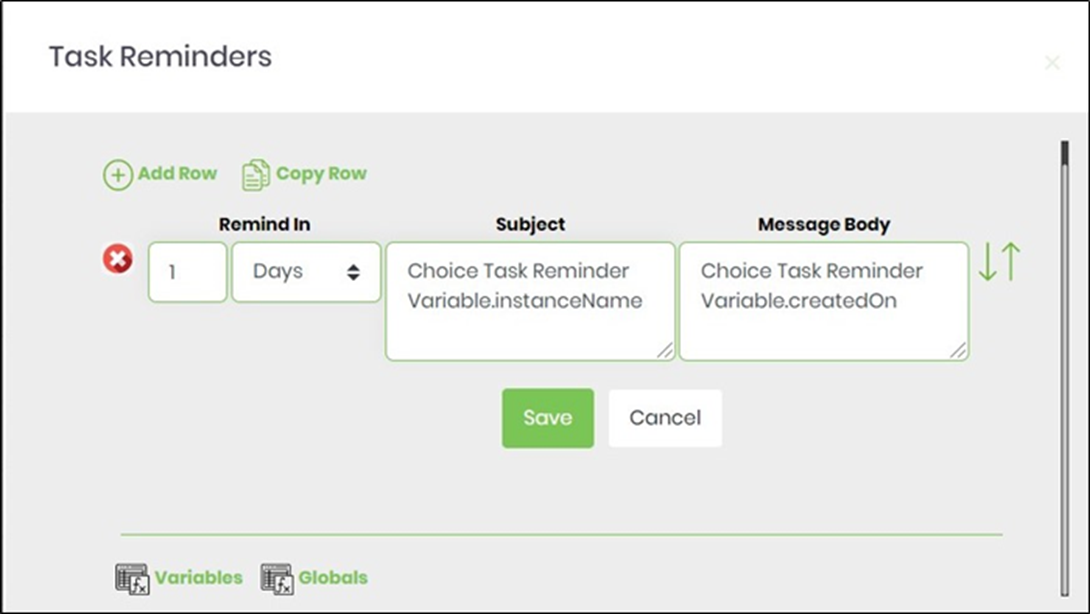
- Use Variable(s) references to create more meaningful reminder messages, as shown below.

- Use Variable(s) references to create more meaningful reminder messages, as shown below.
- Click the Email body and use the existing template (you can also edit it), or create a custom one.

- Click Replace Link(s), Variable(s), or Global(s) and include any system variables to make the email message more meaningful.

- Click Replace Link(s), Variable(s), or Global(s) and select any reference to add a more meaningful email message.

- Configure the return values for the task. A pop-up window opens for configuration. Click the Add Row button to insert an empty row. Enter the return value. Click the Save button. You may add multiple return values by using the Add Row button.

- Note: The process definition "validates" the Choice Step, which has configured return values but does not use them in the process workflow. In the following example, the Choice Step is configured with three choices, but only two are active in the workflow. When the “Action > Validate” feature is used, the application displays an alert prompting the user to correct the issue.

- Use the “Auto Config Choice” button to set link connection values.

- The link connection values are configured automatically, and the confirmation message appears in the top-right corner.

- The “Logging” configuration is necessary for documentation and to measure workflow progress and percent complete. This is done by configuring the step state and percent fields individually, as shown below. Configure the “Logging” using the following properties. The "Send Test Mail" feature sends a test email with the configured email body to the current (logged-in) user. Click the “Auto Config Choices” button to label outgoing link connections based on the configured choice task values.

- Save the process definition, create a new instance, and execute it. Render the process instance.

- Click “Items > Tasks”. The step should route the choice task to users.

- The choice task is rendered for the user as shown below. The user can attach files to the task, select the return value, and provide comments. The choice task can be saved incrementally using the “percentage scroll bar” and the “Save Comment” button. Note: The files attached to the choice task are stored in the application server's file system or in the DMS file storage folder, whose configuration is defined in the “Start” process step.

- The task return values are shown in the drop-down list below.

Tips:
- Give the task a clear, action-oriented Task description.
- Use Task detail description to explain what the user needs to consider before making the choice.
- Define clear and mutually understandable Return values.
- Keep the number of choices manageable.
- Make choices sufficiently distinct to avoid ambiguity.
- Use role-based routing when the decision belongs to a business function rather than a specific employee.
- Use Task Routing Rules when task assignment needs to follow configured business rules.
- Configure Task Reminders for decisions that have deadlines.
- Set an appropriate Task Priority for important decisions.
- Configure Complete the task in and Task expire type when decisions must be made within a defined period.
- Use Render the URL to give the decision-maker direct access to the relevant item or application page.
- Use Comment required when a decision needs supporting justification.
- Enable User can reassign task when the assigned user may legitimately transfer responsibility.
- Use email notification to alert decision-makers.
- Use Email file attachments when supporting documents need to accompany the notification.
- Test every configured choice and its downstream workflow behavior before deploying the process.
- Remember that the XML does not define fixed return paths; the Return values configuration is the mechanism exposed by the step for mapping choices.
Feature Comparison.
| Feature | Task | CheckListTask | ChoiceTask | RouteToQueue | UserSelectionTask |
|---|---|---|---|---|---|
| Primary purpose | Route a task to users/roles | Route a task containing checklist items | Route a task where users select a defined choice | Route a task to a queue | Route a task using configurable user selection |
| Category | Human Tasks | Human Tasks | Human Tasks | Human Tasks | Human Tasks |
| Select users | Yes | Yes | Yes | No | Yes |
| Select roles | Yes | Yes | Yes | No | Yes |
| Select queue | No | No | No | Yes | No |
| Checklist | No | Yes | No | No | No |
| User-selection configuration | No | No | No | No | Yes |
| Choice/return-value configuration | No | No | Yes | No | No |
| Routed item | Yes | Yes | Yes | Yes | No |
| Render URL | Yes | Yes | Yes | Yes | No |
| External email addresses | Yes | Yes | Yes | No | No |
| Task priority | Yes | Yes | Yes | Yes | Yes |
| Queue priority | No | No | No | Yes | No |
| Due duration | Yes | Yes | Yes | Yes | Yes |
| Expiration type | Yes | Yes | Yes | Yes | Yes |
| Include weekends | Yes | Yes | Yes | Yes | Yes |
| Use full duration | Yes | Yes | Yes | No | Yes |
| Routing rules | Yes | Yes | Yes | No | Yes |
| Task reminders | Yes | Yes | Yes | No | Yes |
| Wait for all to respond | Yes | Yes | No | No | Yes |
| Store routed users | Yes | Yes | No | No | Yes |
| Email notification | Yes | Yes | Yes | No | Yes |
| Separate emails | Yes | Yes | Yes | No | Yes |
| Email subject/body | Yes | Yes | Yes | No | Yes |
| Email attachments | Yes | Yes | Yes | No | Yes |
| CC list | Yes | Yes | Yes | No | Yes |
| Expired-task email | Yes | Yes | No | No | Yes |
| Acknowledgement link | Yes | Yes | No | No | Yes |
| Approval/reject button labels | Yes | Yes | No | No | Yes |
| Hide reject button | Yes | Yes | No | No | Yes |
| Reassign task | Yes | Yes | Yes | No | Yes |
| Require comment | Yes | Yes | Yes | No | Yes |
| Store selections | No | Yes | No | No | No |
| Return paths | closed, completed, rejected, timeout | closed, completed, rejected, timeout | Defined through choice return values | completed, rejected, timeout | closed, completed, rejected, timeout |
Definition Sample:
You may download the sample definition when provided and import it into your FlowWright Process Definition.
Note: Verify and complete any missing configuration after importing a sample, including:
- Users or roles
- Task description
- Task instructions
- Routed item
- URL
- Return values
- Task priority
- Completion duration
- Expiration settings
- Routing rules
- Reminders
- Email notification settings
- Email subject and body
- Email attachments
- CC recipients
- Reassignment settings
- Comment requirements
- Downstream workflow logic for each configured choice
After verifying the configuration, save the Process Definition before execution.
Click here to download the sample file.