Show a list of process steps.
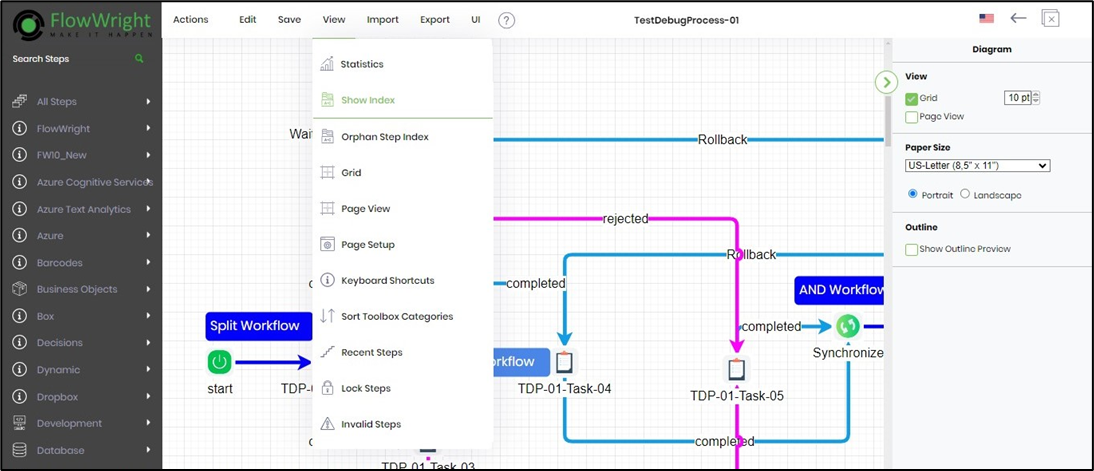
Navigate to the View > Show Index menu option. This function displays all the process steps in the definition in the right pane, as shown in the example below.
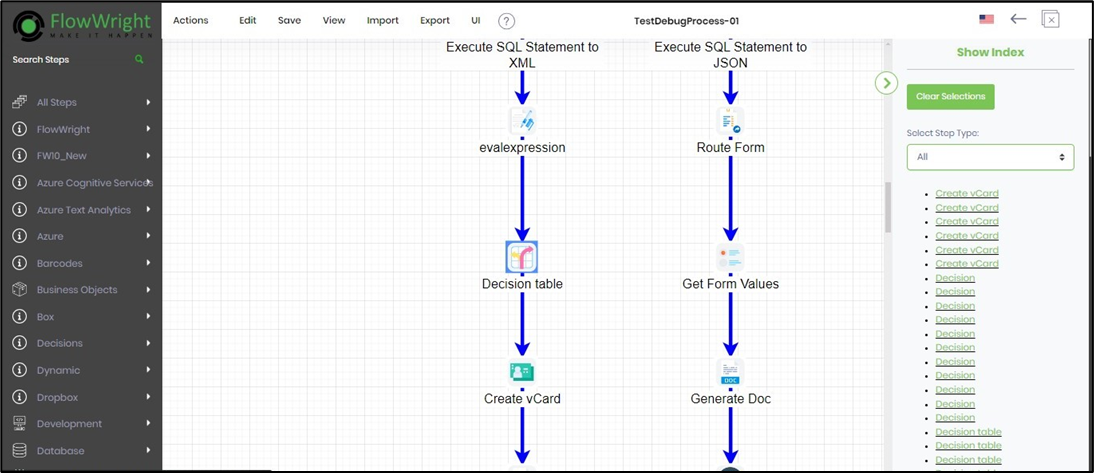
When you click a list item link, the workflow design highlights the search item with a distinct blue outline, as shown below. To keep the workflow view clear, continue clicking the other list item links. The workflow will adjust the design accordingly. When you're ready to move on, click the “Clear Selection” button to remove the blue outline.
Show a list of orphan steps.
This function plays a crucial role in your workflow management by displaying all orphan steps in the right pane.
In the process designer, select the View > Orphan Index menu option.

These orphan steps appear in the design but are not connected to any process steps, so they must be identified and managed. The orphan steps are listed as hyperlinks in the right pane.

Click the list item link. The workflow design highlights the orphan step with a blue outline, as shown below. Here, the “Generate Password” step is on the connection line and is inactive because there are no connection arrows. Continue by clicking the other list item links. The workflow positions the search item by shifting the design accordingly. Click the “Clear Selection” button to remove the blue outline. Orphan steps can be connected to or removed from the workflow manually.

Identify the “orphan steps” with no “in-and-out” connections, as shown below.
