AppendLineTofile Step
Description:
This step appends a line to the file, specifying the file path and the content to append. It adds the content to the end of the file. If the file doesn’t exist, it is created.
Inputs
- Path for the file – Specifies the path of the file to which the text should be appended.
- Enter text to append – Specifies the text that should be added to the file.
- Append new line character - Determines whether a new line character should be appended after the supplied text.
Returns
- True – Indicates a successful result from the append operation.
- False – Indicates an unsuccessful result from the append operation.
Usage:
The AppendLineToFile step can be used whenever a workflow needs to add text to a file during process execution.
A typical workflow pattern is:
Generate Information → Append Line to File → Continue Processing
The file path identifies the file that should receive the content, while the text input contains the information to add. The Append new line character option can be used when individual workflow entries should be separated onto separate lines.
Because the text input is defined as a multiline text box, the step can accept text containing multiple lines as well as ordinary single-line content.

Typical Workflow Suggestions:
Build a Workflow Execution Log
Use AppendLineToFile to progressively record workflow activities in a text file.
For example:
Start Process → Perform Activity → Append Log Entry → Continue
Each workflow activity can append a new entry to a common log file, with Append new line character enabled to keep individual entries separated.
Create a Processing Report
Use the step to build a text-based report as workflow processing progresses.
For example:
Collect Data → Generate Report Content → Append Line → Continue
Each section or result can be appended to the output file as it becomes available.
Record Processing Results
Use AppendLineToFile to record the outcome of individual processing operations.
For example, a workflow processing multiple records can append information such as:
Record 1001 - Processed
Record 1002 - Processed
Record 1003 - Processed
The Append New Line character option can keep each record result on a separate line.
Build a Text-Based Export File
Use the step to progressively create the contents of a text-based output file.
For example:
Retrieve Data → Format Data → Append Line → Repeat
Each workflow iteration can add another piece of formatted information to the file.
Capture Exception or Diagnostic Information
Use AppendLineToFile as part of an exception-handling workflow to record information about processing problems.
For example:
Detect Exception → Prepare Diagnostic Text → Append Line → Exception Handling
The workflow can append the relevant diagnostic information to a designated file and then continue with the appropriate exception-handling path.
Example:
Let's build and execute the “appendLineToFileDef” example.
- Create a new process definition named “appendLineToFileDef” and open it in the designer mode.
- Drag an "appendLineToFile" step to the canvas.
- Connect the dots between the “Start” and "appendLineToFile" steps as shown above.
- Select the line between the steps to configure the “Connection Properties”. The default property values are “None, True, False, Error, and Evaluate”. Depending on the step’s purpose, you can configure additional values.
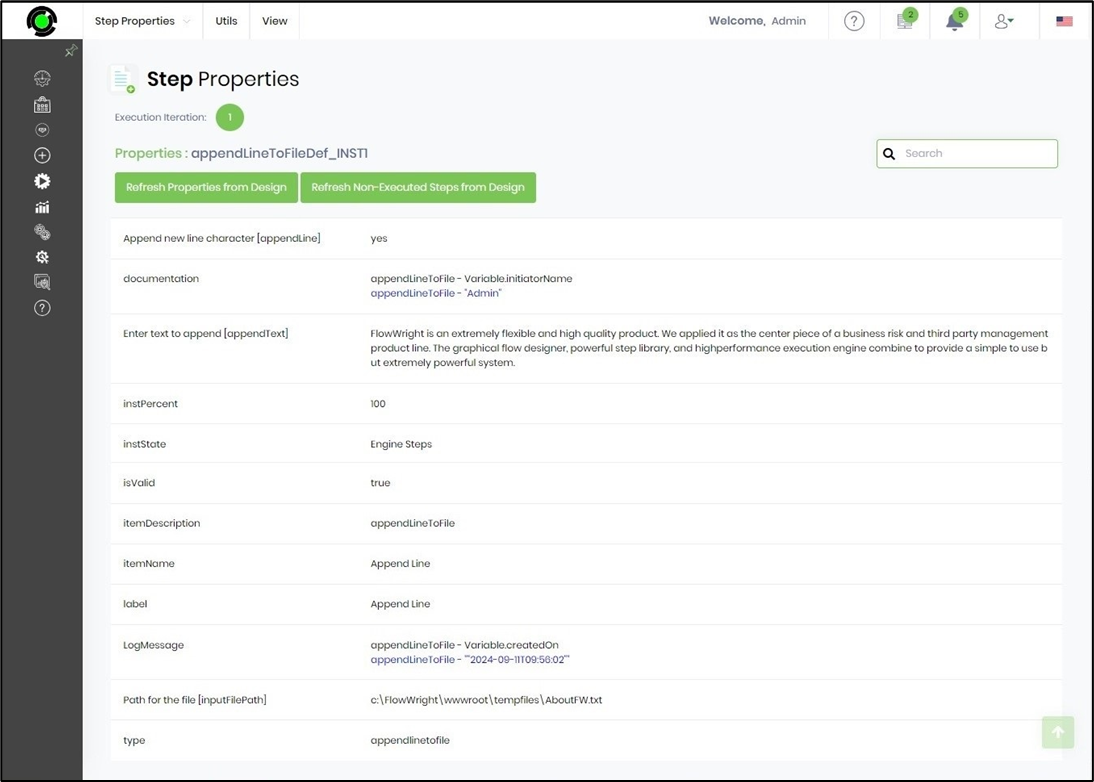
- Click the “appendLineToFile” step to configure its “Required” properties. Provide a name for the step. Enter the text to append. Enter the text file path. Select “Yes” to append a new line character. Click the Save button. Note: Click the "AI Predict" button for the Copilot to add new process steps that match your process description.

- The “Logging” configuration is necessary for documentation and also measures workflow progress and percent complete. Configure the step state and percent fields individually, as shown below. Configure the “Logging” using the following properties.

- Save the process definition, create a new instance, and execute it. Render the process instance. Click the process step to view its properties. The step should append the text to the file. Render the process instance again and inspect the step variables and properties. Also, navigate to the file path and download the file to inspect the new addition.
Tips:
- Use the correct file path: Ensure that the path supplied identifies the intended file.
- Use Variables/Globals for dynamic content: Workflow data can be incorporated into the text supplied to the step.
- Enable the new-line option for separate entries: This is useful when multiple workflow executions append individual records or messages to the same file.
- Use multiline text when appropriate: The input is specifically defined as a multiline text box, allowing multiple lines of content to be supplied. AppendLineToFile
- Keep the file location consistent: When multiple workflow steps append to the same file, use a consistent path or Variable/Global strategy.
- Handle both return paths: Connect the True and False outputs to appropriate workflow logic.
Definition Sample:
You may download the sample definition(s) from the link provided and later import them (drag-and-drop) into your FlowWright Process Definition (XML file) or Form Definition (HTML file) page.
Note: After the import, verify and complete any missing configurations, such as file path references and database connections. Then, save the definition to confirm the changes.
Click here to download the sample file.