setEnvironmentVariables Step
Description:
The Set Environment Variables step enables a FlowWright workflow to update the values of one or more configured environment variables.
Environment variables provide a centralized repository for application-wide configuration values such as file locations, API endpoints, email addresses, feature flags, server names, integration settings, and other reusable configuration data. Instead of hardcoding these values in individual workflows, FlowWright allows workflows to dynamically update environment variables, making configuration management more flexible and easier to maintain.
The workflow specifies one or more Environment Variable Mappings that define which workflow variables should be written to the corresponding FlowWright environment variables.
Typical uses include:
- Updating application configuration values
- Saving dynamically generated file locations
- Modifying integration settings
- Updating API endpoint values
- Persisting runtime configuration
- Saving shared workflow settings
- Updating feature flag values
- Maintaining centralized application parameters
This step helps organizations centralize configuration management while enabling workflows to modify shared settings without requiring manual administrative updates.
Inputs
- Environment Variable Mappings – Specifies one or more mappings between workflow variables and FlowWright environment variables. Each mapped workflow value is written to its corresponding environment variable during workflow execution.
Returns
- True – The configured environment variables were successfully updated with the mapped workflow values. Workflow execution continues through the success path.
- False – One or more environment variables could not be updated because of invalid mappings, missing environment variables, insufficient permissions, configuration issues, or another execution error. Workflow execution follows the alternate path.
Usage:
The Set Environment Variables step is typically used after workflow processing has completed and updated configuration values need to be persisted for future workflow executions or application use.
During execution:
- Read the configured environment variable mappings.
- Retrieve the values from the mapped workflow variables.
- Update the corresponding FlowWright environment variables.
- Save the new environment variable values.
- Continue workflow execution through either the True or False return path.
A typical workflow might look like this:

Typical workflow scenarios include:
- Saving newly calculated application settings
- Updating document storage paths
- Persisting integration configuration
- Saving runtime-generated URLs
- Updating feature flag values
- Maintaining shared application configuration
- Storing values for use by subsequent workflows
Example:
Let’s build and execute the “setEnvironmentVariablesDef” example.
- Create a new definition called “setEnvironmentVariablesDef” and open the definition in designer mode.
- Drag a “setEnvironmentVariables” step and a “readEnvironmentVariables” step to the canvas.
- Connect the dots between the “Start” and other steps, as shown above
- Select the line between the steps to configure the “Connection Properties”. The default property values are “None, Error, Evaluate, and Timeout”. Depending on the step’s purpose, additional values are available for configuration.
- Define a variable or a global to store the result.
- Click the "setEnvironmentVariables" step to configure its "Required" properties. Provide a name for the step. Click the button to configure environment variable mappings. Click the Save button. Note: Click the "AI Predict" button for the Copilot to add new process steps that match your process description.

- A pop-up window appears for configuration. Click the Add Row button to insert an empty row. Enter the environment variable and its value. Click the Save button. You may add multiple environment variables using the Add Row button.

- The “Logging” configuration is necessary for documentation and also measures workflow progress and percent complete. This is achieved by configuring the step state and percent fields individually, as shown in the images below. Configure the “Logging” using the following properties.

- Click the "readEnvironmentVariables" step to configure its "Required" properties. Provide a name for the step. Click the button to configure environmental variable mappings, then click Save. Note: Click the "AI Predict" button for the Copilot to add new process steps that match your process description.

- A pop-up window appears for configuration. Click the Add Row button to insert an empty row. Enter the environment variable and its value. Click the Save button. You may add multiple environment variables using the Add Row button.

- The “Logging” configuration is necessary for documentation and also measures workflow progress and percent complete. This is achieved by configuring the step state and percent fields individually, as shown in the images below. Configure the “Logging” using the following properties.

- Save the process definition, create a new instance, and execute it. Render the process instance. Click the “readEnvironmentVariables” process step to view its properties. The step should retrieve the environment variable value set by the “setEnvironmentVariables” process step.
Create or modify environment variables on Windows 10:
- On the Windows taskbar, right-click the Windows icon and select System.
- In the Settings window, under Related Settings, click Advanced system settings.
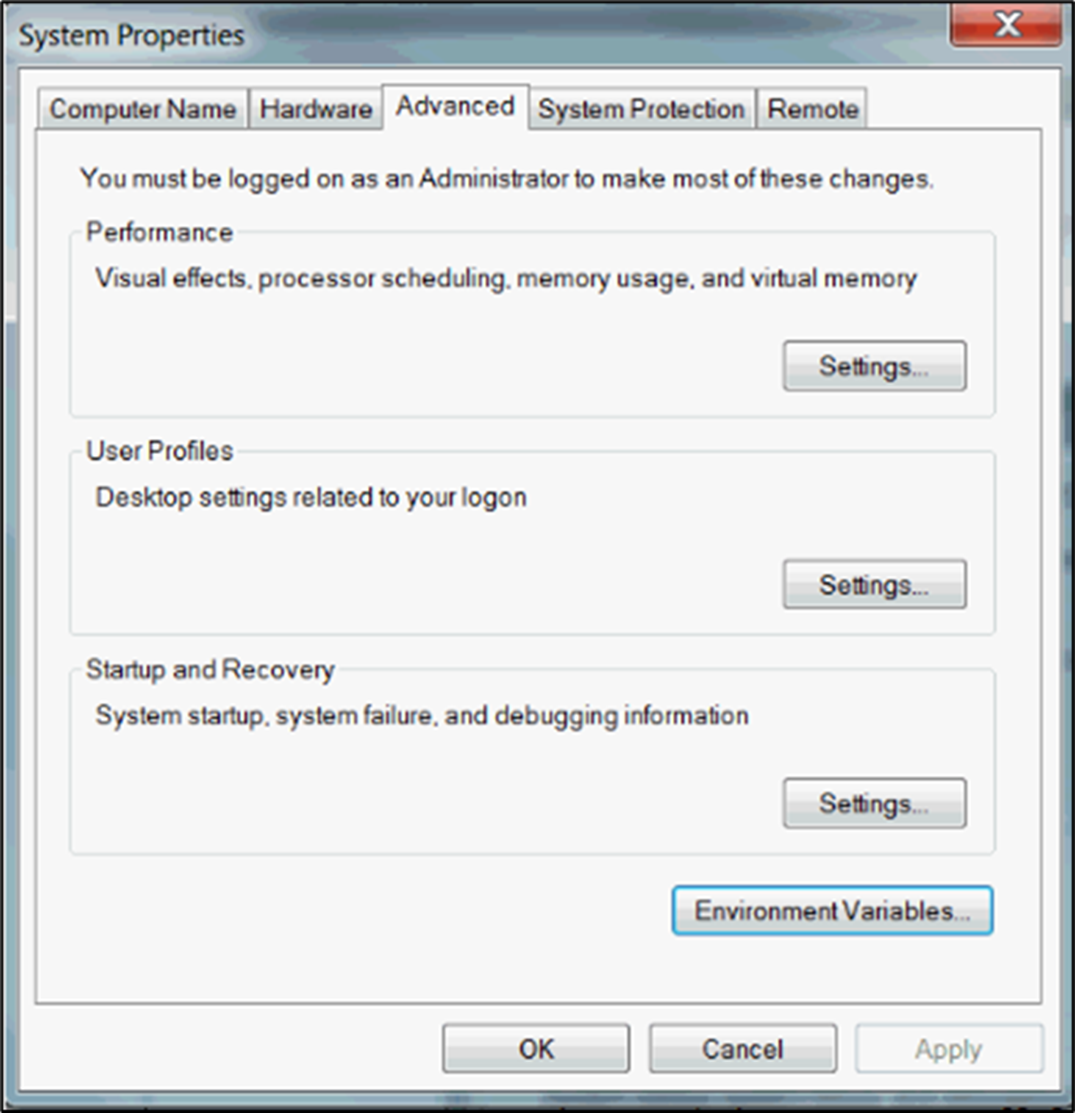
- On the Advanced tab, click Environment Variables. The new variable added by the step will be displayed in the list.
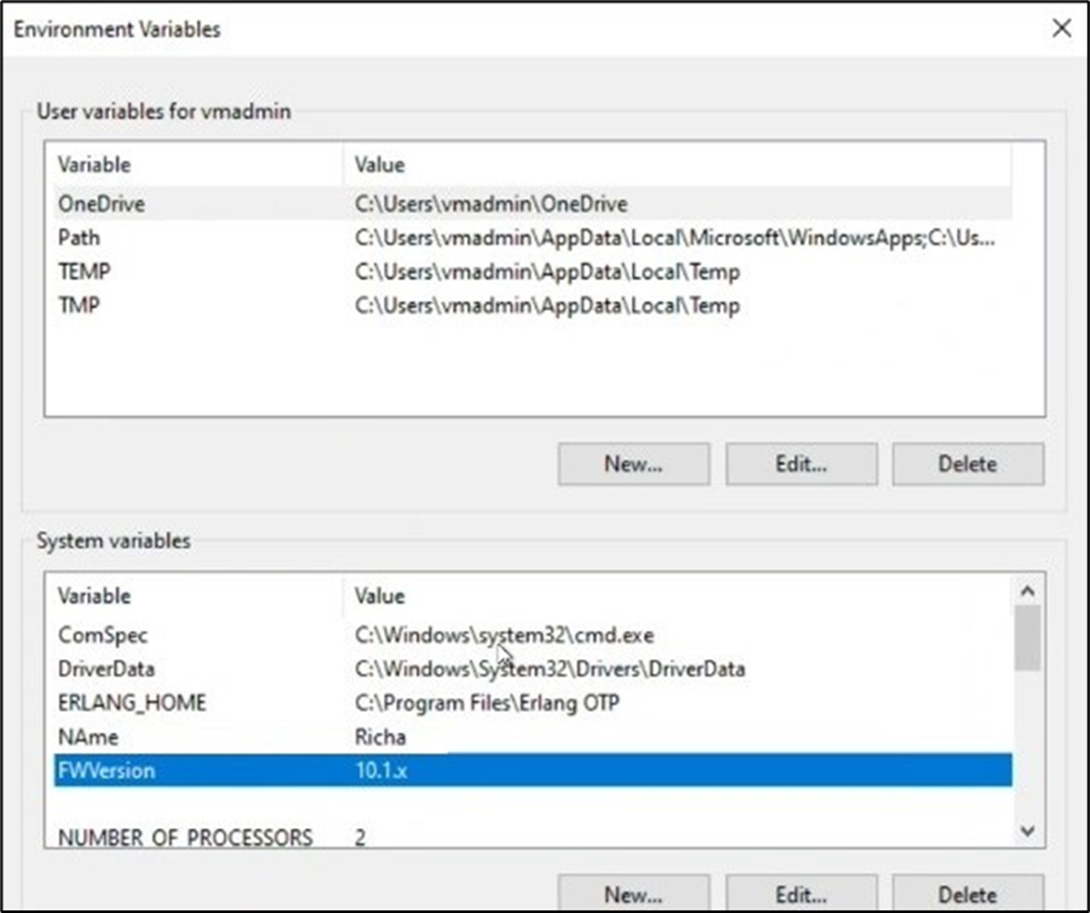
Tips:
- Use environment variables for configuration values that are shared across multiple workflows.
- Update environment variables only when configuration changes should persist beyond the current workflow execution.
- Use descriptive environment variable names to simplify administration and maintenance.
- Validate workflow variable values before updating environment variables.
- Minimize unnecessary updates to avoid unintentionally overwriting configuration.
- Route the False path to logging or notification activities for easier troubleshooting.
- Combine this step with Read Environment Variables, REST Call, Update Variable Values, Send Email, or administrative workflow steps to build configurable and maintainable solutions.
Notes:
- The Environment Variable Mappings property is required.
- Multiple environment variables can be updated during a single execution.
- Workflow variable values are written to the corresponding environment variables according to the configured mappings.
- The step updates environment variables; it does not retrieve their current values.
- Updated environment variable values become available to subsequent workflows and application processes.
- Both the True and False return paths should be implemented to provide complete workflow handling.
- Execution details and environment variable update activities are recorded in the FlowWright workflow execution log.
Set Environment Variables vs. Read Environment Variables:
Both workflow steps work with FlowWright environment variables but perform complementary operations.
| Set Environment Variables | Read Environment Variables |
|---|---|
| Updates the values of configured environment variables. | Retrieves the values of configured environment variables. |
| Writes workflow variable values to centralized environment variables. | Reads centralized environment variable values into workflow variables. |
| Persists configuration changes for future workflow executions. | Loads existing configuration for use during the current workflow execution. |
| Typically used near the end of a workflow. | Typically used near the beginning of a workflow. |
| Ideal for saving configuration, runtime values, and shared settings. | Ideal for loading configuration, connection information, and reusable application settings. |
As a general guideline:
- Use Set Environment Variables when workflows need to persist updated configuration values or share runtime-generated values with future workflow executions.
- Use Read Environment Variables when workflows need to retrieve centralized configuration values before business processing begins.
Definition Sample:
You may download the sample workflow definition from the link provided and import it into your FlowWright environment.
Note: Verify and complete any missing configuration after importing the sample, including:
- Environment variable mappings
- Workflow variable mappings
- Success and failure workflow branches
- Validation that the required environment variables exist
- Appropriate permissions to access environment configuration
After verifying the configuration, save and publish the workflow before execution.
Click here to download the sample file.