XmlToXls Step
Description:
The XMLToXLS step belongs to the File System category in FlowWright. Its XML definition identifies the step as xmltoxls, with the label “Writes XML to XLS file” and the display name “Write XML to XLS.” It is defined as a Process step using FlowWright.Workflow.XmlToXLS from FlowWright.Workflow.dll. The step has 2 input connections and 2 output connections.
Inputs
- Variable/Global that holds the XML – identifies the Variable/Global containing the XML data.
- Variable/Global that holds the XLS file path – identifies the Variable/Global containing the destination XLS file path.
- XPath name – optionally specifies the XPath name to use when selecting XML content.
- Worksheet name - optionally specifies the worksheet name.
- Write column names - optionally controls whether column names are written to the XLS output.
Returns
- True – Step executed successfully
- False – step failed to execute
Usage:
The XMLToXLS step is typically used to convert XML data into an XLS file as part of a workflow.
During process design:
- Add the XMLToXLS step to the process definition.
- Identify the Variable/Global containing the source XML.
- Identify the Variable/Global containing the destination XLS file path.
- Optionally specify an XPath name.
- Optionally specify a Worksheet name.
- Enable Write column names if column headings are required.
- Connect the step to the surrounding workflow operations.
- Save the Process Definition.
- Create a Process Instance and execute the workflow.
- Verify that the XLS file is created at the configured location.
- Verify the worksheet and column headings if those optional properties were configured.

Typical workflow suggestions:
- Generate spreadsheet reports: Use XMLToXLS when workflow data has already been assembled in XML and needs to be presented as an XLS file.
- Export workflow data - Use the step to export XML-based workflow data into a spreadsheet format for users or downstream processing.
- Prepare files for business users - XLS output can be useful when workflow-generated data needs to be consumed in spreadsheet applications.
- Select specific XML content - When only a particular portion of an XML document needs to be written to the spreadsheet, the XPath name property can be configured.
- Generate worksheets with meaningful names - Use Worksheet name when the generated XLS should contain a specific worksheet name.
- Scheduled data exports - XMLToXLS can be placed after a data-collection or reporting process to generate spreadsheet files as part of an automated workflow.
- Spreadsheet-based downstream processing - Use XMLToXLS when a subsequent business process expects spreadsheet-based data.
Example:
Let’s build and execute the “XMLToXLSDef” example.
- Create a new definition called “XMLToXLSDef” and open the definition in designer mode.
- Drag an “XMLToXLS” step to the canvas.
- Connect the dots between the “Start” and “XMLToXLS” steps, as shown above.
- Select the line between the steps to configure the “Connection Properties”. The default property values are “None, True, False, Error, and Evaluate”. Depending on the step’s purpose, additional values are available for configuration.
- Define a variable or a global to store the result.
- Click the “XMLToXLS” step to configure its “Required” properties. Provide a name for the step. Provide a variable or global that contains the XML data. Provide a variable or global that contains the XLS file path. Click the Save button. Note: Click the "AI Predict" button to have the Copilot add new process steps that match your process description.

- Click the “XMLToXLS” step to configure its “Optional” properties. Provide the XML node information for the XML data. Provide the worksheet name. Select “On” to include column names in the worksheet.

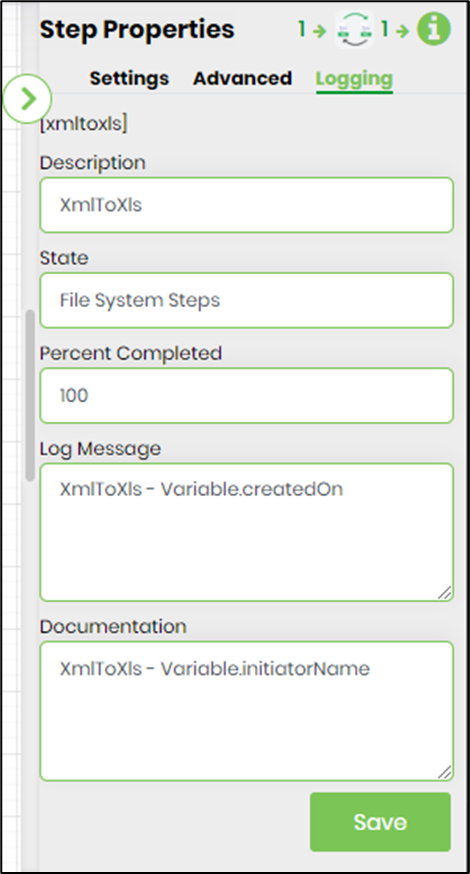
- The “Logging” configuration is necessary for documentation and also measures workflow progress and percent complete. This is achieved by configuring the step state and percent fields individually, as shown in the images below. Configure the “Logging” using the following properties.
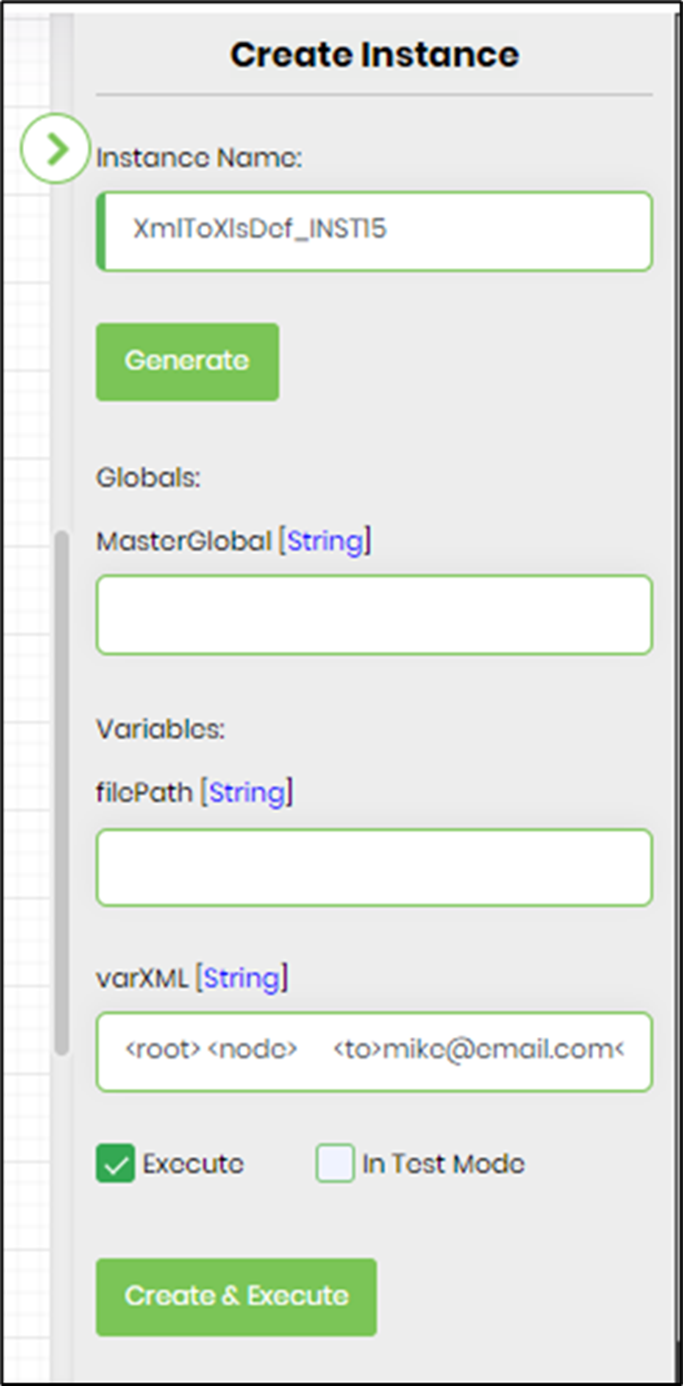
- Generate a new process instance. Initialize the varXML variable with the sample XML data shown below. The step shall process the raw XML data between the <root> and <\root> elements, or a specific node configured above in Advanced - XML nodes to be processed. This XML node can also refer to the root node (root) or a specific node (node) in the XML data. Copy and paste the sample XML data into the xmlVar variable to initialize it. Typically, the varXML variable is initialized by other XML steps, such as executesql and generatexml, in a process workflow. Execute this new process instance.
<root>
<node>
    <to>mike@email.com</to>
    <from>flowwright@support.com</from>
    <heading>New social handle</heading>
    <body>Hi! We're here on Instagram now. Let's connect!</body>
</node>
<book id='bk101'>
      <author>Gambardella, Matthew</author>
      <title>XML Developer's Guide</title>
      <genre>Computer</genre>
      <price>44.95</price>
      <publish_date>2000-10-01</publish_date>
      <description>An in-depth look at creating applications
      with XML.</description>
</book>
<node>
    <to>lowry@email.com</to>
    <from>flowwright@support.com</from>
    <heading>New social handle</heading>
    <body>Hi! We're here on Instagram now. Let's connect!</body>
</node>
</root>
- Execute the new process instance.
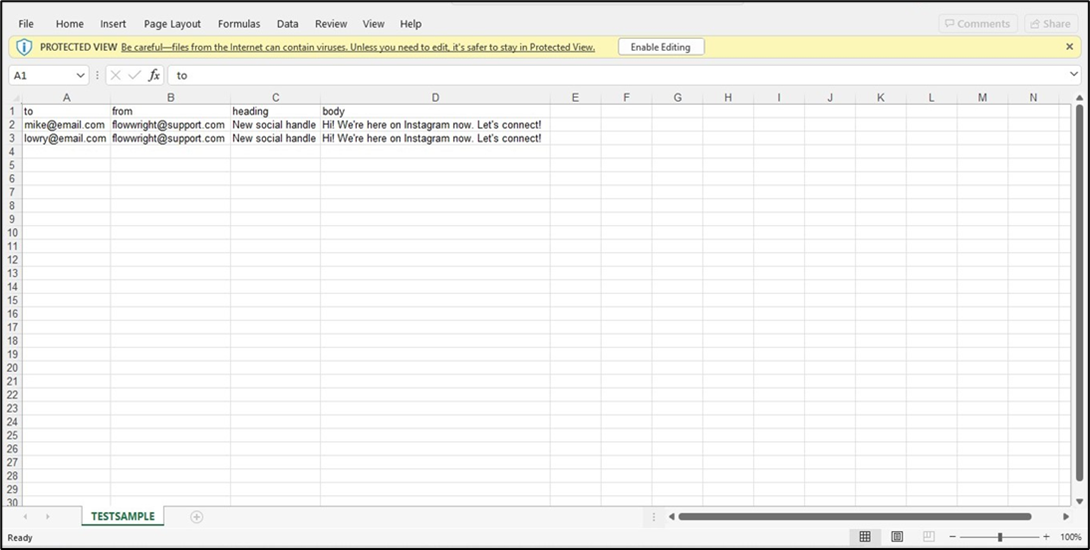
- The step shall transform the XML data into an XLS file on the server. The default Sheet1 worksheet is renamed to the configured value (TestSample). Download the XLS file and use the appURI and filePath variable values from the step property.
Tips:
- Ensure that the Variable/Global specified in Variable/Global that holds the XML contains the expected XML data.
- Ensure that the Variable/Global specified in Variable/Global that holds the XLS file path contains the intended destination path.
- The XML and XLS file path properties are required.
- Use a meaningful Worksheet name when the generated spreadsheet needs a clearly identifiable worksheet.
- Enable Write column names when the output should contain column headings.
- Use an XPath name when the workflow needs to identify a specific XML node or structure in the XLS output.
- Validate the source XML before executing the conversion when the XML is generated dynamically.
- Test the generated XLS file with representative XML data before deploying the workflow.
- Verify that the configured output path is appropriate for the environment in which the workflow executes.
- Remember that the XML definition does not document detailed XPath syntax or XML-to-column mapping behavior.
- Do not assume that the step supports XLSX output; it is explicitly defined as XMLToXLS, and its output property is described as an XLS file path.
- The XML defines True and False returns but does not document the conditions associated with either path.
Notes:
- Category: File System
-
Internal name:
xmltoxls - Label: Writes XML to XLS file
- Display name: Write XML to XLS
-
Namespace:
FlowWright.Workflow.XmlToXLS -
DLL:
FlowWright.Workflow.dll - Step definition type: Process
- Input connections: 2
- Output connections: 2
- Configurable properties: 5
-
XML Variable property:
xmlVariable -
XLS file path property:
xlsFilePath -
XPath property:
xmlNodeName -
Worksheet property:
workSheetName -
Column-heading property:
writeColHeadings - XML Variable: Required
- XLS file path: Required
- XPath name: Optional
- Worksheet name: Optional
- Write column names: Optional
- String properties: XML Variable, XLS file path, XPath name, Worksheet name
- Checkbox property: Write column names
- Returns: False / True
Feature Comparison: clsXMLToJSONConverter vs. XMLToTXT vs. XMLToXLS
All three FlowWright steps take XML-related input and convert or write it into another representation, but their intended outputs are different:
- clsXMLToJSONConverter converts XML into JSON and stores the JSON in a Variable/Global.
- XMLToTXT writes XML data to a TXT file, with optional row and column delimiters.
- XMLToXLS writes XML data to an XLS file, with optional worksheet, XPath, and column-heading configuration.
| Feature | clsXMLToJSONConverter | XMLToTXT | XMLToXLS |
|---|---|---|---|
| Purpose | Converts XML to JSON format | Writes XML to a TXT file | Writes XML to an XLS file |
| Category | Development | File System | File System |
| Internal name | clsxmltojsonconverter |
xmltotxt |
xmltoxls |
| Label | Convert XML to JSON | Writes XML to a TXT file | Writes XML to xls file |
| Display name | Convert XML to JSON Format | Write XML to TXT | Write XML to XLS |
| Namespace | FlowWright.Workflow.ClsXmlToJsonConverter |
FlowWright.Workflow.XmlToTXT |
FlowWright.Workflow.XmlToXLS |
| DLL | FlowWright.Workflow.dll |
FlowWright.Workflow.dll |
FlowWright.Workflow.dll |
| Step definition type | Process | Process | Process |
| Input connections | 2 | 2 | 2 |
| Output connections | 2 | 2 | 2 |
| Number of configurable properties | 2 | 5 | 5 |
| Primary input | Input XML | Variable/Global containing XML | Variable/Global containing XML |
| Output destination | Variable/Global containing JSON | TXT file path | XLS file path |
| Input XML property | inputXml |
xmlVariable |
xmlVariable |
| Input XML label | Input XML | Variable/Global that holds the xml | Variable/Global that holds the XML |
| Input XML required? | Yes | Yes | Yes |
| Input XML data type | multilineTextBox |
string |
string |
| Output destination property | jsonOutputVar |
txtFilePath |
xlsFilePath |
| Output destination required? | Yes | Yes | Yes |
| Output destination data type | string |
string |
string |
| Column headings | Not available | Optional | Optional |
| Row delimiter | Not available | Optional | Not available |
| Column delimiter | Not available | Optional | Not available |
| XPath/XML node selection | Not available | Not available | Optional |
| Worksheet name | Not available | Not available | Optional |
| Output format | JSON | TXT | XLS |
| Output stored in Variable/Global? | Yes | No—the configured destination is a TXT file path | No—the configured destination is an XLS file path |
| Returns | True / False | True / False | True / False |
| Best suited for | XML-to-JSON conversion and downstream JSON processing | Generating delimited text files | Generating spreadsheet files from XML |
| Property types | Multiline text box + string | String + checkbox | String + checkbox |
| Specialized configuration | Direct XML input | Delimiters and column headings | XPath, worksheet name, column headings |
Definition Sample:
You may provide a sample process definition containing the XMLToXLS step and import it into the FlowWright Process Definition (XML file) page.
After importing the sample, configure:
- Variable/Global that holds the XML
- Variable/Global that holds the XLS file path
- XPath name, if required
- Worksheet name, if required
- Write column names, if required
- Connections to the preceding and subsequent workflow steps
Click here to download the sample file.