Users can take a snapshot(s) of the form design changes by clicking on the “Snapshot Management” menu item.

Snapshots are backup copies of the form and its definition at that moment. It’s a good practice to always take a snapshot of the form definition before making changes. If the autosave feature is “ON,” an “Auto-Backup” snapshot is created automatically when a form is opened for editing.

Click the Generate button to automatically generate the form definition snapshot names. The user may also provide snapshot names of their choice. When ready, click the “Create” button.
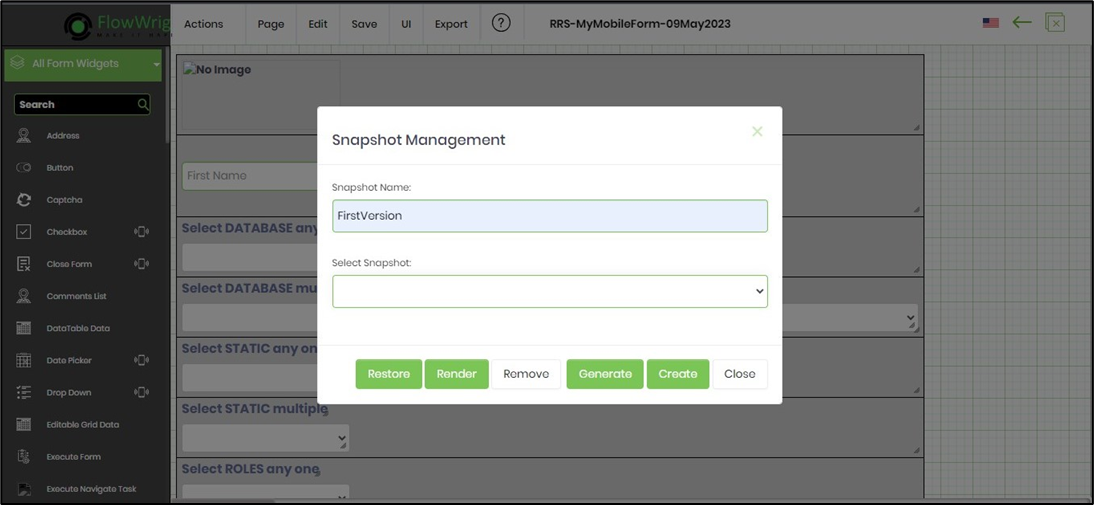
The snapshot is taken with an alert notification, as shown in the image below.
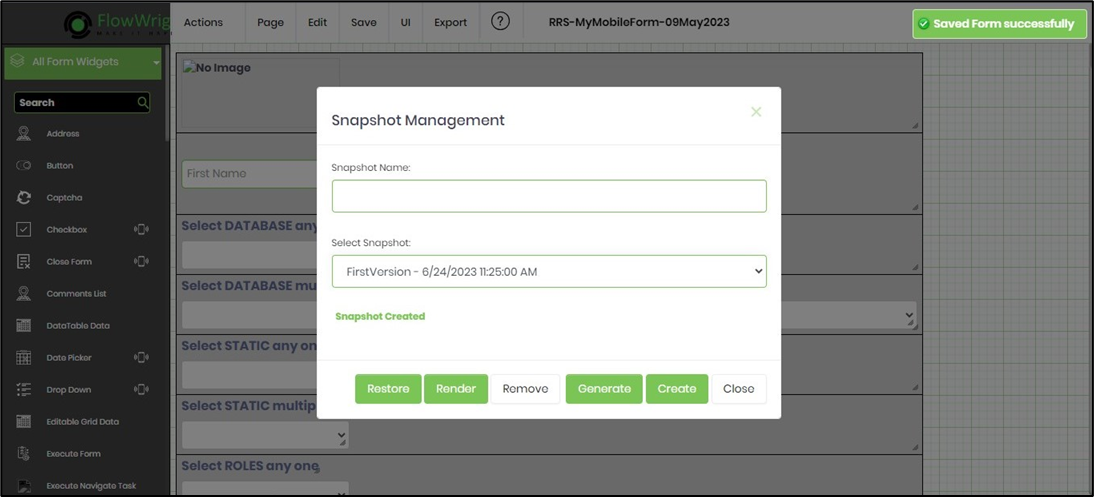
Render a snapshot.
Choose a snapshot from the dropdown menu and click the “Render” button. The form definition (snapshot) will be displayed on a new page.
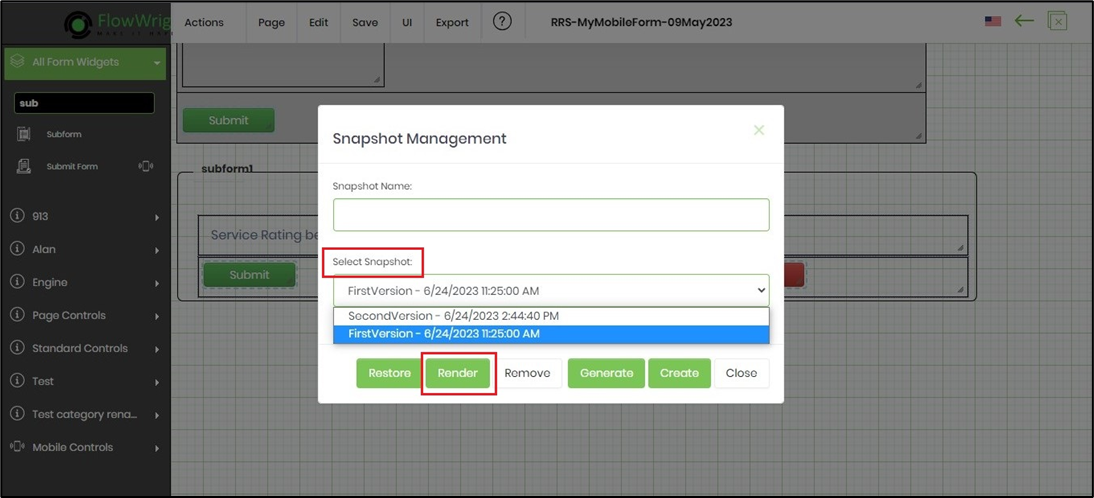
Restore a snapshot.
Choose a snapshot from the dropdown menu and click the “Restore” button. The form definition (snapshot) will be restored on the same page.
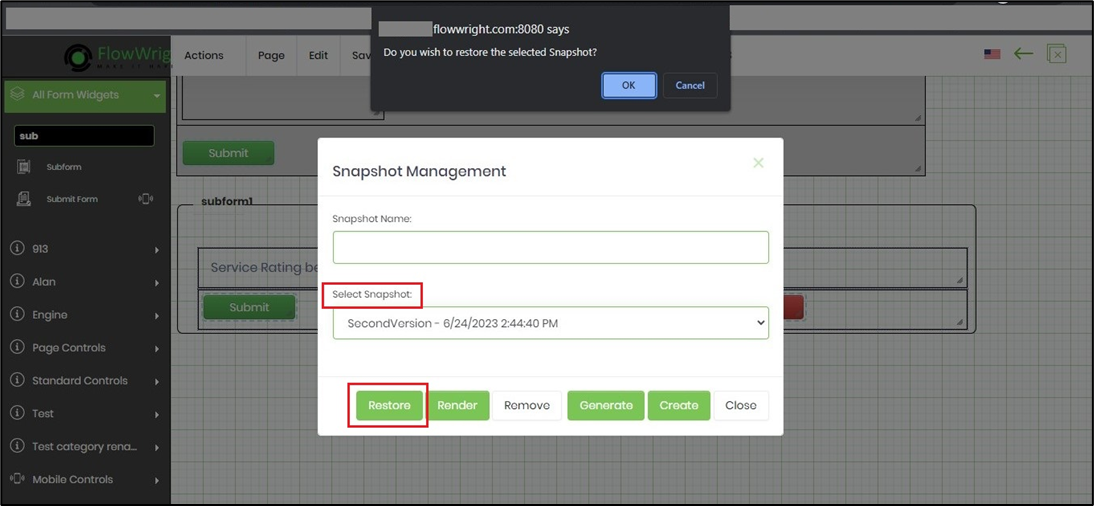
Remove a snapshot.
Choose a snapshot from the dropdown list and click the “Remove” button. The snapshot (form definition) will then be deleted from the repository.
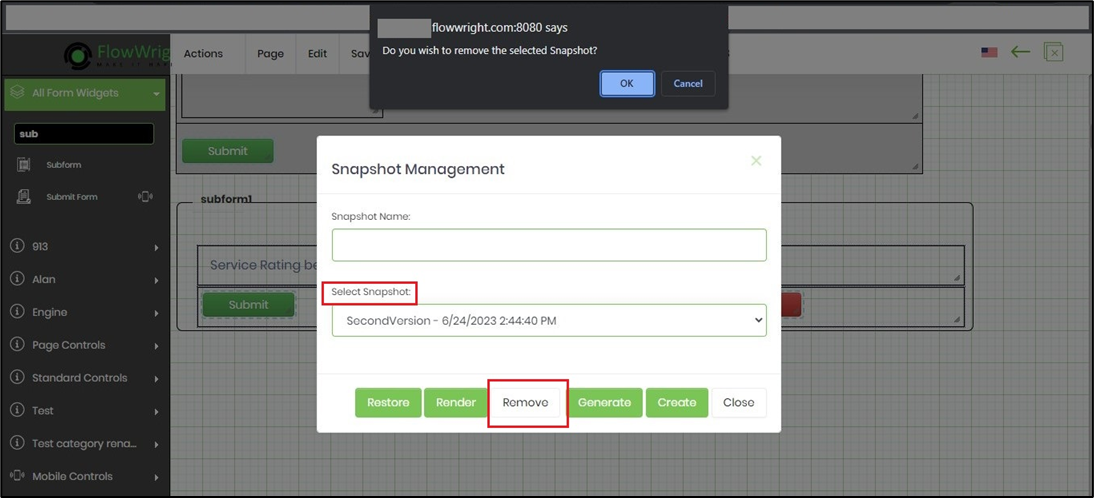
Manage form definition snapshots.
Select the form definition from the table, then click the Actions > Snapshot Management menu option.

Select the “Actions” menu to navigate to “Create, Restore, Remove, and Create Definition” features.

Users can create a new form definition by selecting the snapshot and clicking the “Create Definition” menu option.

Enter a new name, then select the checkbox to open the form in the designer. Click the “Create” button.

The newly created definition will be displayed under the form definitions table as shown below:

View - Render form definition snapshots.
Choose a snapshot from the table, then click View > Render. The form definition (snapshot) will be restored on the same page.

Export form definition snapshots.
Select a snapshot from the table, then click the Export menu. The form definition (snapshot) can be exported as an XML, HTML, ZIP, or SQL file. The files are generated and downloaded to your local system folder.

The SQL file format for the snapshot includes an SQL INSERT statement; a sample is shown below.
INSERT INTO [deFormDefinitions] ([FORMDEFID],[FORMDEFNAME],[FORMDEFCONTENT],[FORMDEFXML],[CREATEDBY],[CREATEDON],[UPDATEDBY],[UPDATEDON],[TENANTID],[DATATABLENAME],[FORMDEFEVENTS],[FORMDEFSTYLES],[LOCKEDBY],[LOCKEDON],[ISANONYMOUS],[FORMURL],[FORMGLOBALCSS],[TRACKCHANGES]) VALUES('9eca3ad8-fc64-4e79-a724-c9c85441df30','RRS-MyMobileForm-09May2023','%3Cdiv%20class%3D%22objectx%22%20style%3D%22display%3A%20none%3B%2m hdnformbackground="">
  <field id="img1" type="img" value="/images/FormImages/9eca3ad8-fc64-4e79-a724-c9c85441df30/Smiley-Rating-OhMyGod-Hurray.jpg" />
  <field id="textFirstName" type="text" value="" />
  <field id="textMiddleName" type="text" value="" />
  <field id="textLastName" type="text" value="" />
  <field id="label1" type="label" value="Select DATABASE any one" />
  <field id="select1" type="select" value="" values="" />
  <field id="label2" type="label" value="Select DATABASE multiple" />
  <field id="select2" type="select" value="" values="" />
  <field id="label7" type="label" value="Select STATIC any one" />
  <field id="select3" type="select" value="" values="Fish|Apple|Egg|Basket|Degree|Car|Good" />
  <field id="label8" type="label" value="Select STATIC multiple" />
  <field id="select4" type="select" value="" values="Fish|Apple|Egg|Basket|Degree|Car|Good" />
  <field id="label9" type="label" value="Select ROLES any one" />
  <field id="select5" type="select" value="" values="" />
  <field id="label10" type="label" value="Select ROLES multiple" />
  <field id="select6" type="select" value="" values="" />
  <field id="label11" type="label" value="Select LOOKUP any one" />
  <field id="select7" type="select" value="" values="" />
  <field id="label12" type="label" value="Select LOOKUP multiple" />
  <field id="select8" type="select" value="" values="" />
  <field id="label3" type="label" value="Current Date" />
  <field id="date1" type="date" value="" />
  <field id="label4" type="label" value="Your social media presence" />
  <field id="checkbox1" type="checkbox" value="" values="Facebook,1|Instagram,2|Twitter,3" />
  <field id="label5" type="label" value="Subscribe Newsletter" />
  <field id="radio1" type="radio" value="" values="Yes,1|No,2" />
  <field id="label6" type="label" value="Upload Profile Picture" />
  <field id="file1" type="file" value="" />
  <field id="label13" type="label" value="Your Signature" />
  <field id="signature1" type="signature" value="" />
  <field id="Htmltable1" type="table" value="" />
  <field id="subform1" type="subform" value="" />
  <fieldset id="subform1" value="0" formDefID="ee22b25a-cbf2-44cc-9b11-49a7354066fd" gridForm="false" header="true" name="subform1">
    <field id="subform1_label1" type="label" value="Service Rating between 1 and 10" />
    <field id="subform1_text1ServiceRating" type="text" value="" datatype="number" />
    <formWidget id="subform1_submitform1form" value="" type="submitform">
      <field id="subform1_submitform1btnSave" type="button" value="Submit" />
    </formWidget>
    <formWidget id="subform1_formapproval1form" value="" type="formapproval">
      <field id="subform1_formapproval1btnCompleteTask" type="button" value="Complete Task" />
      <field id="subform1_formapproval1btnRejectTask" type="button" value="Reject Task" />
    </formWidget>
  </fieldset>
  <formWidget id="submitform1form" value="" type="submitform">
    <field id="submitform1btnSave" type="button" value="Submit" />
  </formWidget>
</deForm>','35635c17-06b5-455b-a1e6-51507c1e971f','2023-06-23T08:56:12','35635c17-06b5-455b-a1e6-51507c1e971f','2023-06-24T09:14:48',null,'FormData_RRS_MobileFormDT','{"deFormEvents":{"FormControl":[]}}',null,'35635c17-06b5-455b-a1e6-51507c1e971f','2023-06-24T09:14:48','False',null,null,'False')