This feature helps debug workflows and processes. Debugging workflows—whether in software development, project management, or other fields—involves systematically identifying and fixing issues that arise during execution. Here are the steps to troubleshoot these processes effectively.
You can watch the video here to learn more.
Use debugging tools: Apply tools and techniques suited to your workflow environment, including the visual debugging features in the FlowWright application.
Inspect State and Variables: Monitor variable and data status at key points in the workflow. This can help detect unexpected changes or inconsistencies that might be causing the problem.
Isolate the Issue: Narrow the problem's scope to find its root cause. This might involve systematically disabling or isolating parts of the workflow to identify which component is causing the issue.
How to start debugging?
There are two methods to begin debugging.
(1) Select an existing process definition from the table and click on the Actions > Debug menu option.

(2) Select an existing process definition from the table and double-click to open the designer page. Then, click on the Actions > Debug menu option.

A debug popup window appears below. Enter the values for the variables or globals here. Click the “Start Debug” button to begin debugging.

A new process instance is created in the background with the status “Debugging,” as shown below.

How do you understand the Visual Debugger UI?
The Visual Debugger UI appears as shown. The process workflow is centered, with a green rectangle around it indicating the current step. The Statistics window, located in the right pane, displays information such as the created date and last modified date. It includes counts for process steps, connections, variables, globals, business objects, form variables, comments, snapshots, definition comments, instances, and definition culture. Use the “Next” button to move to the next step in the workflow. Use the “Stop” button to terminate the debugger. Use the “Run All” button to execute all process steps and automatically navigate to the breakpoint. Click the (X) button in the top-right corner to close and exit the debugger. The left arrow (←) button opens the process definition page in a new tab.

To examine the step output during execution, select a process step to view its details in the right pane. Below is a list of variables (system and process) and their current values.

In the Step Details pane, select the dropdown menu to choose between “Variables, Globals, Properties, Execution Info, or Errors” as shown below.

Select “Variables” and click the “Edit” button. Update the variable values during runtime, as shown below. Similarly, the values for “Globals and Properties” can also be modified at runtime.

Click the “Update” button to confirm. The changes are applied, and a confirmation message appears in the top-right corner.

The “Execution Info” from the dropdown list shows the current step details, including “step name, type, ID, status, return value, start and end dates and times of the execution, execution ID, and the time taken to complete the execution in milliseconds,” as shown below.

Click anywhere on the debugger canvas to view Diagram information in the right pane, as shown below. Switch between Grid and Page View formats by selecting the checkbox. Adjust the font size using the dropdown list. Change the paper size and workflow orientation to match the display size when rendered. Select the Outline checkbox to quickly navigate a large workflow by moving and holding the blue box across the workflow schematic.

How do you navigate through the Visual Debugger?
The Visual Debugger UI appears as shown below. The workflow is displayed in the center, with a green rectangle highlighting the current step. Click the “Next” button to execute the current step. The navigation advances to the next step in the workflow, and an alert appears in the upper-right corner, as shown below.

If the current step is a task step, the task information automatically opens in a new tab, as shown below. Simply provide the necessary details in the UI and choose to complete, reject, or reassign the task.

Upon task completion, the Visual Debugger moves to the next step in the sequence.
This approach helps you fully understand the workflow's intended process and expected results, enabling you to spot deviations from the expected behavior.
Suppose you need to identify the specific issue or problem that requires debugging. This could involve unexpected behavior, errors, or failures in the workflow. You must reproduce the problem reliably. This step is essential because diagnosing and fixing the issue becomes more difficult if you can't reproduce it consistently.
Select the suspected process step on the Visual Debugger canvas, then right-click to see the options below. Choose either "Reset to step" or "Run from step."

The debugger will route the process execution accordingly, and an alert will appear in the upper-right corner, as shown below.
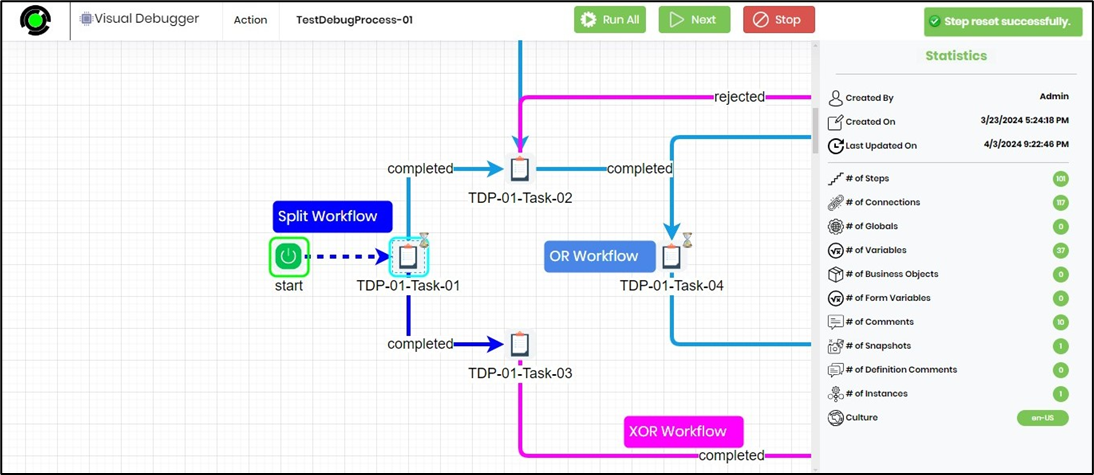
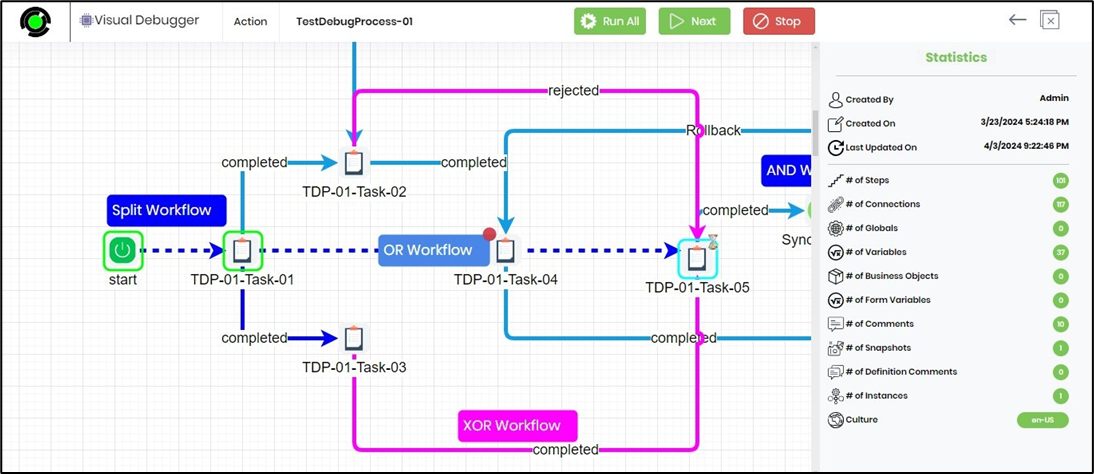
Let's say you need to add a breakpoint farther ahead. Select the process step on the Visual Debugger canvas, then right-click to see the options below. Use this method to add one or more breakpoints.

You now identify breakpoints with a “red dot”. Click the “Run All” button. The debugger will execute all process steps up to this breakpoint. Any tasks or forms that require human intervention will open on new pages and can be completed during execution.

Let's say you need to identify the problem. You might want the debugger to narrow the scope of the issue and find the root cause. This could involve systematically disabling or isolating parts of the workflow to determine which component is responsible. You can use a combination of breakpoints, run-to-step, or jump-to-step options.
Select “Action > Clear all breakpoints” to speed up debugging, or set new breakpoints.

Select the process step on the Visual Debugger canvas, then right-click to see the options below. Choose either 'Run to step' or 'Jump to step'. The debugger will then execute the selected action.

The “Jump to step” advances the execution of the process, as shown below. Click the “Next” button. The debugger will run and proceed from this step.
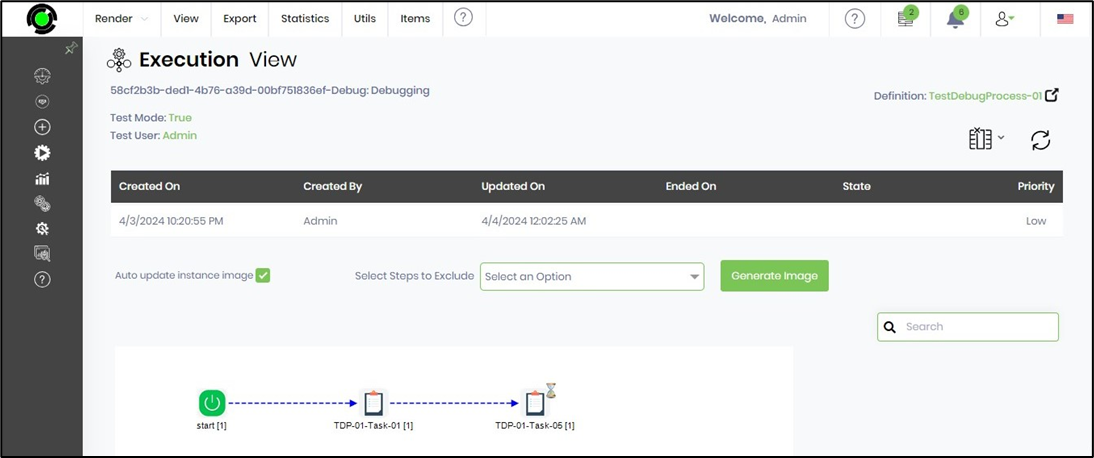
Use the “Action > Execution View” menu option to understand the process execution up to the current step. This feature is helpful when multiple jump-to-step actions are performed during debugging.
How do you stop the debugging process?
Click the Stop button during debugging. An alert will appear in the upper right corner. Click OK in the pop-up to confirm, as shown below.

The debug process has stopped, and the process instance status changes to “DebugEnded”, as shown below.

How do you Visually Debug A Form Process?
You can watch the video here for more information.