clsGenerateDBName Step
Description:
The Generate DB name step belongs to the Tenants category in FlowWright. Its XML definition identifies the step as clsgeneratedbname, with the label and display name “Generate DB name.” The step uses the FlowWright.Workflow.ClsGenerateDBName namespace and FlowWright.Workflow.dll. It is defined as a Process step with two input connections and two output connections.
The step uses a configured Tenant Manager connection and provides an optional Database name property. The resulting DB name is stored in the specified Variable/Global to hold the DB name. The Tenant Manager connection and output Variable/Global are required, while the Database name property is optional.
Typical uses include:
- Generating a database name as part of tenant-related processing
- Establishing a database name before subsequent tenant/database operations
- Storing a generated database name in a workflow variable
- Storing the database name in a global variable for reuse
- Passing a database name to subsequent workflow steps
- Supporting automated tenant provisioning workflows
- Supporting workflows that need to determine or establish a tenant database name
- Reusing the resulting database name across multiple downstream operations
The step provides True and False execution paths for subsequent workflow processing.
Inputs
- Select Tenant manager connection – Specifies the Tenant Manager connection used by the step.
- Database name – Provides a database name value.
- Variable/Global to hold the DB name - Specifies where the resulting DB name is stored.
Returns
- True - Successful execution path.
- False - Unsuccessful execution path.
Usage:
The Generate DB name step is intended for tenant-related workflows in which a database name must be established and made available for subsequent processing.
A typical workflow might look like:

The step receives the configured Tenant Manager connection, processes the database-name input, and places the resulting DB name into the specified Variable/Global.
The XML specifically exposes Variable/Global to hold the DB name as the required output destination.
Example:
Let’s build and execute the “clsGenerateDBNameDef” example.
- Create a new process definition named “clsGenerateDBNameDef” and open it in designer mode.
- Drag a “clsGenerateDBNameDef” step to the canvas.
- Connect the dots between the “Start” step and “clsGenerateDBNameDef” steps, as shown above.
- Select the line between the steps to configure the “Connection Properties”. The default property values are “None, True, False, Error, and Evaluate”. Depending on the step’s purpose, additional configuration options are available.
- Define a variable or a global variable to store the generated DB name.
-
Click the “clsGenerateDBName” step to configure its “Required” properties. Provide a name for the step. Select the Tenant Manager connection from the drop-down list. Provide a variable or a global reference to store the database name generated at runtime. Click the Save button. Note: Click the "AI Predict" button for the Copilot to add new process steps that match your process description.

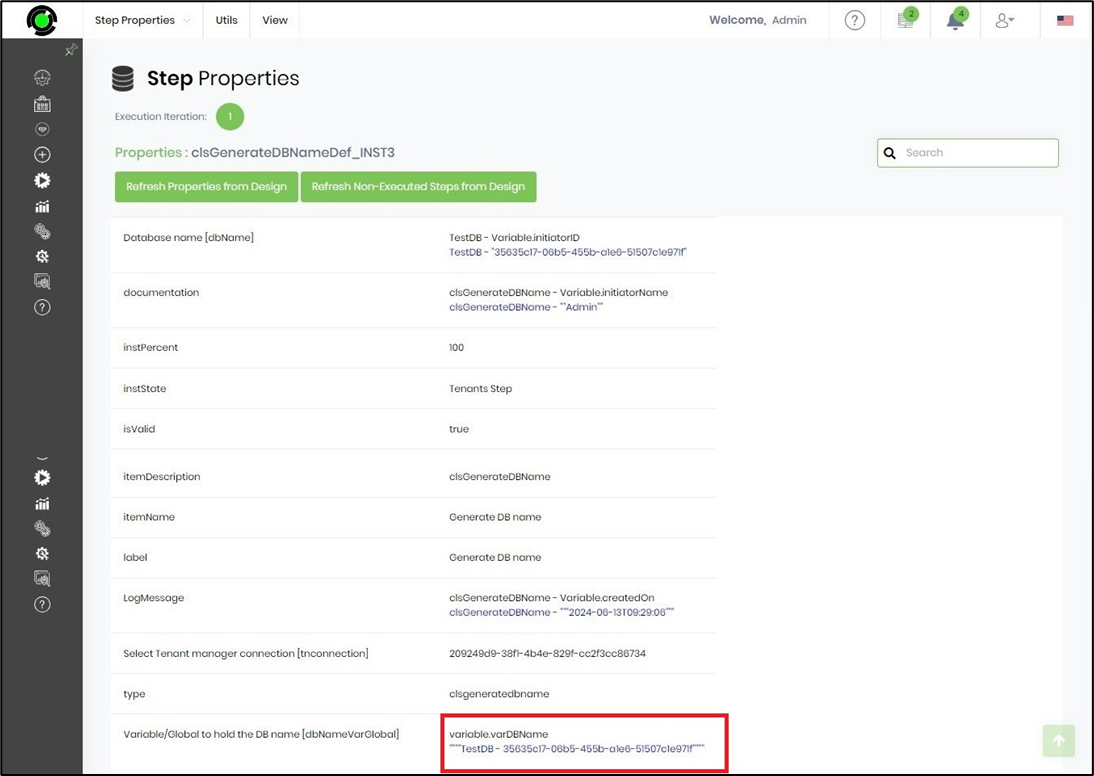
- Click the “clsGenerateDBName” step to configure its “Optional” properties. You may provide the tenant with a meaningful database name. In this example, the database name is “TestDB - 35635c17-06b5-455b-a1e6-51507c1e971f”, with the GUID value provided by the system variable “variable.initiatorID”.

- The “Logging” configuration is necessary for documentation and also measures workflow progress and percent complete. This is achieved by configuring the step state and percent fields individually, as shown below. Configure the “Logging” using the following properties.

- Save the process definition, create a new instance, and execute it. Render the process instance. Click the process step to view its properties. The step should generate a DB name as configured. In this case, the database name is generated as a 32-character alphanumeric string.
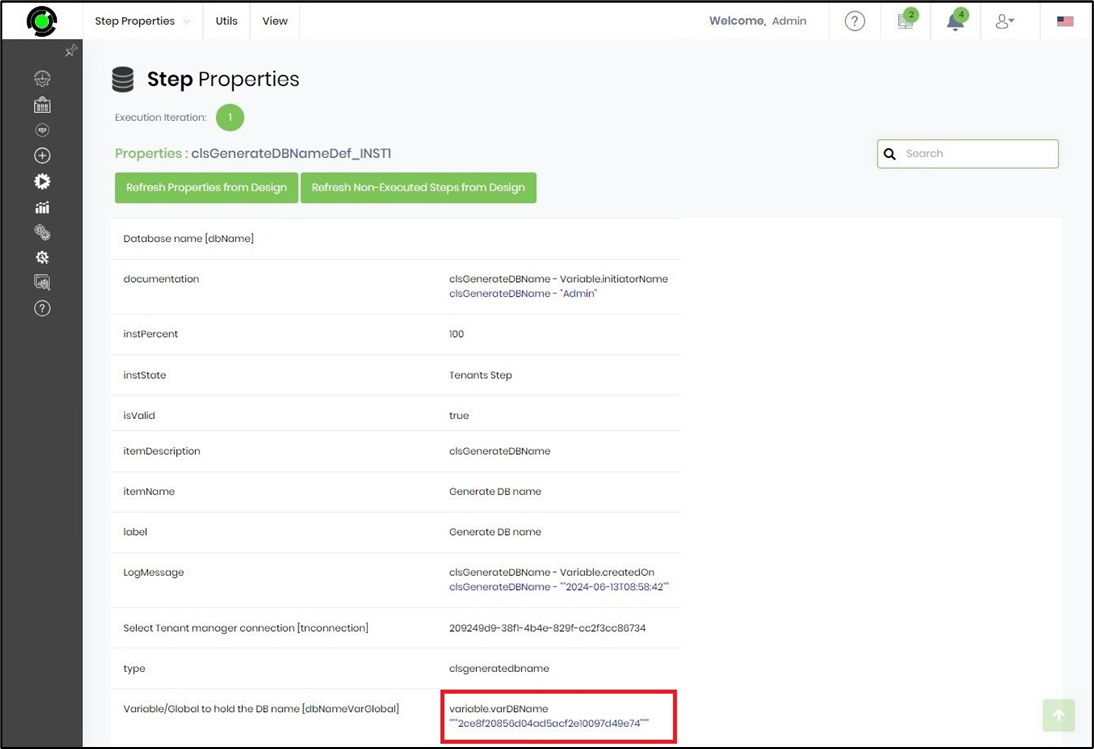
- Here, the database name is generated as configured by the admin.
Tips:
- Always configure the Select Tenant Manager connection property.
- Always configure Variable/Global to hold the DB name so the resulting value has a defined destination.
- The database name is optional per the XML definition.
- Select the Tenant Manager connection appropriate for the environment.
- Use a clearly named Variable/Global when the DB name will be reused by multiple workflow steps.
- Place the step before operations that require the DB name.
- Use the True path to continue the normal workflow.
- Connect the False path to suitable error handling.
- Verify the configured Tenant Manager connection before executing the workflow.
- During testing, verify that the expected DB name is available in the configured Variable/Global.
- If an explicit Database name is supplied, ensure it follows the naming conventions required by the target environment.
Notes:
- Category: Tenants.
-
Internal name:
clsgeneratedbname. - Label: Generate DB name.
- Display name: Generate DB name.
-
Namespace:
FlowWright.Workflow.ClsGenerateDBName. -
DLL:
FlowWright.Workflow.dll. - Step definition type: Process.
- Input connections: 2.
- Output connections: 2.
- Select Tenant Manager connection: Required.
- Database name: Optional.
- Variable/Global to hold the DB name: Required.
- The Tenant Manager connection uses the
selectConnectStringdata type. - The Database name and Variable/Global properties use the
stringdata type. - The
selectConnectStringproperty type is supplied byFlowWright.DataTypes.dllthroughFlowWright.DataTypes.ClsConnectStrings. - The string property type is supplied by
FlowWright.DataTypes.dllthroughFlowWright.DataTypes.ClsTextBox. - The step provides True and False return paths.
- The XML does not expose configurable retry, timeout, transaction, formatting, or database-operation properties. Those should not be documented as features of this step, given the supplied definition.
Relationship to the ExecuteSQL Step:
The Generate DB name step and ExecuteSQL serve very different purposes.
The supplied ExecuteSQL documentation describes ExecuteSQL as a step for directly executing SQL statements against a database, including parameterized SQL, result handling, command timeout, and transaction configuration.
By contrast, Generate DB name is a Tenants step whose XML exposes only a Tenant Manager connection, an optional Database name, and a Variable/Global for storing the DB name.
| Feature | Generate DB name | ExecuteSQL |
|---|---|---|
| Primary purpose | Generate/establish a DB name | Execute SQL against a database |
| Category | Tenants | Database |
| Tenant Manager connection | Yes | Not the primary configuration described in the ExecuteSQL documentation |
| Database name input | Yes, optional | Database name can be configured as an optional property in ExecuteSQL |
| SQL statement | No | Yes |
| SQL parameters | No | Yes |
| Result format | Not exposed | XML / JSON |
| Result variable | DB-name Variable/Global | SQL-result Variable/Global |
| Transaction configuration | Not exposed | Yes |
| Command timeout | Not exposed | Yes |
| True/False paths | Yes | Yes |
The ExecuteSQL documentation specifically describes SQL SELECT statements, parameters, result formats, timeout configuration, transactions, and result storage.
Therefore:
Use Generate DB name when the workflow needs a tenant-related DB name.
Use ExecuteSQL when the workflow needs to execute a SQL statement.
Key Distinction
The simplest distinction is:
Generate DB name → Establishes a DB name for tenant-related workflow processing.
ExecuteSQL → Executes a SQL statement against a database.
The ExecuteSQL documentation explicitly summarizes its purpose as direct, configurable SQL execution and highlights SQL parameters, result handling, timeout control, and transaction configuration.
The Generate DB name XML, on the other hand, exposes no SQL statement or SQL execution configuration. Its complete property set is limited to the Tenant Manager connection, optional Database name, and DB-name Variable/Global.
Definition Sample:
You may download the sample definition and later import it by drag-and-drop into the FlowWright Process Definition (XML file) page.
After importing the sample, verify and complete any environment-specific configuration, including:
- Tenant Manager connection
- Database name, if required
- Variable/Global destination
- Subsequent tenant/database workflow steps
After verifying the configuration, save the Process Definition before execution.
This follows the same sample-definition approach used in the ExecuteSQL documentation, which instructs users to import the definition, verify missing configuration, save the definition, and then execute the process.
Click here to download the sample file.